

FAQ and troubleshooting
Find your problem below; each answer links to the page that covers it in full.
A connector asks me to sign in again
You see Authentication required with Connect your account for: and the connector's name, or the connector shows Connect or Reconnect.
- The connector signs each person in with their own account, and yours is missing or has expired.
- The agent carries on without that connector, so its answer may be missing data from it.
- Select Connect next to the connector in the message box's + > Connectors menu, or Reconnect under Connect an app to get started, and sign in. Then send your message again.
My credits ran out, or my trial ended
Sending a message opens You have used this period's credits, Your free trial has ended or Your plan has ended.
- Open Settings > Usage & Limits to see when your credits renew.
- When a free trial ends, you move to the Free plan the next time you use Alomana, where your deployment offers it.
- If the note You've used your credits. Until date, you can use limited models only. appears instead, you can keep chatting on the models it allows until that date.
See Usage and limits and Manage your plan and billing.
A model is locked or missing
- Picking a model that opens Model not available on your plan means your plan does not include it. Pick another model, or change plan.
- A model that does not appear at all was turned off by an admin of your workspace or organization.
See Choose a model.
An agent is missing from the agent list
An agent that was never published is a draft. Outside its editor's Test chat, nobody can chat with it, @-mention it, schedule it, use it from Slack or Teams, or make it the workspace's default agent.
- Open its editor from the Agents page and select Publish.
- Publish is shown only to roles that may publish: Editor and Admin by default. If you are a Member, ask one of them.
See Test and publish an agent.
The agent did not see my file
The chat shows your attachment either way, but not every file reaches the model directly.
- Spreadsheets, CSV files, presentations and SVG images never go to the model as they are. The agent gets a copy it can open with code.
- Images and PDFs go to the model only when the model in use accepts them; otherwise the agent gets a copy too.
- Ask the agent to open the file, or pick a model that reads images and PDFs.
See Work with files in a chat.
My scheduled task paused itself
The task's Next run shows Paused after failures: it failed several runs in a row (five, unless your deployment changed it).
- On the Scheduler page, read the reason shown under the status in the task's Last run column.
- Fix the cause, for example reconnect a connector the task uses.
- Select Resume in the task's ⋮ menu.
My invite never arrived
- If you already had an account, you were added to the workspace straight away: look for it in the Workspace menu at the top of the sidebar. The email only tells you about it.
- If you are new, the invitation link works for 7 days. Check your spam folder.
- Sign in with the exact email address the invite was sent to. Invites waiting for that address are accepted when your account is created, even without the link.
- If the link expired, ask the workspace admin to invite you again.
See Members and invites.
I see "No workspace yet"
Your account is not allowed to create a workspace of its own, and nobody has added you to one yet. Ask your administrator to invite you, then select Check again.
A page is missing from the sidebar
- Select More in the sidebar: Agents, Scheduler, Apps, Library, Connectors and the rest are under it.
- Scheduler appears only where your deployment has it switched on, and Workflows only when your role may read workflows.
- An administrator can hide sidebar entries for everyone.
A shared chat is read-only
This chat is read-only — its agent isn't available in your workspace. means the chat was shared with you, but you cannot use its agent in your current workspace. You can read it but not continue it; start a new chat instead.
Billing is missing from Settings
You belong to an organization, which gives you a seat instead of a personal plan. Ask an admin of your organization about your seat.
See Manage your plan and billing.
Send feedback
Tell the Alomana team about something broken or confusing from inside the app.
-
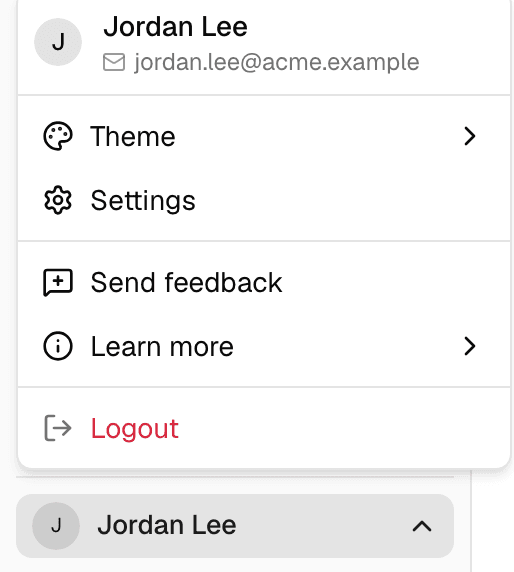
Select your name at the bottom of the sidebar, then Send feedback.
-
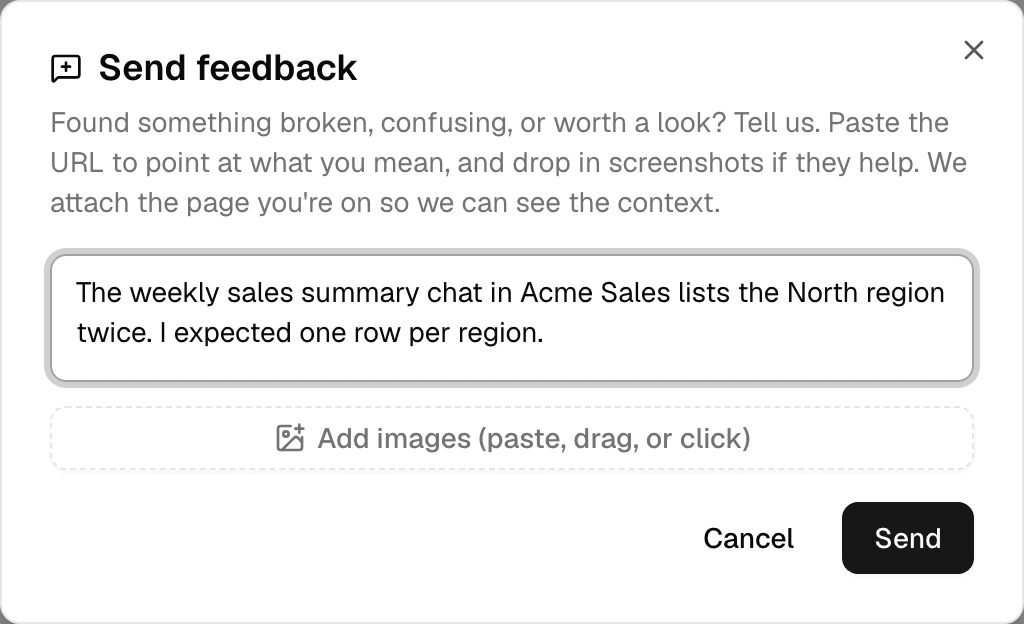
Describe what happened. Paste the address of the page if it helps.
-
To add screenshots, paste them, drag them onto the dialog, or select Add images (paste, drag, or click).
-
Select Send.
| Limit | Value |
|---|---|
| Message | Up to 5,000 characters |
| Attachments | Up to 5 images (PNG, JPEG, GIF, WebP), PDFs or text files |
| Size | 10 MB per file, 20 MB in total |
The page you are on and the app version are sent with your message, so the team can see where it happened.
Manage your plan and billing
See your plan and its dates on the Billing page, and where plans are sold in the app, buy, change or cancel one and update your card.
Administration
The three admin levels in Alomana, workspace, organization and deployment, what each one controls and where its settings are.