

Test and publish an agent
Changes to an agent save to a draft. People keep chatting with the published version until you publish the draft.
| Draft | Published version | |
|---|---|---|
| What it is | The agent as it is in the editor right now. Saved automatically after every change. | A numbered, frozen copy: v1, v2 and so on. |
| Who uses it | Only you and other editors, in the editor's Test tab. | Everyone: chat, Slack, scheduled tasks, workflows, apps, other agents and the API. |
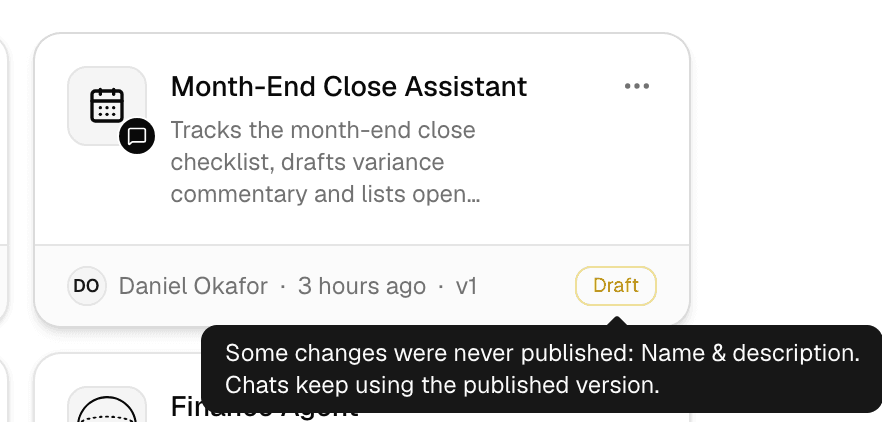
| Where you see it | The editor header reads Saved draft; the agent's card shows Draft. | The editor header reads Published; the card shows the version number. |
Create a draft
-
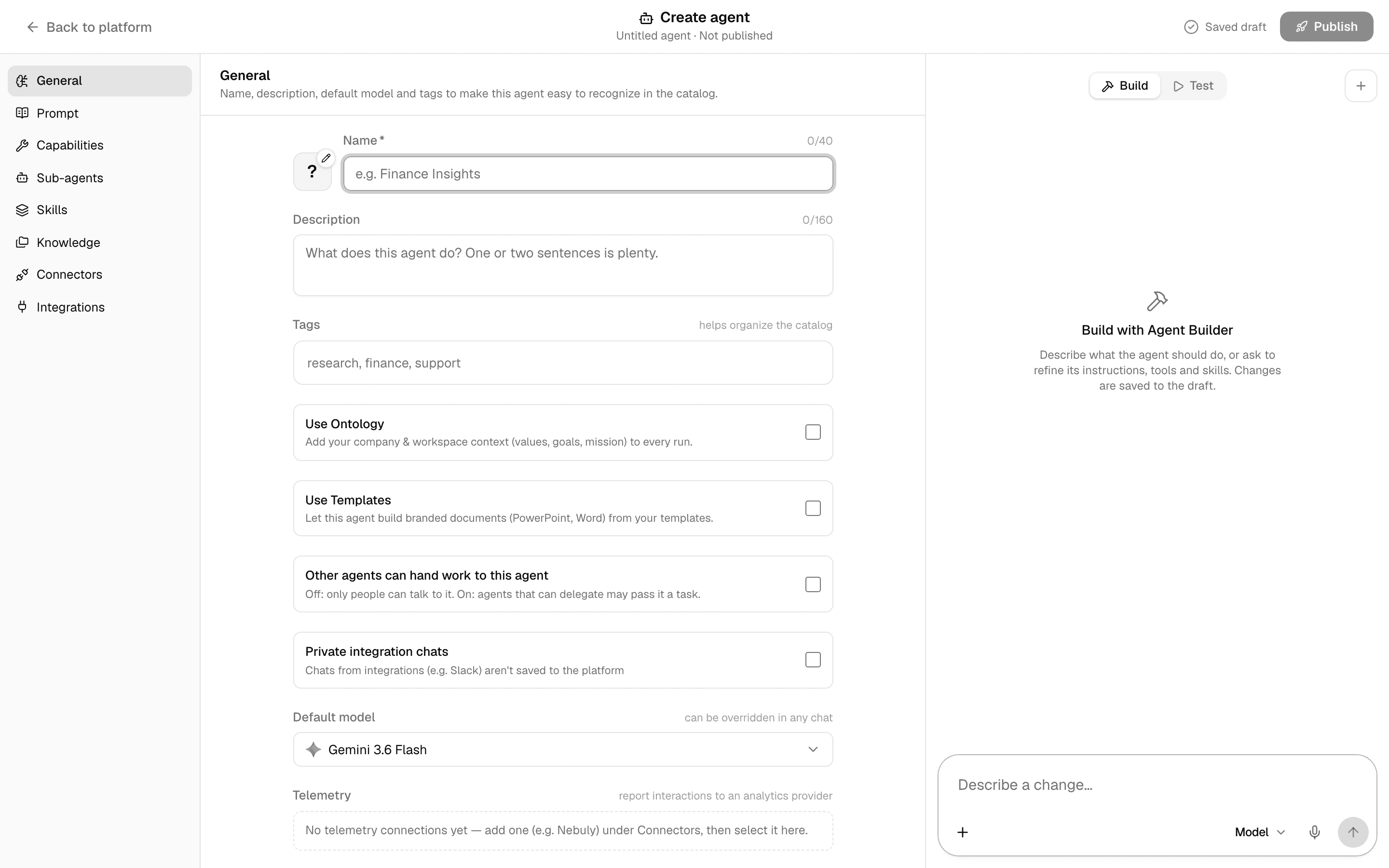
Select Agents in the sidebar, then New > New agent. The editor opens on a new draft called Untitled agent, marked Not published.
-
Fill in the agent's settings. See Configure an agent, or let Agent Builder fill them in with you: Build an agent by chatting.
-
The draft saves a moment after each change: Saving…, then Saved draft.
-
If you leave a new draft without changing anything, it is deleted.
-
Until its first publish, only the Test tab can run the agent:
Where What happens to a never-published agent Chat It is not offered in the composer or in @ mentions. Its card's preview offers Publish instead of Start Chat to people who can publish. Scheduler It cannot be picked for a scheduled task. Slack and Teams It is not offered. Other agents It cannot be called as a sub-agent. Workspace default agent It is skipped, and new chats fall back to Alo.
Test the draft
-
Select Test next to the form.
-
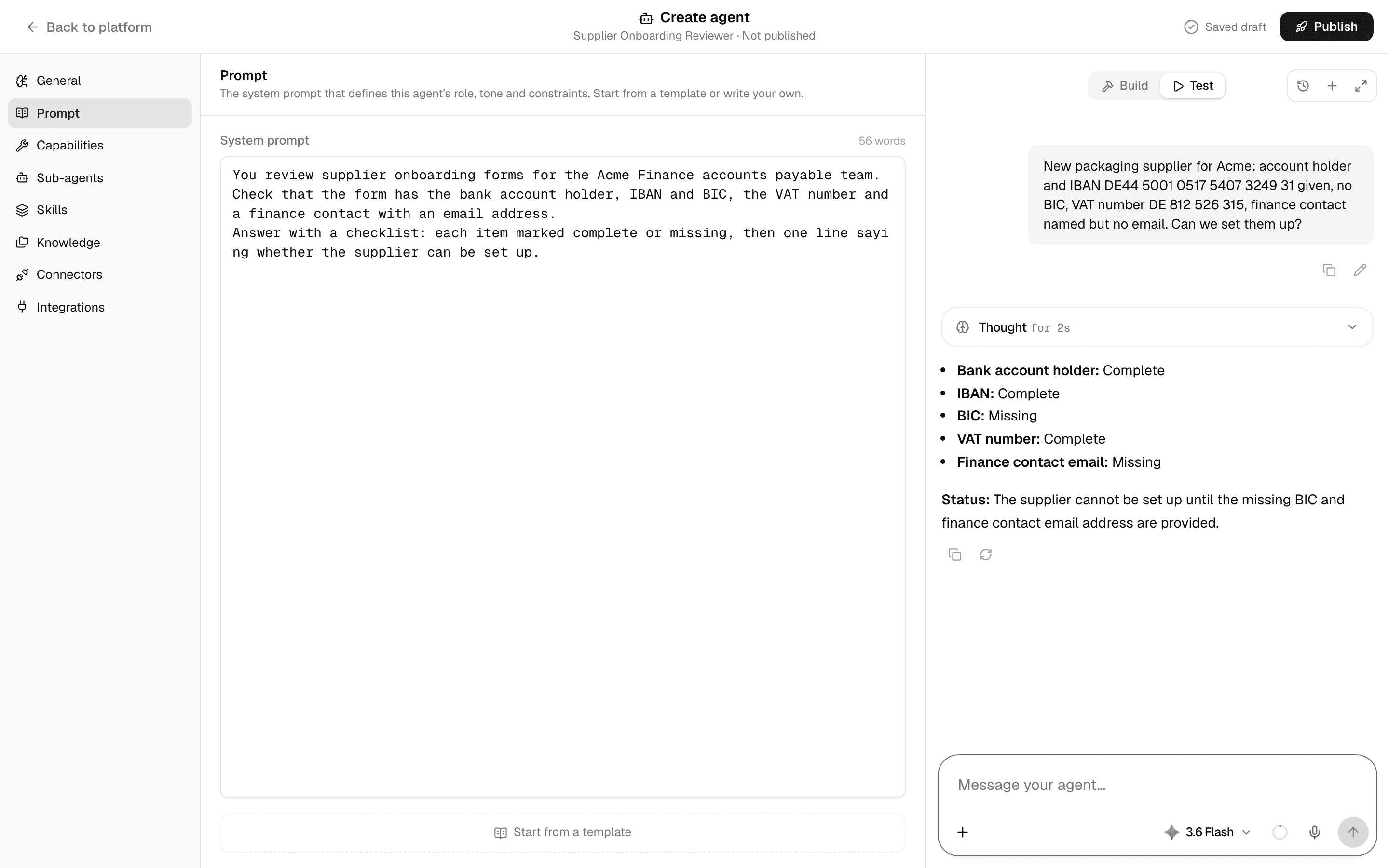
Send a message the agent should handle well. The test runs on the draft as it is saved, with files, tools, apps and approvals working as in a normal chat.
-
Change the settings and test again. Your edits are saved before each test message.
| Button at the top of the Test tab | What it does |
|---|---|
| Test history | Opens an earlier test chat. |
| New test | Starts a new test chat. |
| Expand the test chat | Widens the test chat over the form; Back to the editor narrows it again. |
Test chats are not listed with your other chats and cannot be shared. Testing needs permission to edit agents.
To test an agent on many cases at once, the same way every time, use Lab.
Publish
Publishing needs the publish permission: Editor and Admin have it by default, Member does not. Members can still edit and test drafts; someone with the permission publishes them.
-
Select Publish at the top right.
-
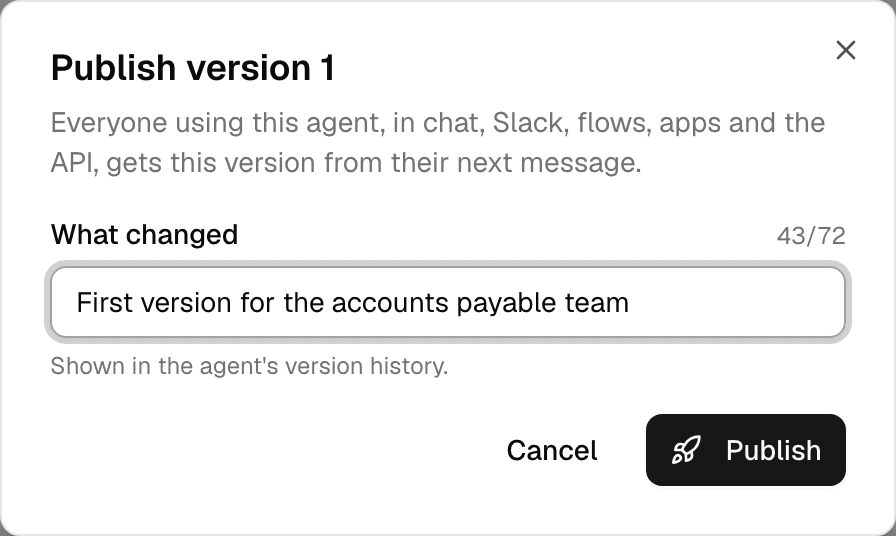
Under What changed, describe the change in one line of up to 72 characters. It is shown in the version history.
-
Select Publish. The Agents page opens on the agent's preview, now showing the new version.
Everyone using the agent gets the new version from their next message. Publish stays greyed out while there is nothing to publish: no draft changes and no Update available.
See what changed in the draft
Hover over Saved draft to see which parts changed since the published version: name and description, instructions, model, tools, sub-agents, skills, knowledge, connectors or other settings.

Roll back unpublished changes
- Select Saved draft.
- Select Roll back.
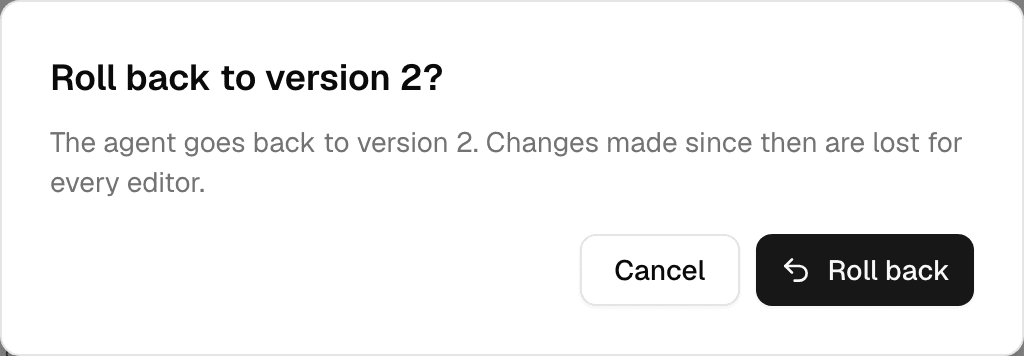
The draft goes back to the published version. Changes made since are lost for every editor, not only for you.
Versions
Select Versions next to the form to see every published version, newest first, with its note, who published it and when. The one people use is marked Live. Select a version to see what changed in it.
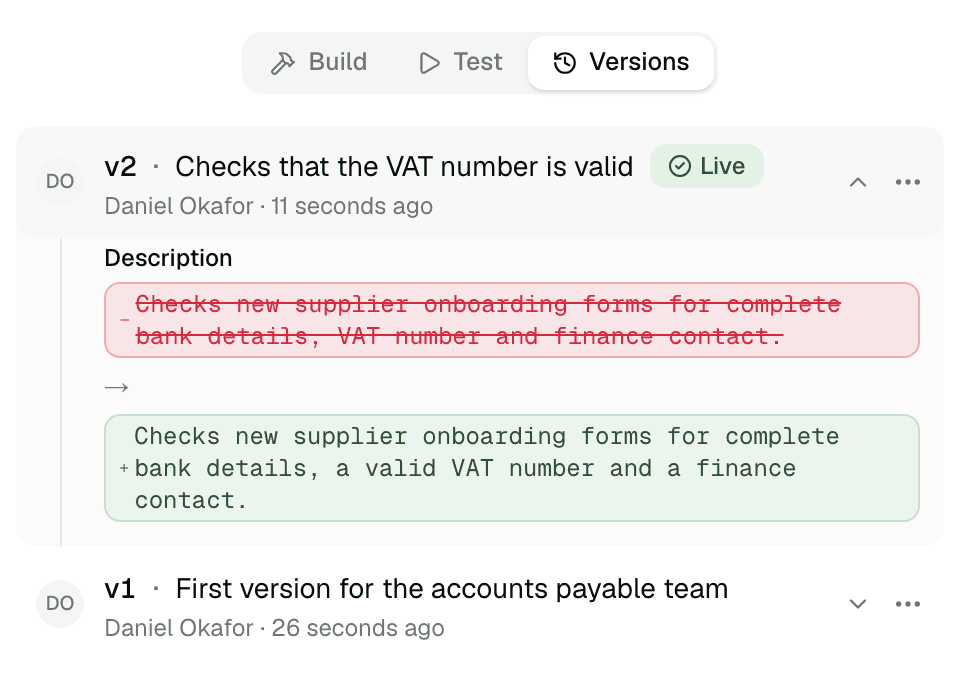
Versions appears once the agent has been published.
Re-publish or restore an earlier version
Open a version's … menu.
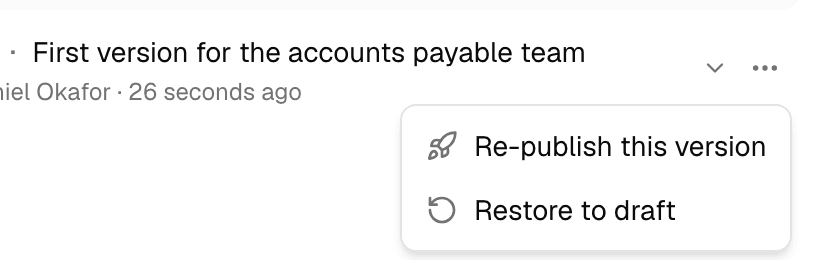
| Action | What it does |
|---|---|
| Re-publish this version | Makes that version live again for everyone, from their next message. It is added to the history as a new version, and the draft is reset to it, discarding unpublished changes. Needs the publish permission; not offered on the Live version. |
| Restore to draft | Copies that version's settings into the draft. Nothing goes live until you publish. Unpublished changes in the draft are replaced for every editor. |
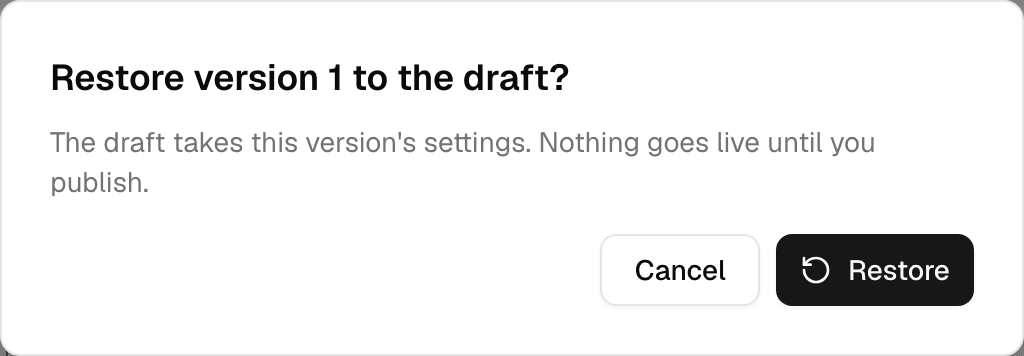
- A version keeps the content of the skills and prompt template it was published with. Re-publish this version brings that content back; Restore to draft brings back which skills are switched on, with their content of today.
- Restoring brings back which files, folders and connections the agent used; their content and credentials are today's.
- Skills, connections and models deleted since are left out, and the app lists what it could not bring back.
When a skill or prompt template changes
An agent keeps the skills and prompt template it was published with. When one of them changes or is deleted, the card shows Update available, and so does the editor for people who can publish. Chats keep using the published version until you test the draft and publish it.

Built-in agents from Alomana are the exception: Alomana publishes them again when their skills change.
Two people editing
If someone else changes the draft while you edit, Someone else changed this draft appears and your edits stop saving. Select Reload to see their changes, or Keep mine to overwrite them.
Troubleshooting
| Message | What to do |
|---|---|
| Your plan has ended | Changes cannot be saved, and building and testing are paused, until the workspace has an active plan. Select See plans. |
| Not saved next to Publish | The last change could not be saved. Fix what the error message names, then edit again. |
| Save the draft before publishing it | The draft has an unsaved change. Wait for Saved draft, then publish. |
To publish versions with an API key, see Create and configure an agent in the API documentation.
Configure an agent
Every part of the agent editor, from the header and the Build and Test panel to each pane's settings, from name and model to tools and knowledge.
Sub-agents
Let an agent hand self-contained tasks to other agents, choose which ones it may call, and follow their work from the chat while they run.