

Share and copy agents
Agents belong to a workspace: everyone in it can use them. To use an agent somewhere else, copy it.
Who sees an agent
Every agent you create is visible to all members of the workspace it was created in, and to nobody outside it.
| Visibility | Meaning |
|---|---|
| Private | You are the only member of the workspace, so only you see the agent. It becomes Space as soon as someone joins. |
| Space | Every member of the workspace sees it and can chat with it. |
| Platform | A built-in agent from Alomana. |
With the default roles, every member can also edit and delete any agent in the workspace. Admins can narrow this in Roles and permissions. To give an agent to people in another workspace, copy it there.
Copy an agent to another workspace
You need to be a member of both workspaces and be able to create agents in the target one.
-
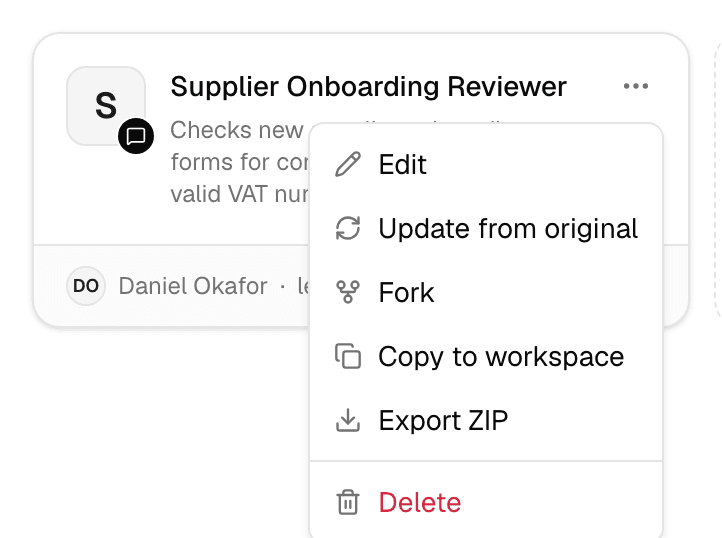
On the Agents page, open the agent's … menu and select Copy to workspace.
-
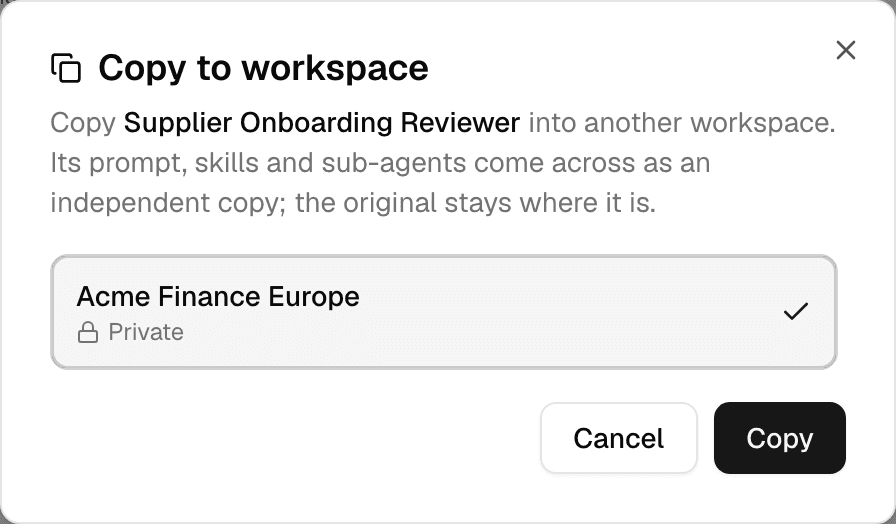
Select the target workspace.
-
Select Copy.
What the copy brings along:
| Part | In the copy |
|---|---|
| Instructions, model, tools, tags | Copied as they are. The name stays the same. |
| Prompt template, skills and skill sets made in your workspace | Copied into the target workspace. Built-in ones are shared, not copied. |
| Sub-agents | Copied too, with their own skills and sub-agents. |
| Knowledge | The Library files and folders are copied into the target workspace's Library. |
| Connectors | Copied. Connections that sign in with each person's own account arrive without anyone signed in: each member selects Connect the first time they use one. |
- The copy is yours and independent: changing or deleting it never touches the original, and the original stays where it is.
- The copy gets the original's published version, not its draft, and is published in the target workspace right away. A copy of an agent that was never published arrives as a draft.
- Copying the same agent to the same workspace again gives back the copy you already have instead of a second one.
- Only workspace agents have Copy to workspace. To copy a built-in agent, use Duplicate & edit first, then copy that.
Update a copy from its original
When the original agent changes, the copy's … menu shows Update from original. Open the copy in its workspace and select it.
| Brought over | Left as it is |
|---|---|
| Instructions, description and tools | The copy's knowledge |
| The content of its prompt template, skills and skill sets, and any new ones | The copy's sub-agents |
| Connectors added to the original since the copy, added next to the copy's own | The copy's model, and every connector it already had |
Update from original appears once the original publishes a change; edits in its draft do not count. The update brings over the original's published version and publishes the copy with it. Updates only go from the original to the copy, and only when you ask.
Fork an agent
Fork in the … menu creates Copy of name in the same workspace, with the same settings. The fork is a new draft: publish it before anyone can use it. Duplicate & edit does the same for a built-in agent.
To try changes on an agent people rely on, you do not need a fork: edit it and use the Test tab, since nothing reaches them until you publish. See Test and publish an agent.
Export and import a ZIP
- On the source agent's … menu, select Export ZIP. The agent downloads as a ZIP with its draft settings, instructions and the skills made in your workspace. Connectors and knowledge are left out.
- In the other workspace, select New > Import ZIP and choose the file.
- A newly imported agent is a draft: publish it before anyone can use it.
- If the workspace already has an agent with the same identifier, importing updates that agent's draft instead of creating a second one.
- Skills made in your workspace travel inside the ZIP. Built-in skills, and all skill sets, must exist in the target workspace; otherwise the import is refused and names the missing ones.
- A ZIP can be up to 30 MB, packed and unpacked.
To copy and sync agents with an API key, see Create and configure an agent in the API documentation.