

Set roles and permissions
Each member has one role, and the Roles page decides what each role can do in this workspace.
By default only workspace Admins can change roles. Open Settings > Roles under Workspace · "name".
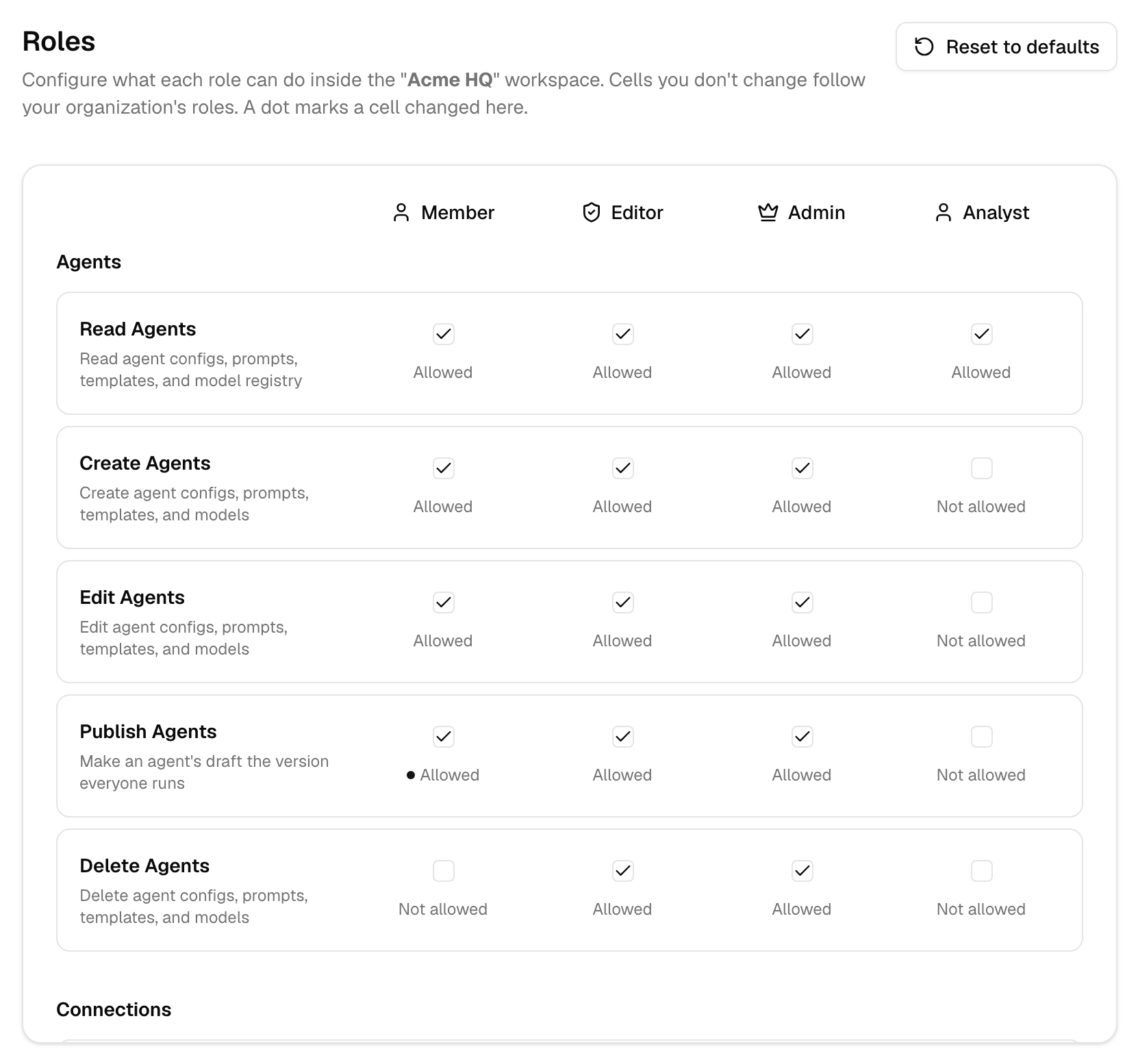
Roles
| Role | Comes from | Can, by default |
|---|---|---|
| Member | Every workspace | Use and build agents, connections and flows; read apps, API keys and magic links |
| Editor | Every workspace | Everything a Member can, plus publish agents, edit apps, and create and edit API keys and magic links |
| Admin | Every workspace | Everything, including workspace settings, members and roles |
| Custom roles, such as Analyst | The workspace's organization | Only what the organization admin turned on |
- Custom roles are created by an organization admin and appear in every workspace of the organization. See Set workspace roles for an organization.
- A workspace outside an organization has only the three built-in roles.
- People see only the buttons their role allows. Without Create Agents, for example, New is not shown on the Agents page; without Delete Agents, Delete is missing from an agent's menu. The same goes for skills, prompts and connectors.
- Publish Agents decides who can make an agent's draft the version everyone runs. Without it, Publish is hidden in the agent editor and the agent stays a draft. See Test and publish an agent.
- The full list of permissions and their defaults is in the permission matrix.
How a cell gets its value
Each cell starts from a default and can be changed at each level; the most specific level wins.
| Level | Applies to |
|---|---|
| Platform defaults | Member, Editor and Admin in every workspace |
| The organization's roles | Every workspace of that organization |
| This page | This workspace only |
A dot next to Allowed or Not allowed marks a cell changed on this page. In a workspace of an organization, cells without a dot follow the organization's roles.
Change a permission
- Find the permission's row. Rows are grouped by area: Workspace, Agents, Connections, API Keys, Magic Links and more; scroll inside the matrix to see them all.
- Check the box to allow it for that role, or clear it to take it away.
- The change applies at once to everyone with that role in this workspace.
- Select a cell with a dot again to return it to its default.
- You can allow a permission only if you hold it yourself.
- Manage Workspace Settings decides who sees the Workspace settings pages at all.
Reset to the defaults
-
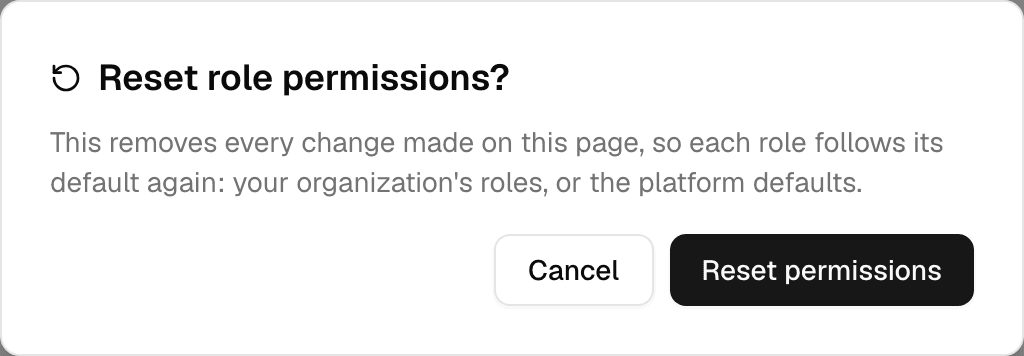
Select Reset to defaults at the top of the page.
-
Select Reset permissions.
Every change made on this page is removed, so each role follows its organization's roles, or the platform defaults outside an organization. Who holds which role does not change.
To read and change roles with an API key, see Roles and permissions in the API documentation.