

Manage workspace settings
The General page holds the workspace's name, home page background, activity totals and the button that deletes it.
You need a role with Manage Workspace Settings, such as the built-in Admin role. Open the menu under your name at the bottom of the sidebar and select Settings; General opens under Workspace · "name".
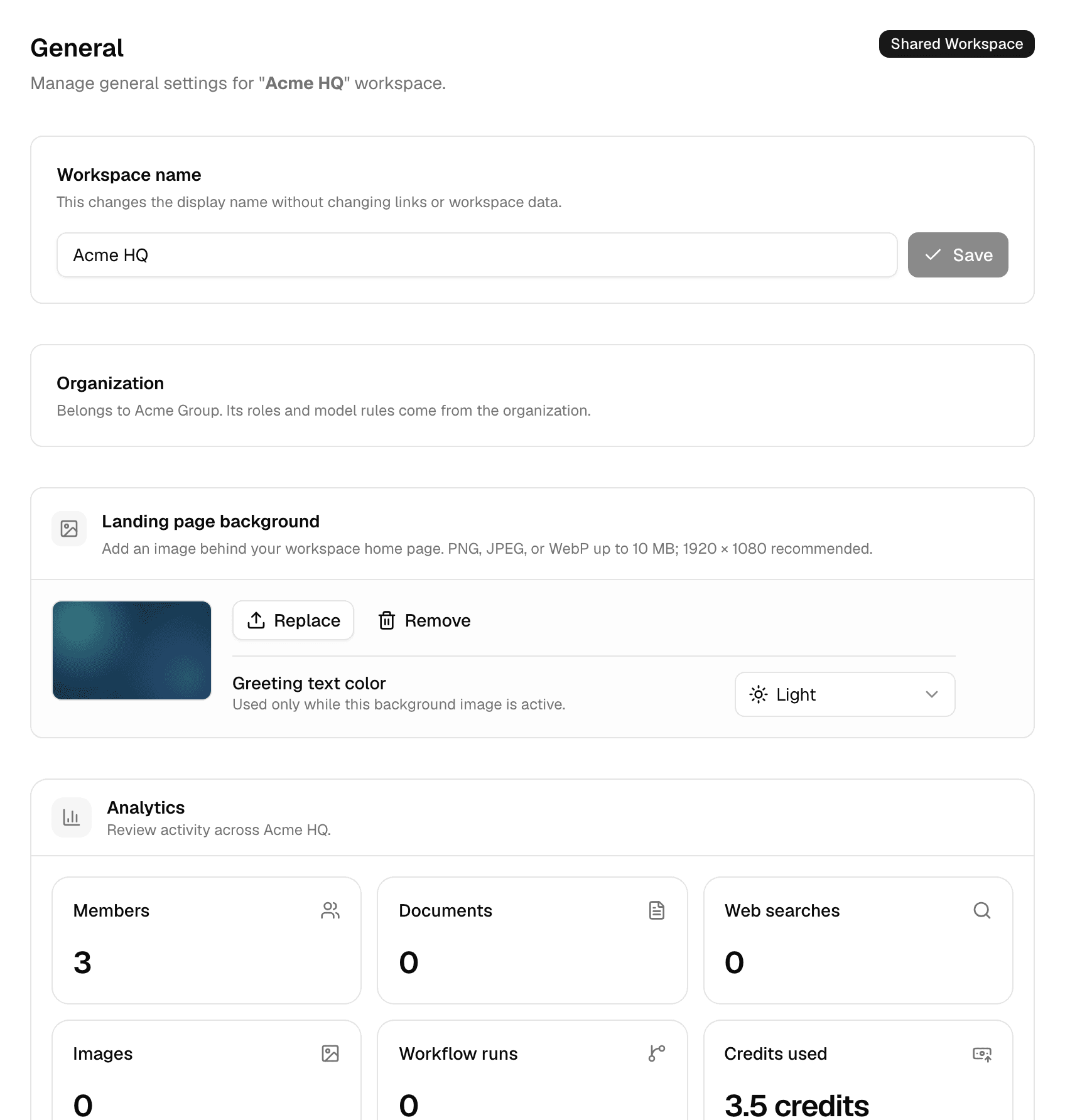
The badge at the top right reads Shared Workspace when the workspace has more than one member, and Private Workspace otherwise.
The Organization card says whether the workspace belongs to an organization. When it does, its roles and model rules come from that organization; see Administration.
Rename the workspace
- Change the name under Workspace name.
- Select Save.
The new name shows everywhere at once. Links to the workspace and its data stay the same.
Set the home page background
- Under Landing page background, select Upload image and choose a PNG, JPEG or WebP file of up to 10 MB. 1920 × 1080 pixels fits best.
- Under Greeting text color, choose Dark or Light, whichever reads better on your image.
- The image appears behind the greeting on the workspace's home page, for everyone in the workspace.
- Greeting text color applies to the greeting and the line under it, and only while a background image is set. The default is Dark.
- Replace uploads another image; Remove brings back the default background after you confirm.
- Someone who applied their own background made with Alo sees that instead of this image.
The suggestions under the message box are set on the Chat page. See Set the default agent and landing suggestions.
Read the analytics
Analytics counts all activity in the workspace since it was created.
| Card | Counts |
|---|---|
| Members | People in the workspace |
| Documents | Documents uploaded |
| Web searches | Web searches agents ran |
| Workflow runs | Flow runs |
| Credits used | Credits spent in this workspace, by everyone |
For one person's credits and limits across all workspaces, see Usage and limits.
Delete the workspace
Only the person who created the workspace can delete it, and a default workspace cannot be deleted.
- Under Danger Zone, select Delete workspace.
- Type the workspace name and select Delete permanently.
Deleting removes the workspace with its agents, connections, workflows and API keys. It cannot be undone.
To rename, configure or delete a workspace with an API key, see Manage workspaces in the API documentation.