

Edit your profile
Your profile holds the name, picture and password of your account, the same in every workspace.
To open it, select your name at the bottom of the sidebar, then select your name and email at the top of the menu. You can also go to Settings > Profile.
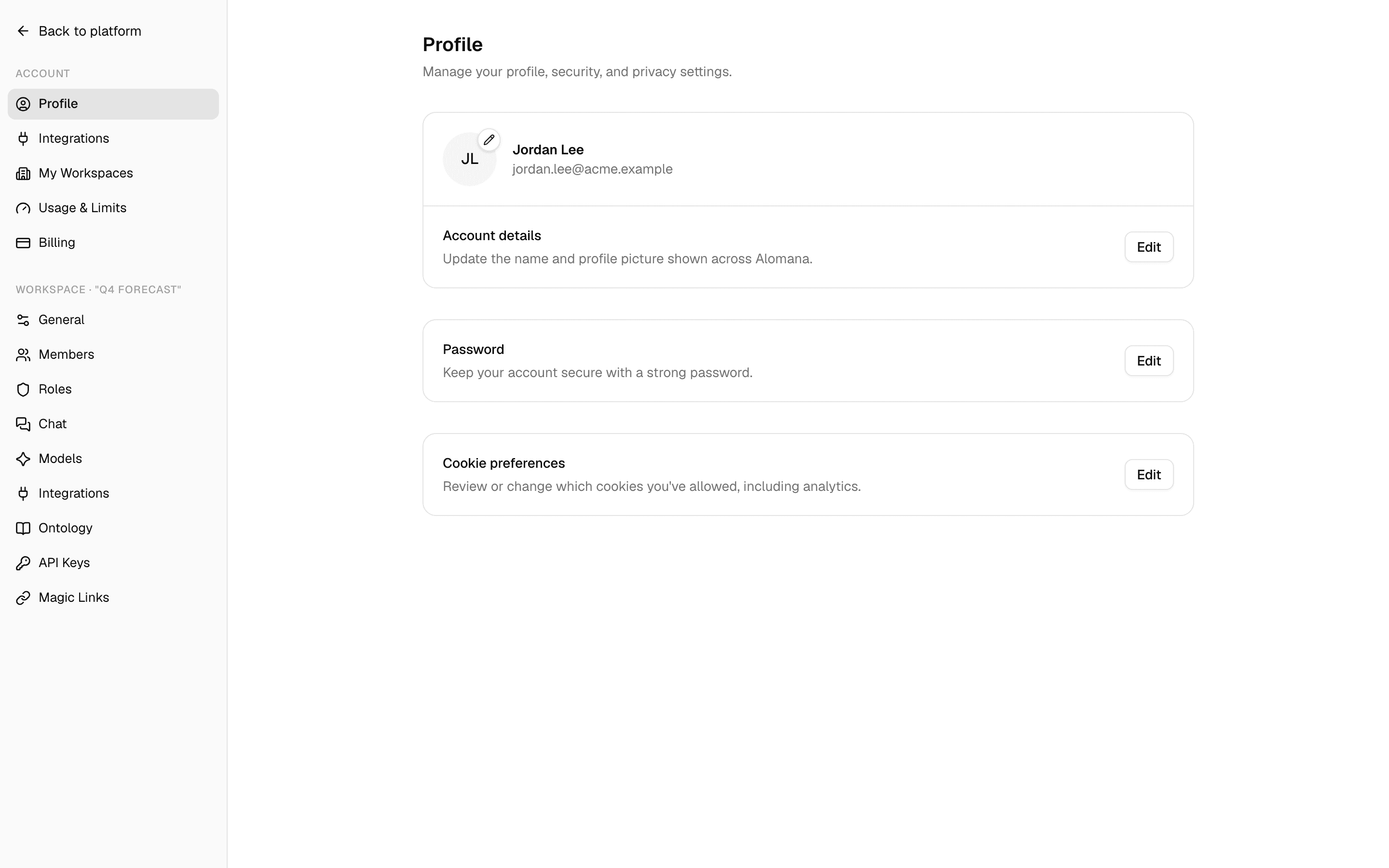
If you belong to an organization, an Organization row shows its name and your role in it, such as Admin or Member.
Change your name or picture
-
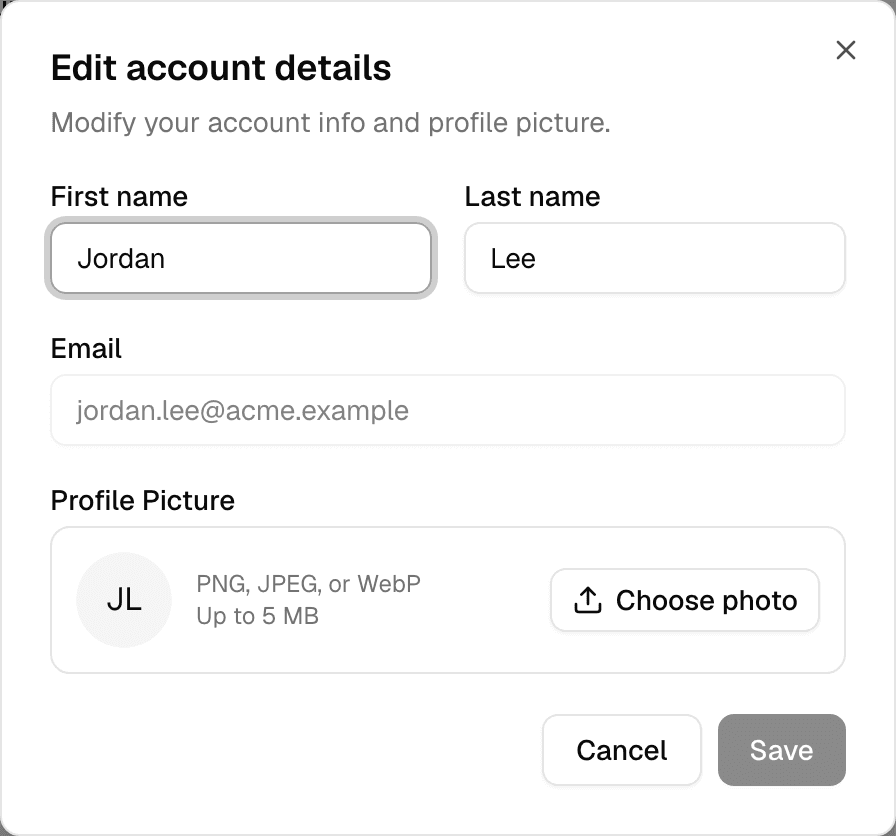
Next to Account details, select Edit.
-
Change First name or Last name. Both are required.
-
To add a picture, select Choose photo and pick an image. To change it, select Replace; to remove it, select × next to it.
-
Select Save.
| Rule | Value |
|---|---|
| Picture formats | PNG, JPEG or WebP |
| Picture size | Up to 5 MB, at most 4096 pixels on each side |
| Picture shape | Cropped to a square around its centre |
| Without a picture | Alomana uses the picture from your sign-in provider, or your initials |
A new picture is saved as soon as it uploads; Save stores the name. Email cannot be changed here.
Change your password
- Next to Password, select Edit.
- Enter the New password and repeat it in Confirm password.
- Select Update password.
Update password stays disabled until the bar under the password reads Strong password and both fields match. A strong password has at least 8 characters and at least two of these: upper and lower case letters, a number, a symbol.
| Message | What to do |
|---|---|
| Passwords don't match. | Type the same password in both fields. |
| The new password must be different from the current password | Choose a password you have not used for this account. |
Change the theme
Select your name at the bottom of the sidebar, then Theme, and choose Light, Dark or System. System follows your computer's setting.
Make a background with Alo
Alo can make a background that runs behind the whole app, only for you.
- In a chat with Alo, describe the background you want, for example: "Make my chat a calm ocean sunset."
- Alo's answer shows a card with a small live picture of the background. Select Preview to see it behind the app; Stop preview ends it.
- Select Apply. The card then shows Applied.
- The background is saved on your account. It shows in every workspace and on every device you sign in on, until you remove it.
- It follows your Light or Dark theme.
- Nobody else sees it. While it is on, it replaces your workspace's home page background for you.
- To remove it, select Remove on the card, or the paintbrush button at the top of any chat (Remove chat theme).
- If a background stops the app from responding, Alomana turns it off the next time you open the app and tells you so.
Review cookie preferences
Next to Cookie preferences, select Edit to see or change which cookies you allowed, including analytics.
Other personal settings
| Page in Settings | What it does |
|---|---|
| Integrations | Connects your Microsoft Teams account and downloads the Alomana app for Teams. See Microsoft Teams. |
| My Workspaces | Lists, switches and creates workspaces. See Manage your workspaces. |
| Usage & Limits | Your credits and plan. See Usage and limits. |
| Billing | Your plan and payment. See Billing. |
Use Alomana in Microsoft Teams
Add the Alomana app in Teams, connect your account once, then ask your agents in a chat or channel, switch agents with /agent and get files.
Manage your workspaces
See every workspace you belong to on My Workspaces, switch between them, and create a new workspace with teammates and agents.