

Manage your workspaces
My Workspaces lists every workspace you belong to and is where you create a new one.
To open it, select Workspace at the top of the sidebar, then Manage workspaces. You can also go to Settings > My Workspaces.
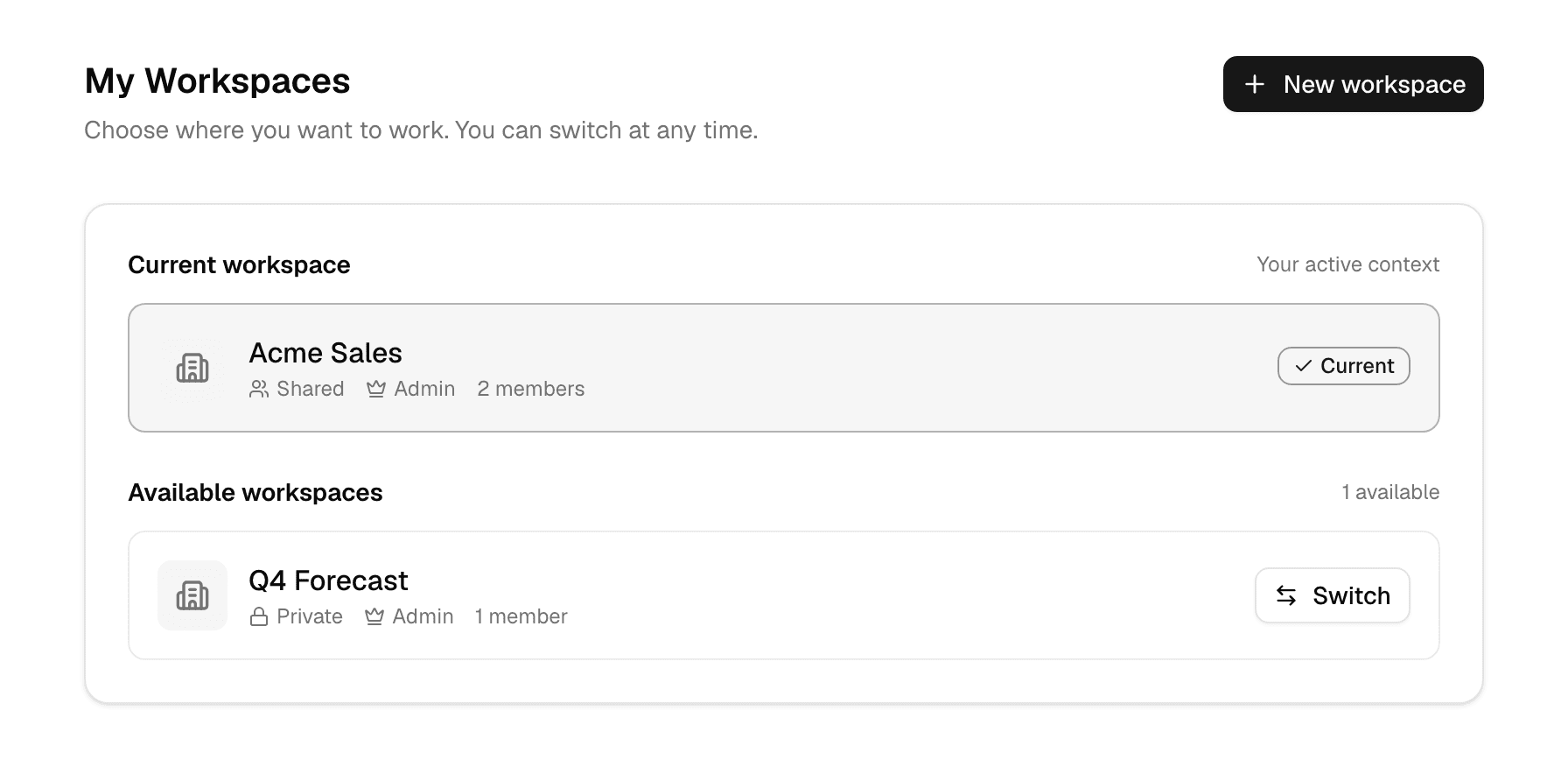
| Section | What it lists |
|---|---|
| Current workspace | The workspace you are working in now. |
| Available workspaces | The other workspaces you belong to. The first five are shown; Show n more lists the rest. |
| Archived workspaces | Workspaces that were archived. You can see them but not switch to them. |
Each row shows whether the workspace is Private (you are its only member) or Shared, your role in it, and how many members it has. If you belong to an organization, it also shows the workspace's organization: its name, No organization or Other organization.
Switch to another workspace
-
Select Switch on the workspace's row.
-
Select Switch workspace to confirm.
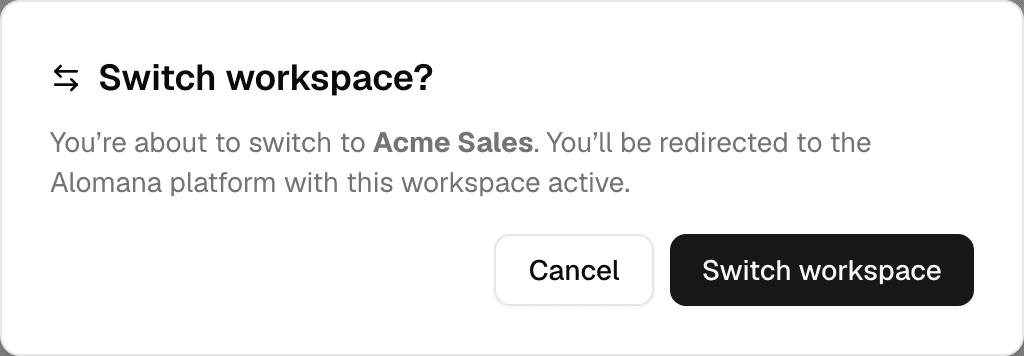
Alomana opens the home screen in that workspace. The workspace menu at the top of the sidebar does the same in one step; see Switch workspace.
Create a workspace
-
Select New workspace.
-
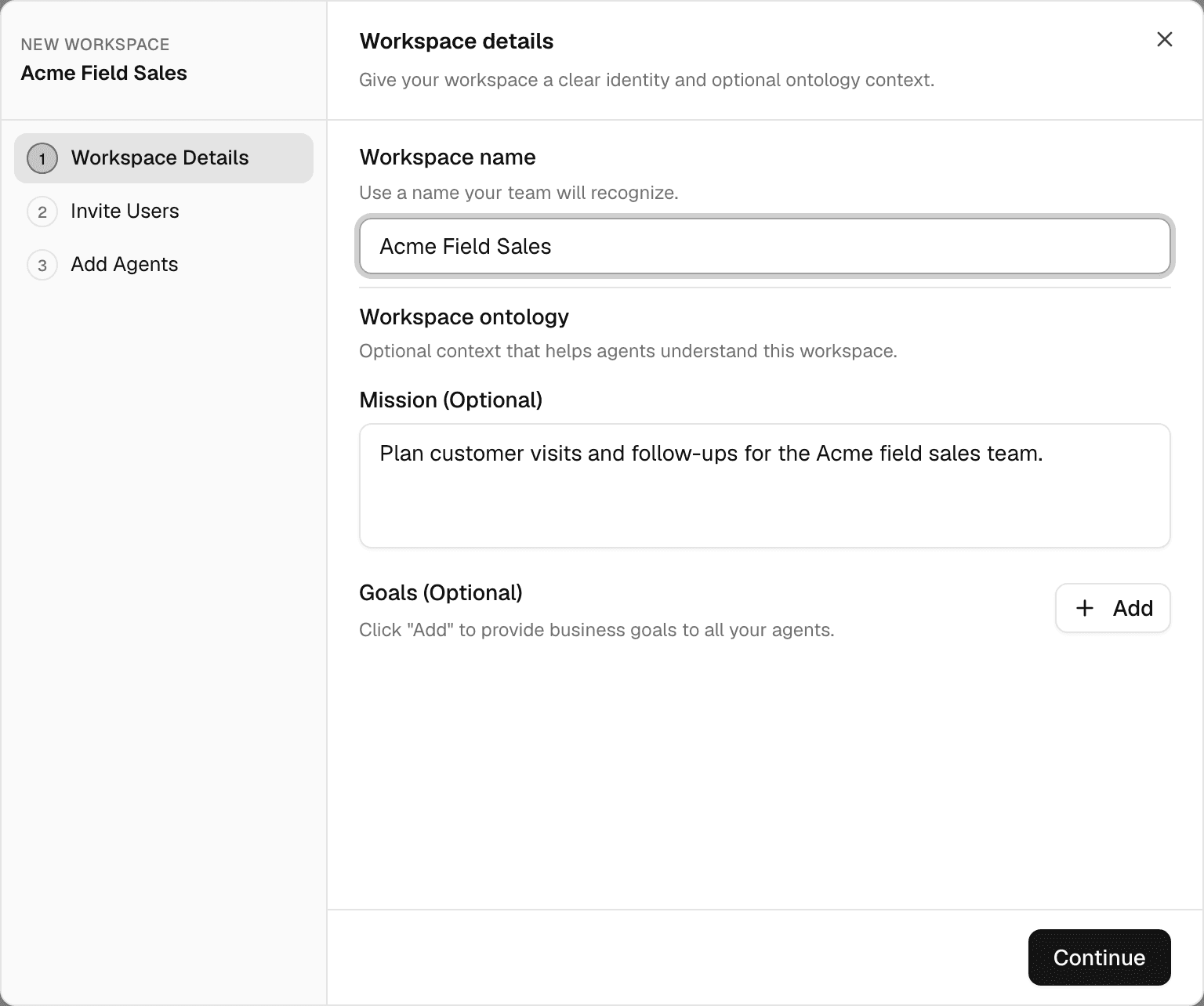
In Workspace Details, enter a Workspace name. Add a Mission and Goals to tell agents what the workspace is for.
-
Select Continue. In Invite Users, select Add users for each teammate, enter their email and pick a role, or skip this step.
-
Select Continue. In Add Agents, pick the Default agent and switch on the agents this workspace should have.
-
Select Create workspace.
| Step | Field | What it does |
|---|---|---|
| Workspace Details | Workspace name | Required. You can rename the workspace later in its settings. |
| Mission (Optional), Goals (Optional) | Context given to agents that have Use Ontology switched on. You can change it later under the workspace's Ontology settings. | |
| Organization | Shown when you are an external member of an organization. Pick where the workspace goes: your home organization, which is preselected, an organization you are an external member of, or No organization when you have no home organization. | |
| Created in organization | The organization the workspace goes into. It uses that organization's roles and model rules. | |
| Invite Users | Email and role | Member, Editor or Admin. People who already have an account are added straight away; others get an invitation by email. People whose organization keeps its members inside can be added only to that organization's workspaces. |
| Add Agents | Default agent | The agent a new chat starts with. Alo unless you pick another. |
| Agent switches | Alo, App Builder and Agent Builder are always on. Switch on any other agent the workspace should offer. |
You are the workspace's Admin, and it becomes your current workspace.
- In an organization, your organization role can stop you from creating workspaces, or limit how many you create. See Set organization roles.
- To invite more people later, see Members and invites.
Leave or delete a workspace
My Workspaces has no way to leave a workspace. Ask an admin of that workspace to remove you from its members.
The person who created a workspace can delete it from the workspace's General settings. See Workspace settings.
To create and manage workspaces with an API key, see Manage workspaces in the API documentation.
Edit your profile
Change the name and picture people see, set a new password, pick a light or dark theme, have Alo make a background for the app and review your cookie choices.
Usage and limits
What credits are, where to see how many you have left, when your allowance renews, and what happens in chat when you run out.