

Manage your plan and billing
Settings > Billing shows your plan, and where your deployment sells plans in the app, lets you buy, change and cancel one.
Billing is not in Settings when you belong to an organization: members use a seat that the organization pays for. Opening the page anyway shows Billed by organization, and organization admins get Open organization billing. See Organization billing.
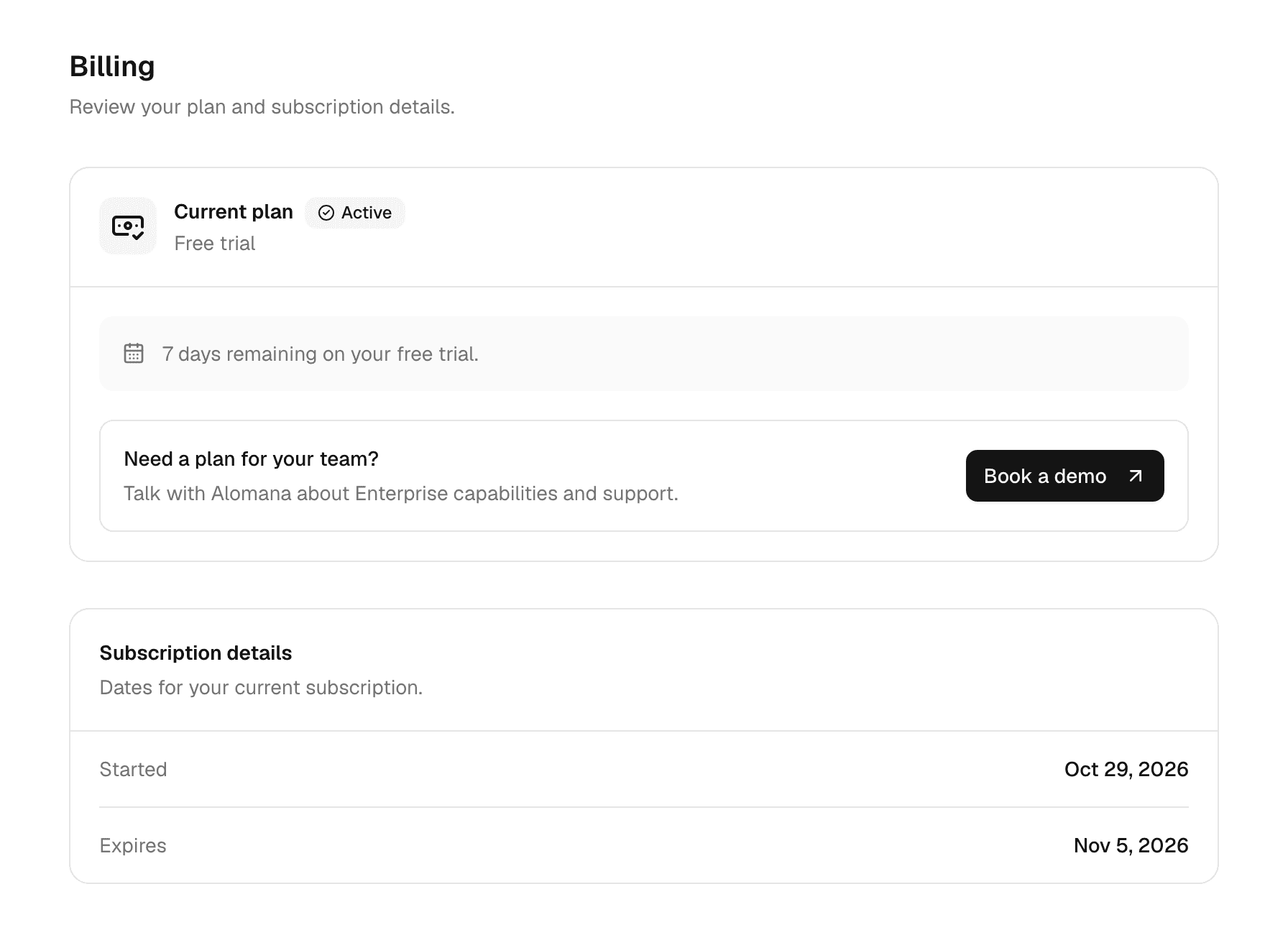
| Shown | Meaning |
|---|---|
| Current plan | Your plan's name, and Active, Suspended, Limit reached or Expired. Suspended means a payment is missing; see When a payment fails. |
| A line under the plan | How long the plan has left, or what to do when it has ended. |
| Started | When your current plan started. |
| Credits renew | When your allowance starts again. Shown on plans that renew. |
| Expires or Ended | When the plan ends or ended. Not set means it does not expire. |
When plans are not sold in the app
The page shows Need a plan for your team? with Book a demo, and your administrator or Alomana sets your plan.
Buy or change a plan
Where plans are sold in the app, Change plan appears next to Current plan.
- Select Change plan.
- Pick a plan.
- The first time, pay on the secure checkout page that opens. Tick the box that accepts the Terms of Service; it also certifies that a business name or VAT number you enter is for business use. You come back to Billing when it is done.
Back on Billing, Payment received means your plan is being updated. A bank debit shows Payment processing instead: your plan starts once your bank confirms the payment, usually within 5 business days.
To move between personal plans you already pay for, select Switch to plan, then Switch plan in the dialog that shows what is charged today. The new plan applies at once; your credit period and the credits used so far carry over.
Prices exclude VAT; tax is added at checkout based on your billing address.
Update your card or billing details
Billing details shows the name, email, billing address, VAT number and payment method on file.
- Select Manage billing.
- Change your card or billing details, or download invoices, on the page that opens.
Plans are not changed there; use Change plan.
When a payment fails
| Message | What to do |
|---|---|
| Your last payment failed. | Update your card from Manage billing. Stripe retries the payment. |
| We couldn't verify your VAT ID, so your plan is paused. | Correct the VAT ID from Manage billing. |
Until the payment goes through, or the VAT ID is verified, your plan is Suspended: you can still open your chats, but not send messages or change anything.
Cancel your plan
- Under Cancel plan, select Cancel plan.
- Confirm on the page that opens.
You keep your plan until the end of the billing period; after that your credits stop renewing. Until then the section reads Your plan ends on date, and you can renew from Manage billing.
See Usage and limits for how credits and renewals work.
Usage and limits
What credits are, where to see how many you have left, when your allowance renews, and what happens in chat when you run out.
FAQ and troubleshooting
Quick fixes for common problems, from connectors that ask you to sign in again and used-up credits to invites that never arrived, and how to send feedback.