

Set organization roles
The organization's Roles page sets the roles people hold in the organization itself, what each may do across it, and which role new members get.
You must be an organization Admin. Open Settings > Roles under Organization · "name".
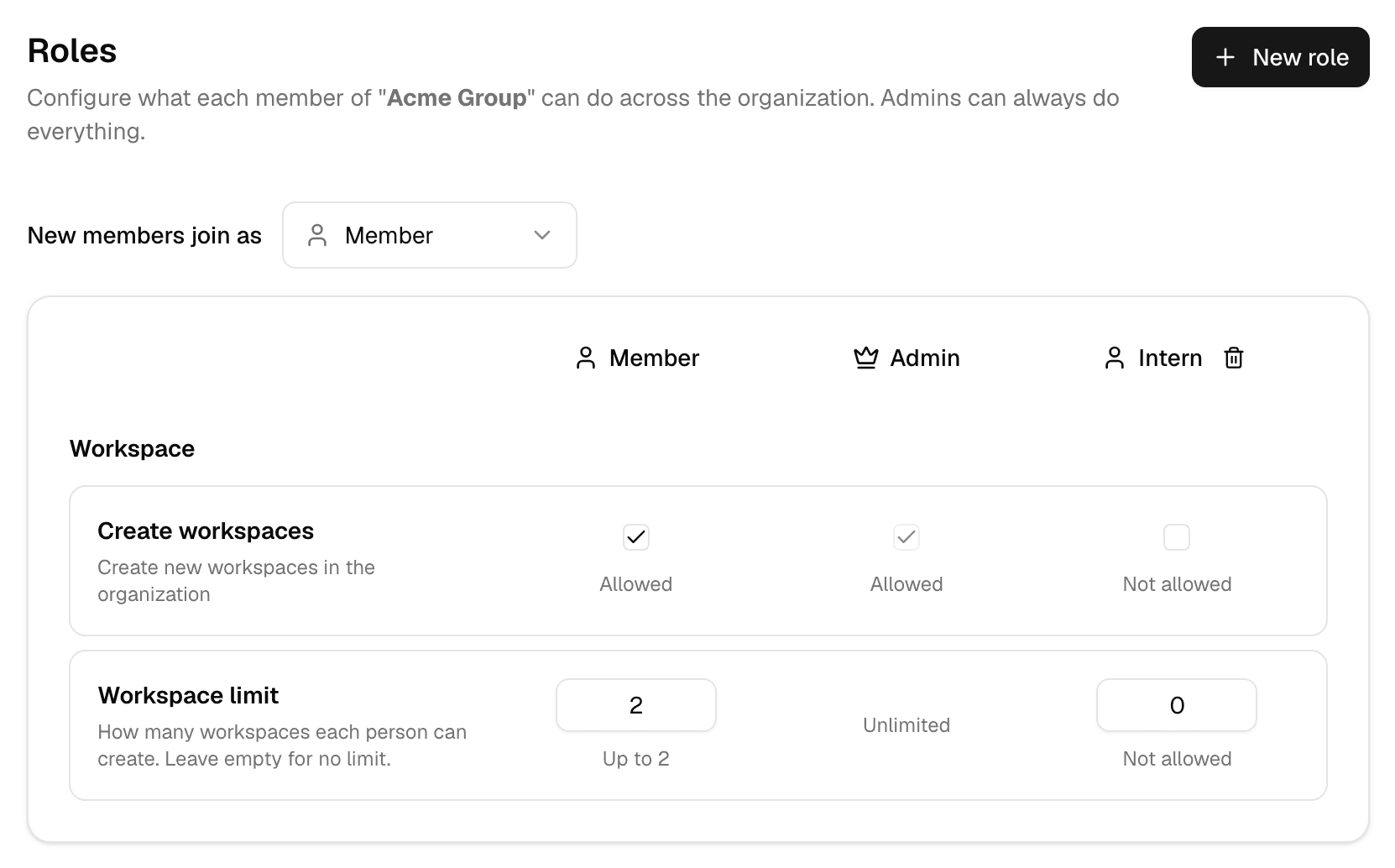
| Role | Can |
|---|---|
| Admin | Everything, including the organization's settings. It cannot be limited or deleted. |
| Member | Belong to the organization and create workspaces in it. Built in: you can limit it but not delete it. |
| Custom roles, such as Intern | What you allow in the grid. A new role starts with nothing allowed. |
- Only Admin opens the organization's settings.
- These roles are separate from workspace roles. What someone can do inside a workspace is set by their workspace role; see Set workspace roles.
- Give someone a role on the Members page, or pick it when you invite them.
Choose the role new members join with
Pick a role in New members join as. Every invitation starts on that role, and an invitation that names no role gets it. It is Member until you change it, and cannot be Admin.
Limit workspace creation
| Row | What it sets |
|---|---|
| Create workspaces | Check to let the role create workspaces; clear to stop it. Clearing sets the limit to 0, and checking again removes the limit. |
| Workspace limit | How many workspaces each person with the role may create. |
| Enter | Shown as | Means |
|---|---|---|
| Nothing | Unlimited | No limit. The default for Member. |
| 0 | Not allowed | They cannot create workspaces. The default for a new role. |
| A number | Up to n | They can create that many. |
- Only active workspaces the person created in this organization count.
- Admin is always unlimited.
- Someone with no workspace at all can still create their first one.
Create a role
-
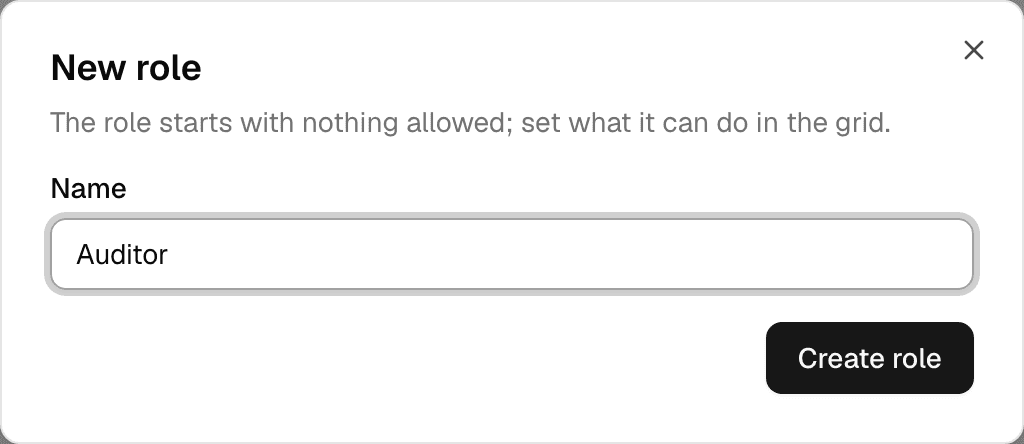
Select New role.
-
Enter a Name, up to 64 characters, and select Create role.
-
In the new role's column, check Create workspaces and set a Workspace limit if the role may create workspaces.
The name cannot be changed later, and cannot be Admin or Member.
To delete a custom role, select the trash icon next to its name and confirm with Delete role. The role new members join with has no trash icon. A role that a member or a pending invitation still holds cannot be deleted: give them another role, or revoke the invitation, first.
Troubleshooting
| Message | What to do |
|---|---|
| A role with this name already exists | Pick another name. |
| Give its members another role and revoke its pending invites first | Change those members' role on Members, revoke the invitations, then delete the role. |
| You have reached your role's workspace limit (n) | Seen by someone creating a workspace. Raise the role's Workspace limit, or they delete a workspace they no longer need. |
| Your role does not allow creating workspaces | The role's Workspace limit is 0. |