

Set up an organization
An organization groups your company's people and the workspaces created inside it, so one admin can set roles, plans and models for all of them.
Only organization Admins see the Organization · "name" group in Settings.
Create an organization
| Your deployment | How an organization is created |
|---|---|
| Plans are managed by Alomana | Your Alomana administrator creates it and invites you as its first admin. |
| You buy plans yourself on Billing | Buying an organization plan creates the organization, with you as its admin. See Billing. |
Join an organization
An organization admin invites you by email, as a member or as an external member. See Manage members and seats.
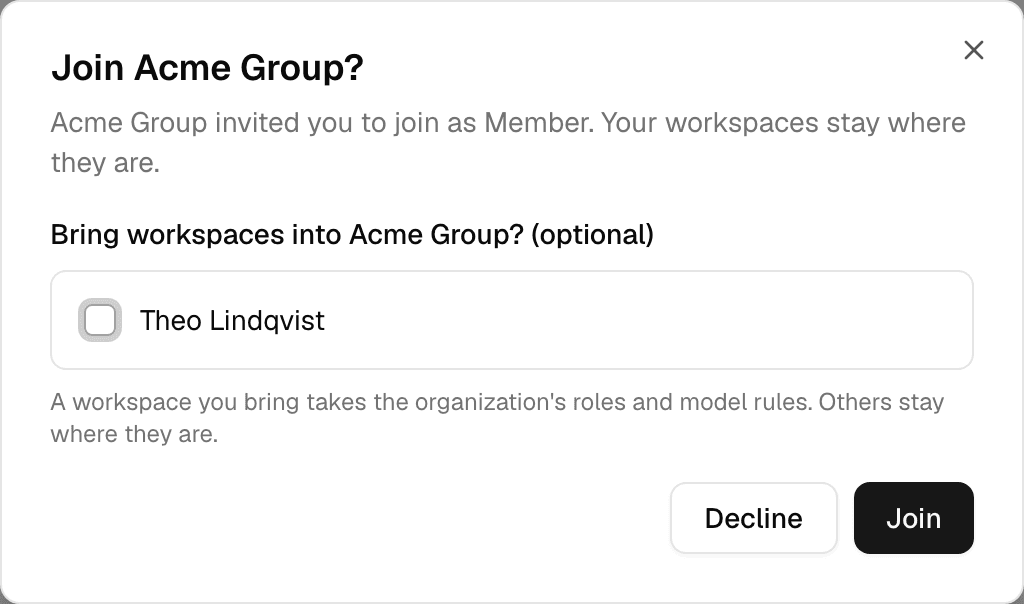
When you next sign in, Alomana asks Join organization? Select Join, or Decline. The link in the invitation email asks the same, with Join and Not now.
| Invited as | The organization |
|---|---|
| Member | Becomes your home organization: it pays for you and its rules apply to you. You have one home organization at a time. |
| External member | Lets you work in the workspaces of it you are added to. Your home organization stays your home and keeps paying for you. You can be an external member of several organizations. |
When you join:
- None of your workspaces move and you leave none. As a member, you can tick workspaces you created under Bring workspaces into organization?; those move in and use the organization's roles and model rules.
- You are not added to the organization's workspaces; an admin of each adds you.
- If you already have a home organization, a member invitation asks you to Switch and join. The new organization becomes your home; you stay in the old one as an external member, and it stops paying for you.
- If your home organization keeps its members inside, an external invitation is refused with organization keeps its members inside the organization, so you can't join another one.
Let members join other organizations
Members can join other organizations decides whether the people whose home is your organization can also work elsewhere.
- Open Settings > General under Organization · "name".
- Turn Members can join other organizations on or off. It is saved at once.

| Setting | Your members |
|---|---|
| Off, the default | Can work only in your organization's workspaces. Invitations to other organizations, and to workspaces outside yours, are refused. |
| On | Can also be external members of other organizations and members of workspaces outside yours. Your organization stays their home and keeps paying for them. |
Turning it off keeps the external memberships and outside workspaces they already have.
Add workspaces to the organization
- Every workspace a member creates goes into the organization. External members choose the organization when they create one. See Workspaces.
- When a member joins, they can bring workspaces they created.
- Your Alomana administrator can move an existing workspace in, or move it out again. Moving a workspace out gives everyone who held one of the organization's own roles there the Member role; nobody is removed.
- To bring a company's existing accounts in at once, your Alomana administrator can add them without invitations. Nobody leaves a workspace that way; the administrator then moves their workspaces in.
- Workspaces in the organization use its workspace roles and model blocks. A workspace's General settings show which organization it belongs to.
Edit the organization's details
- Open Settings > General under Organization · "name".
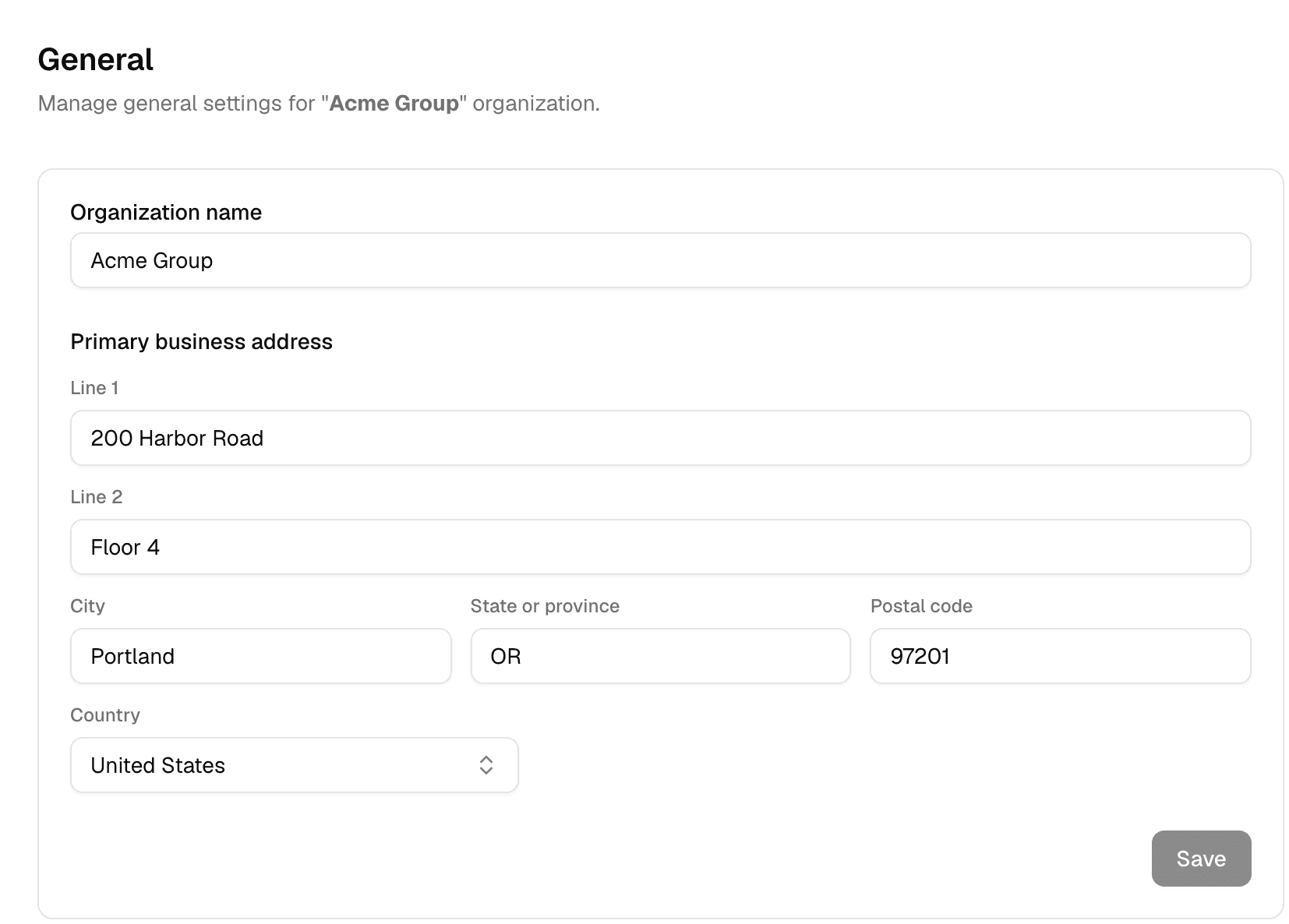
- Change the Organization name or the Primary business address.
- Select Save.
Choose where people land
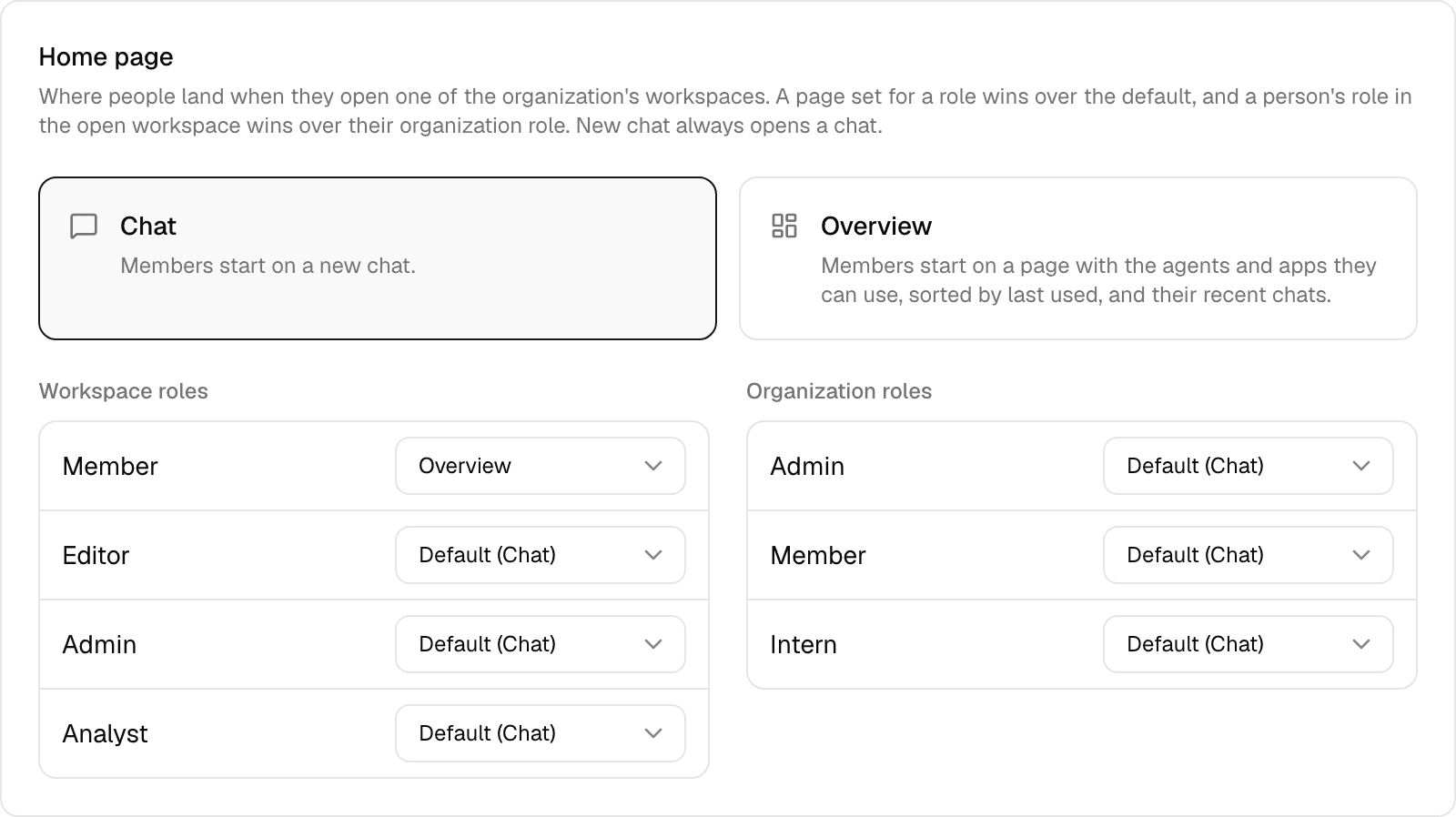
People open Alomana either on a new chat or on the Overview, a page with the agents and apps they can use, most recently used first, and their latest chats. You choose per role.
- Open Settings > General under Organization · "name".
- Under Home page, select the default: Chat or Overview.
- To give a role its own page, pick Chat or Overview next to it under Workspace roles or Organization roles. Default (Chat) or Default (Overview) means the role follows the default.
Each choice is saved at once.
For the workspace a person has open, the first match wins:
- The page set for their role in that workspace.
- The page set for their organization role.
- The default.
- Workspaces outside the organization, and people without an organization, always open on chat.
- New Chat always opens a chat, and the Alomana logo takes people who open on the Overview back to it.
- Deleting a role removes its page; a new role with the same name starts on the default.
- The start page decides only what people see first. What they can open still depends on their role.
- Your Alomana administrator can set the same choices from the organization's admin page.
Delete the organization
- Under Delete organization, select Delete organization.
- Confirm with Delete organization in the dialog.
| The organization… | What happens |
|---|---|
| Has no paid plan | It is deleted at once and cannot be restored. |
| Pays for a plan | It is deleted when the current billing period ends. Until then members keep their seats, no seats can be added, and Keep organization cancels the deletion. |
- Every member loses their seat and moves to the default plan.
- Pending invitations are cancelled.
- The organization's workspaces are kept, with the roles the organization had when it was deleted.
For how organizations, workspaces and roles fit together in the API, see Organizations and workspaces.