

AdminOrganization
Block models for an organization
The organization's Models page blocks models in every workspace of the organization at once.
You must be an organization Admin. Open Settings > Models under Organization · "name".
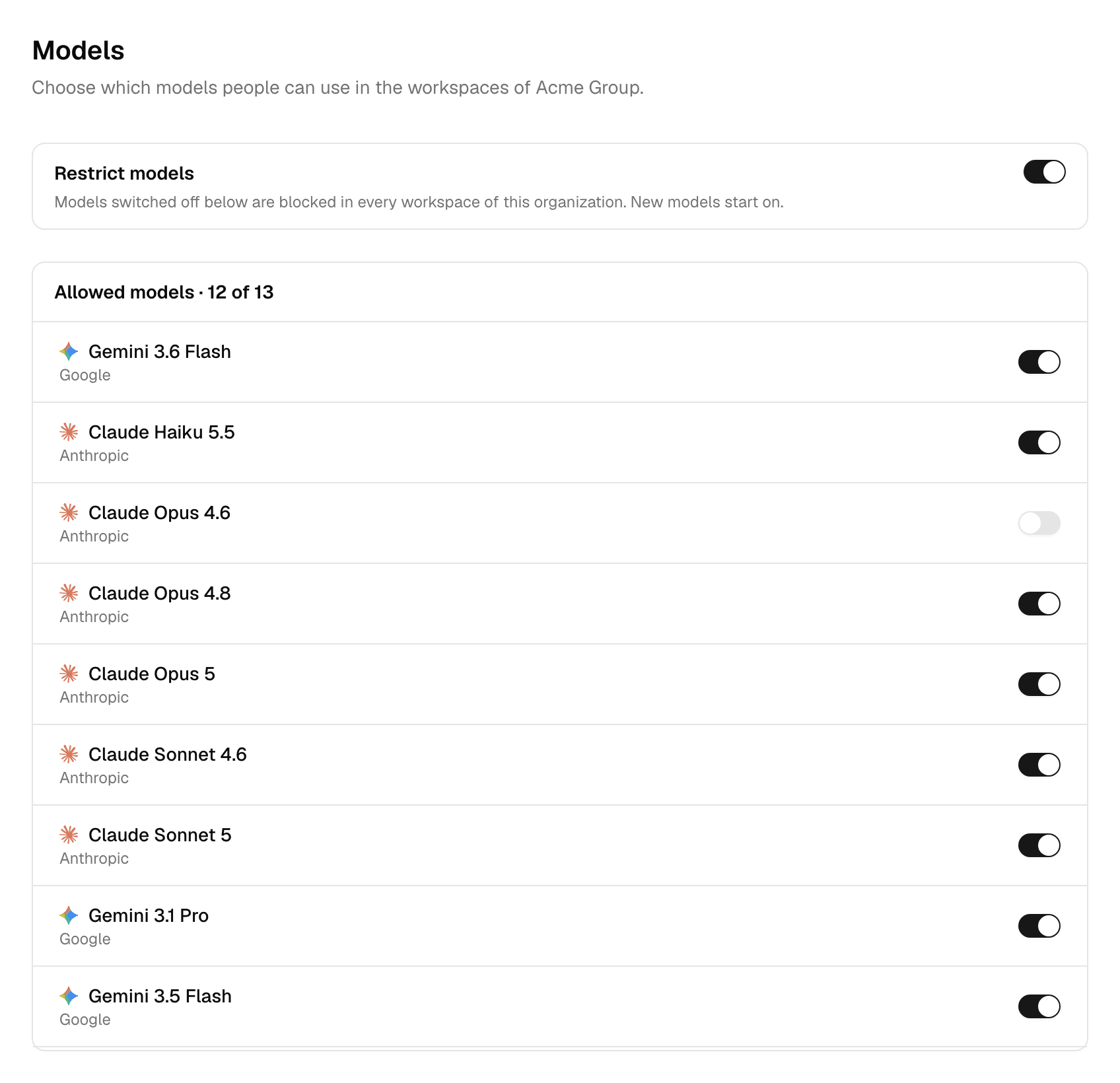
Block or unblock a model
Restrict models is off until you block a model: every workspace of the organization can use every model, including models added later.
- Turn Restrict models on.
- Turn a model's switch off to block it, or on to unblock it. Each change applies at once.
- Models added to the deployment later are allowed until someone blocks them.
- The last model that is not blocked cannot be blocked.
- Turning Restrict models off asks first, then unblocks every model you blocked.
- Blocked by the platform marks a model your Alomana administrator blocked for the organization. Only they can unblock it.
- The block applies only in the organization's workspaces, never in its members' other workspaces.
How it combines with workspace settings
Each workspace also has its own model list. See Choose the workspace's models.
| Organization | Workspace | Can people use the model there? |
|---|---|---|
| Allowed | On | Yes |
| Allowed | Off | No |
| Blocked | Any | No. The workspace shows it as Blocked by your organization and cannot turn it on. |
What changes for people
| Situation | Result |
|---|---|
| Choosing a model in the model picker | Blocked models are not offered. |
| An agent, a landing suggestion or a Slack thread set to a blocked model | It runs on the default model instead, without a warning. The answer's model label shows which one ran. |
| Auto model mode, or falling back when a model is down | Blocked models are never used. |