

Manage members and seats
The organization's Members page lists its members and pending invitations, each member's organization role, the plan the organization gives them and the credits they used.
You must be an organization Admin. Open Settings > Members under Organization · "name".
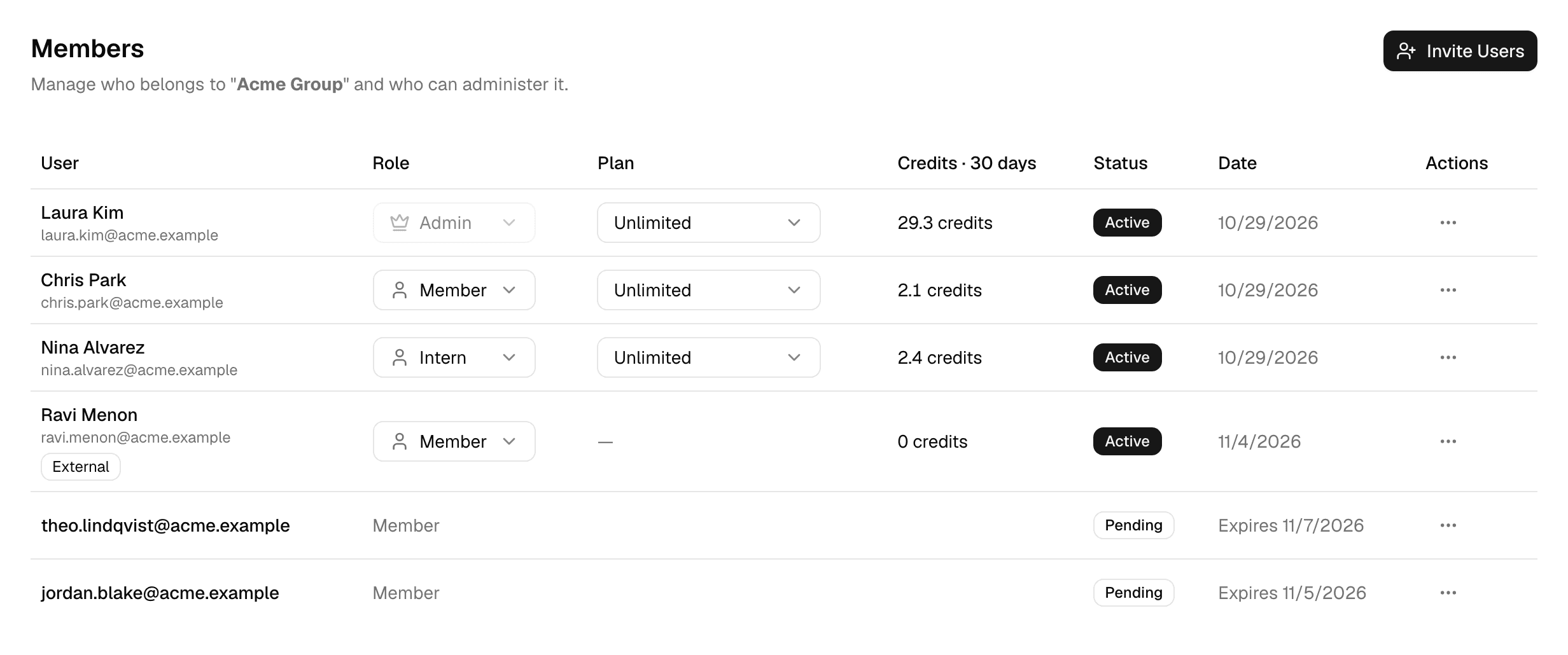
| Column | Shows |
|---|---|
| User | The member's name and email. External marks an external member, whose home is another organization. |
| Role | Their organization role. |
| Plan or Seat | What the organization gives them; see Give members a plan. External members have none: their home organization pays for them. |
| Credits · 30 days | Credits they used in the organization's workspaces in the last 30 days. For members whose home is this organization, +n elsewhere adds what they used in other workspaces. |
| Status and Date | Active with the date they joined, or Pending with the invitation's expiry. |
Organization roles
| Role | Can |
|---|---|
| Admin | Open the organization's settings: members, roles, models, billing and deletion. |
| Member | Belong to the organization and hold its plan. No access to its settings. |
| Custom roles, such as Intern | The same as Member, with the workspace limit set for that role. |
Admins create custom roles and set how many workspaces each role may create on the Roles page; see Set organization roles. What someone can do inside a workspace is set by their workspace role; see Set workspace roles.
Invite people
-
Select Invite Users.
-
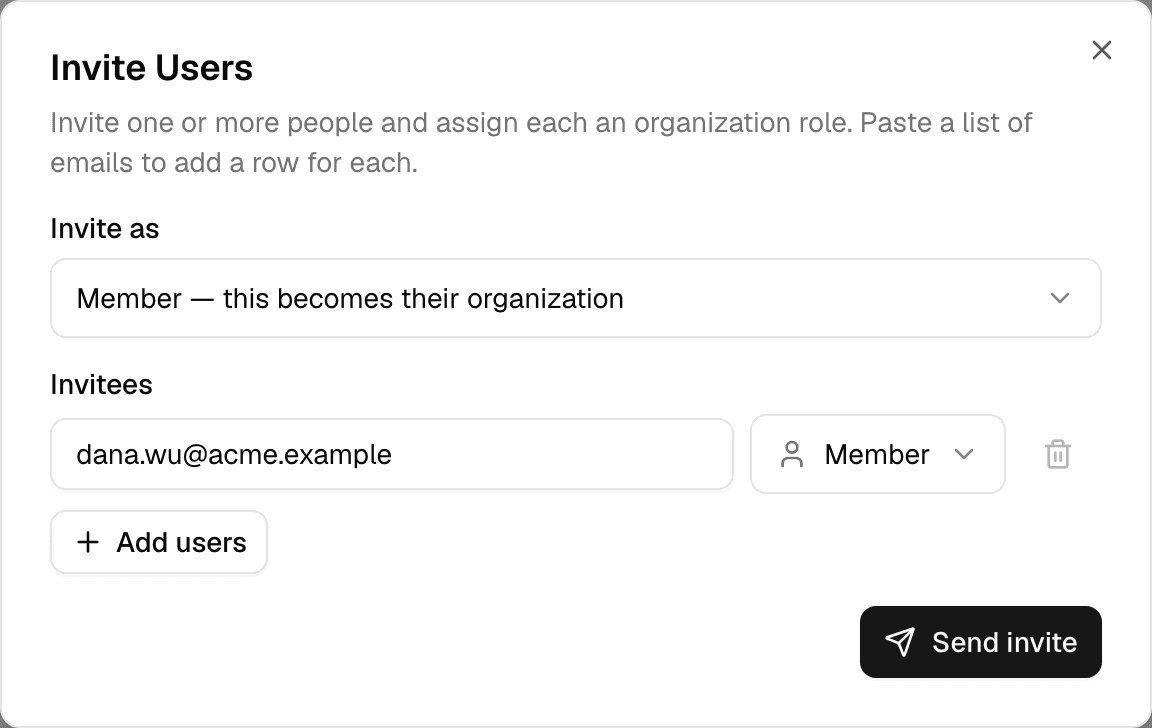
Under Invite as, choose:
- Member — this becomes their organization: the organization becomes their home and can give them a plan or seat.
- External — keeps their own organization, no seat: for people whose home is another organization, such as a partner's staff.
-
Enter an email address and choose a role. The list starts on the role new members join with. To invite several people, select Add users, or paste a list of addresses to get one row per address.
-
Select Send invite.
- Everyone gets an invitation, also people who already have an account. It is listed as Pending with its expiry date, and works for 7 days.
- Only the invitee can accept it, because they decide whether to switch their home organization and which of their workspaces to bring in; see Join an organization.
- You can invite someone whose home is another organization. You are not told; they choose when they accept, and their organization may refuse external memberships.
- An external member can be invited again as a member; accepting makes your organization their home.
To cancel a pending invitation, open the ⋯ menu on its row and select Revoke invite.
Change a member's role
Choose a role in the member's Role list: Admin, Member or one of your custom roles. An organization needs at least one admin, so the last admin's role cannot be changed and they cannot be removed.
Give members a plan
Where Alomana manages your plans, the Plan column sets the plan each member gets from the organization.
- Open the member's Plan list.
- Choose a plan. Not assigned means the organization gives them none.
The plan applies at once and has no end date. Where you buy plans yourself, the column is Seat instead, and each seat is billed; see Organization billing.
External members get no plan or seat from the organization.
Remove a member
- Open the ⋯ menu on the member's row and select Remove member.
- Confirm with Remove member.
- They leave the organization, and the plan or seat the organization gave them ends.
- Their workspace access does not change; remove them from each workspace separately. See Invite and manage members.
- They can later join another organization.
Set up an organization
How an organization is created and joined, how its workspaces join it, and how an admin edits its details, chooses where people land or deletes it.
Set organization roles
Create the roles people hold in an organization, choose the role new members join with, and limit how many workspaces each role may create.