

Invite and manage members
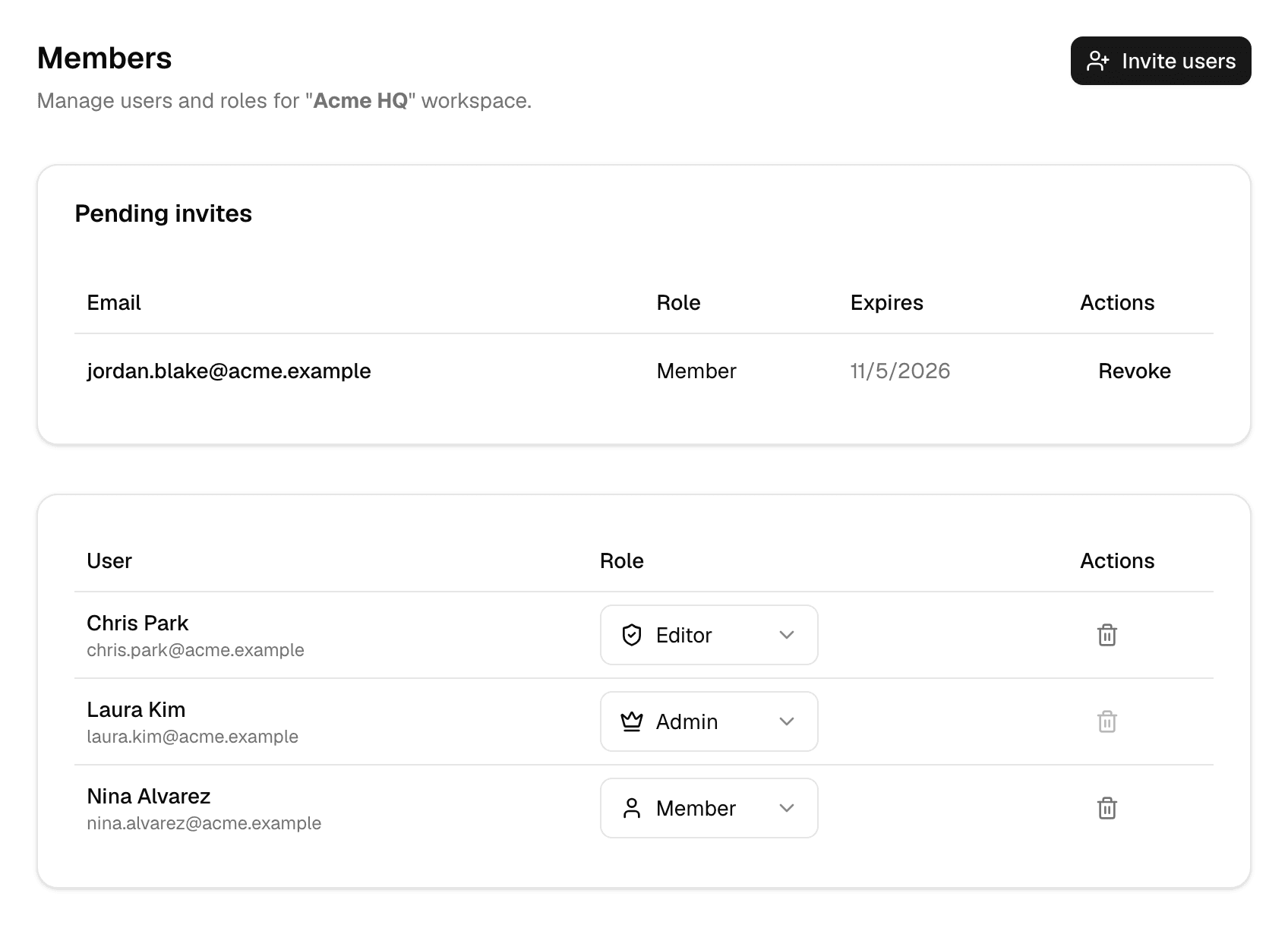
The Members page lists who is in the workspace, with their role, and the invites nobody has accepted yet.
By default only workspace Admins can invite, change roles and remove members. Open Settings > Members under Workspace · "name".
Invite people
-
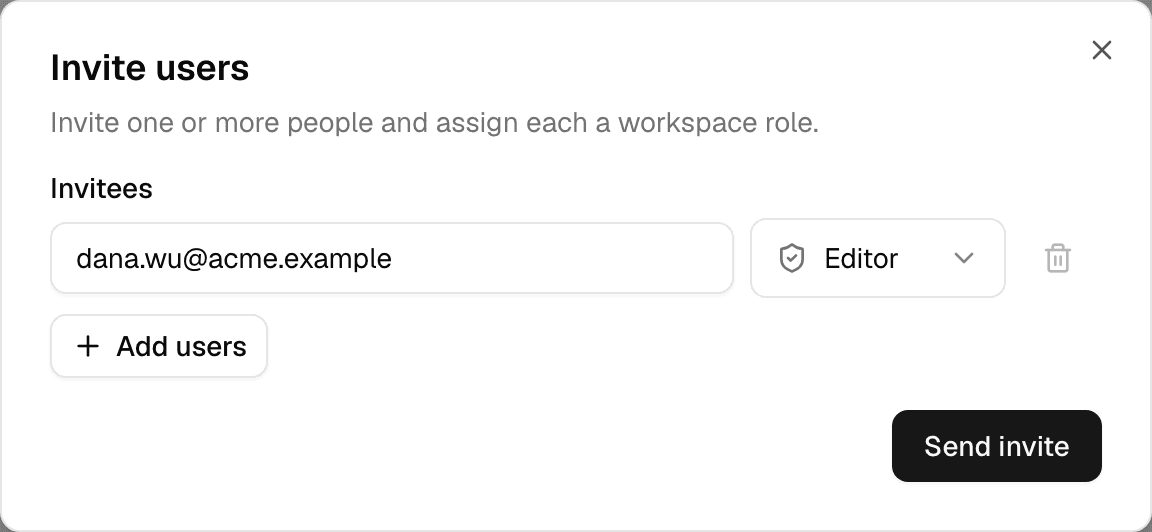
Select Invite users at the top of the page. Invite Users at the top right of the home page opens the same dialog.
-
Enter an email address and choose a role for it.
-
To invite more people at once, select Add users for another row.
-
Select Send invite.
As you type, the email box suggests people from your organization and from workspaces you share with them.
| The address belongs to… | What happens |
|---|---|
| Someone who already has an Alomana account | They join the workspace at once and get an email saying so. |
| Anyone else | They get an email with an invitation link, and the invite waits under Pending invites. |
- An invitation link works for 7 days. Expires shows the date.
- The invitee opens the link, signs in or creates an account with that email address, and joins the workspace.
- Someone who signs up with the invited address without using the link still joins the workspace on their first sign-in.
- Revoke next to a pending invite cancels it; the link stops working.
- A member of an organization can join only that organization's workspaces. Inviting them to any other workspace is refused, and so is accepting an older invitation to one.
Change a member's role
Choose another role in the member's Role list. The change applies at once.
| Role | By default |
|---|---|
| Member | Works with agents, connections and flows; can read apps, API keys and magic links |
| Editor | Also publishes agents, edits apps and creates API keys and magic links |
| Admin | Everything, including workspace settings, members and roles |
In a workspace of an organization, the list also shows the organization's custom roles. What each role can do is set on the Roles page. See Set roles and permissions.
You can give someone a role only if you hold every permission that role has.
Remove a member
- Select the trash icon at the end of the member's row.
- Select Remove member.
They lose access to the workspace at once. You cannot remove yourself.
Troubleshooting
| Message | What to do |
|---|---|
| Enter a valid email address for each invite. | Fix or remove the row with the wrong address. |
| User is already a member of this space | That person is already in the workspace; change their role instead. |
| You can only assign a role whose permissions you hold | Ask someone with more permissions, such as a workspace Admin, to assign the role. |
| This person's organization keeps its members inside | The person's home organization does not let its members join workspaces outside it. Invite them to one of their organization's workspaces, or ask its admin to turn on Members can join other organizations. |
To invite and manage members with an API key, see Members and invites in the API documentation.