

Choose the workspace's models
The Models page decides which of the deployment's models people can use in this workspace.
You need a role with Manage Workspace Settings, such as Admin. Open Settings > Models under Workspace · "name".
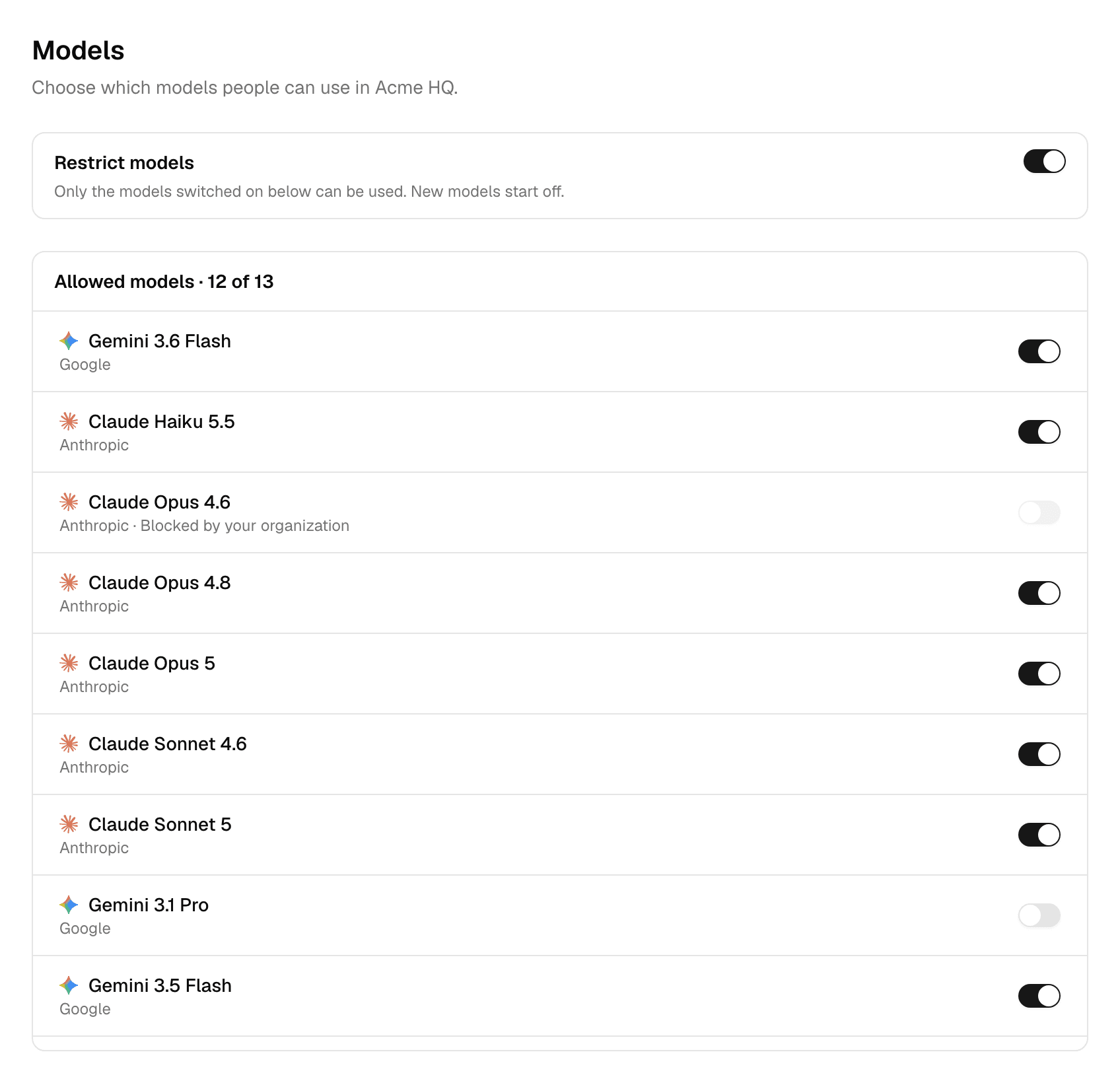
Restrict the workspace's models
Restrict models is off in a new workspace: everyone can use every model on their plan, including models added to the deployment later.
- Turn Restrict models on. Every model stays on.
- Turn the switch next to a model off to remove it from the workspace, or on to bring it back. Each change applies at once.
- While Restrict models is on, models added to the deployment later start off here until you turn them on.
- The last model that is on cannot be turned off: keep one, or turn off Restrict models.
- Turning Restrict models off asks first, because it clears your selection: every model is available again.
- Blocked by your organization marks a model your organization blocked. Only an organization admin can unblock it. See Block models for an organization.
- Where a model has an i next to its name, it shows how the model compares on intelligence and speed.
What changes for people
| Situation | Result |
|---|---|
| Choosing a model in the model picker | Models that are off are not offered. |
| An agent, a landing suggestion or a Slack thread set to a model that is off | It runs on the default model instead. The answer's model label shows which one ran. |
| Auto model mode | Picks only among the models that are on. Auto itself cannot be turned off. |
Which models the deployment offers is up to your Alomana administrator. For choosing a model in a chat, see Models.
To set the workspace's models with an API key, see Manage workspaces in the API documentation.
Set the default agent and landing suggestions
Choose the agent a new chat starts with in a workspace, and the suggestions people see on its home page before they type.
Set the workspace ontology
Write a workspace's mission and goals so the agents that use the ontology take them into account on every run.