

Get started with Alomana
Sign in, send your first message and learn where everything is in about five minutes.
Sign in
- Open the address your administrator gave you.
- On Welcome back, enter your Email and Password, then select Sign in. If your deployment offers single sign-on, select its button, such as Sign in with Google or Sign in with Microsoft, instead.
- Forgot password? starts a password reset.
- New to Alomana? Create an account appears only on deployments that let people sign up themselves.
- If you were invited by email, open the link in the invitation, sign in, and Alomana adds you to that workspace.
What you see the first time
Alomana asks no setup questions: you go straight to the home screen.
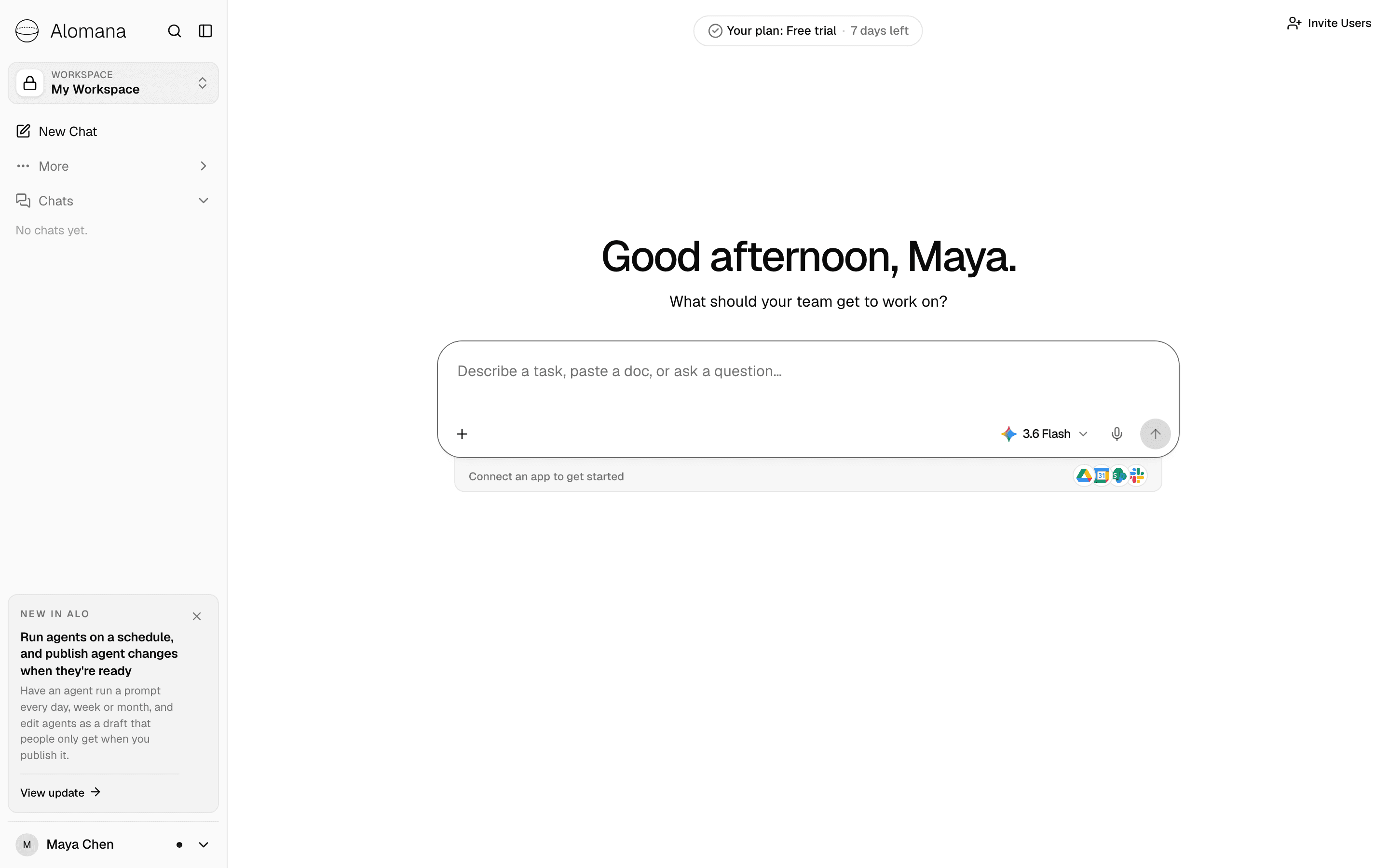
- If you do not belong to a workspace yet, Alomana creates a private one called My Workspace and opens it.
- If you were invited to a workspace, you are already a member of it, and no My Workspace is created.
- If your organization starts your role on the Overview, you land there instead, on a page with your agents, apps and latest chats. See The Overview page.
- The pill at the top shows your plan, for example Your plan: Free trial · 7 days left. See Usage and limits.
- New in Alo in the sidebar shows the latest release. Select View update to read it, or × to hide it.
If you see No workspace yet, your account cannot create a workspace of its own. Ask your administrator to invite you, then select Check again.
The home screen
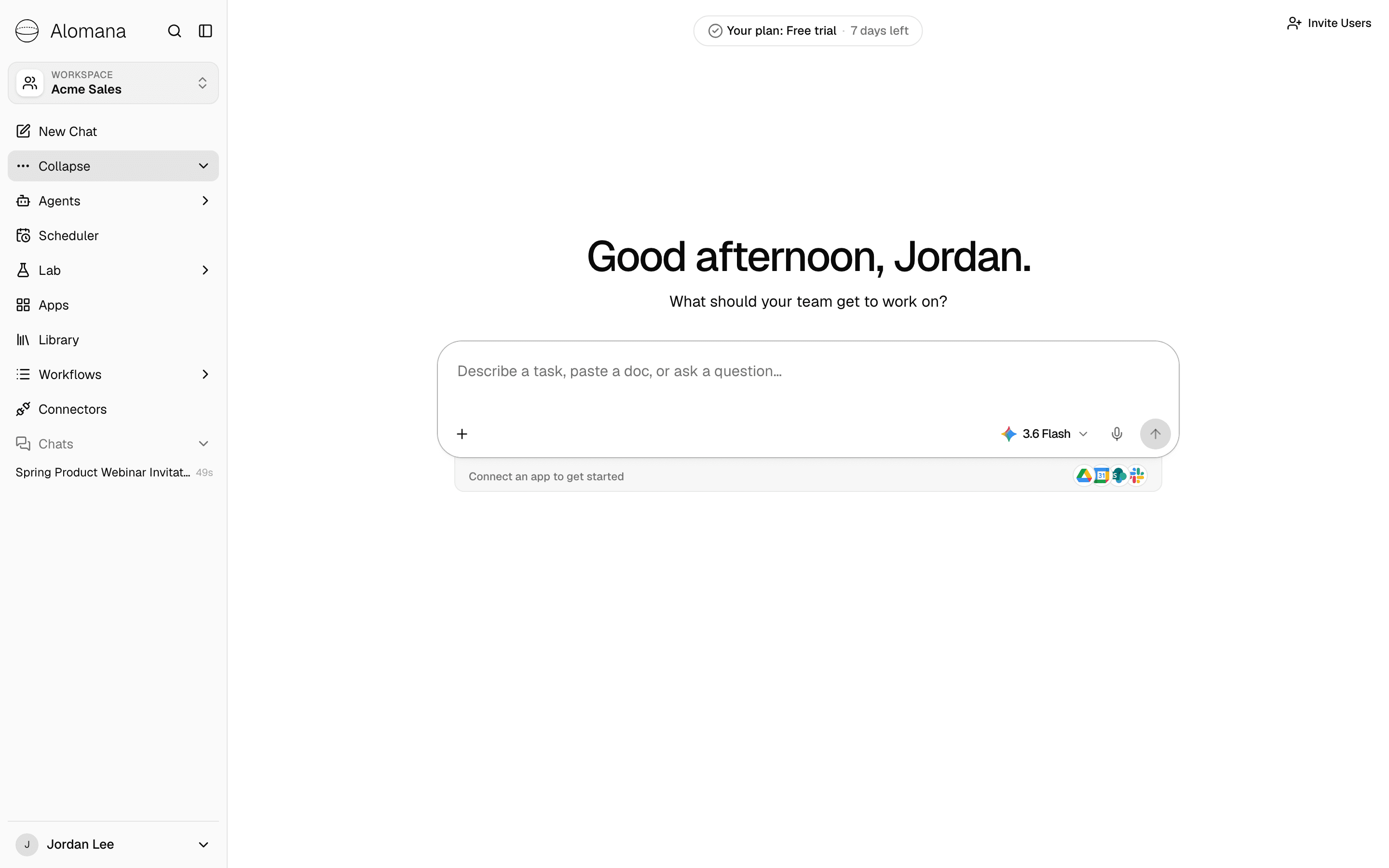
| Part | What it does |
|---|---|
| Alomana logo | Goes back to the Overview, if your organization starts your role there. |
| Search (magnifier, or ⌘K / Ctrl K) | Finds chats, agents, files and settings, and starts a new chat or agent. |
| Workspace | Shows the workspace you are in and switches to another one. See Switch workspace. |
| New Chat | Opens an empty chat. |
| More | Opens the rest of the product: Agents, Scheduler, Lab, Apps, Library, Workflows and Connectors. |
| Chats | Your chats in this workspace; pinned chats come first. |
| Your name, at the bottom | Theme, Settings, Send feedback, Learn more (release notes, the Alomana website and the API documentation) and Logout. |
| Invite Users | Invites people to the workspace. Shown to workspace admins. |
| Message box | Where you write to the agent. + adds files, agents, skills, connectors and templates; the model name opens the model picker. |
| Connect an app to get started | Connects Google Drive, SharePoint, Slack and other tools so agents can use them. See Connectors. |
The entries under More depend on your deployment and your role: Scheduler appears only where your deployment has it switched on, Workflows only when your role may read workflows, and an administrator can reorder or hide entries for everyone.
Send your first message
- Select New Chat.
- Type what you need in the message box, for example: "Write three subject lines for an email inviting Acme customers to our spring product webinar."
- Press Enter, or select Send (the arrow).
The agent answers in the chat, and the chat appears under Chats with a title taken from your message.
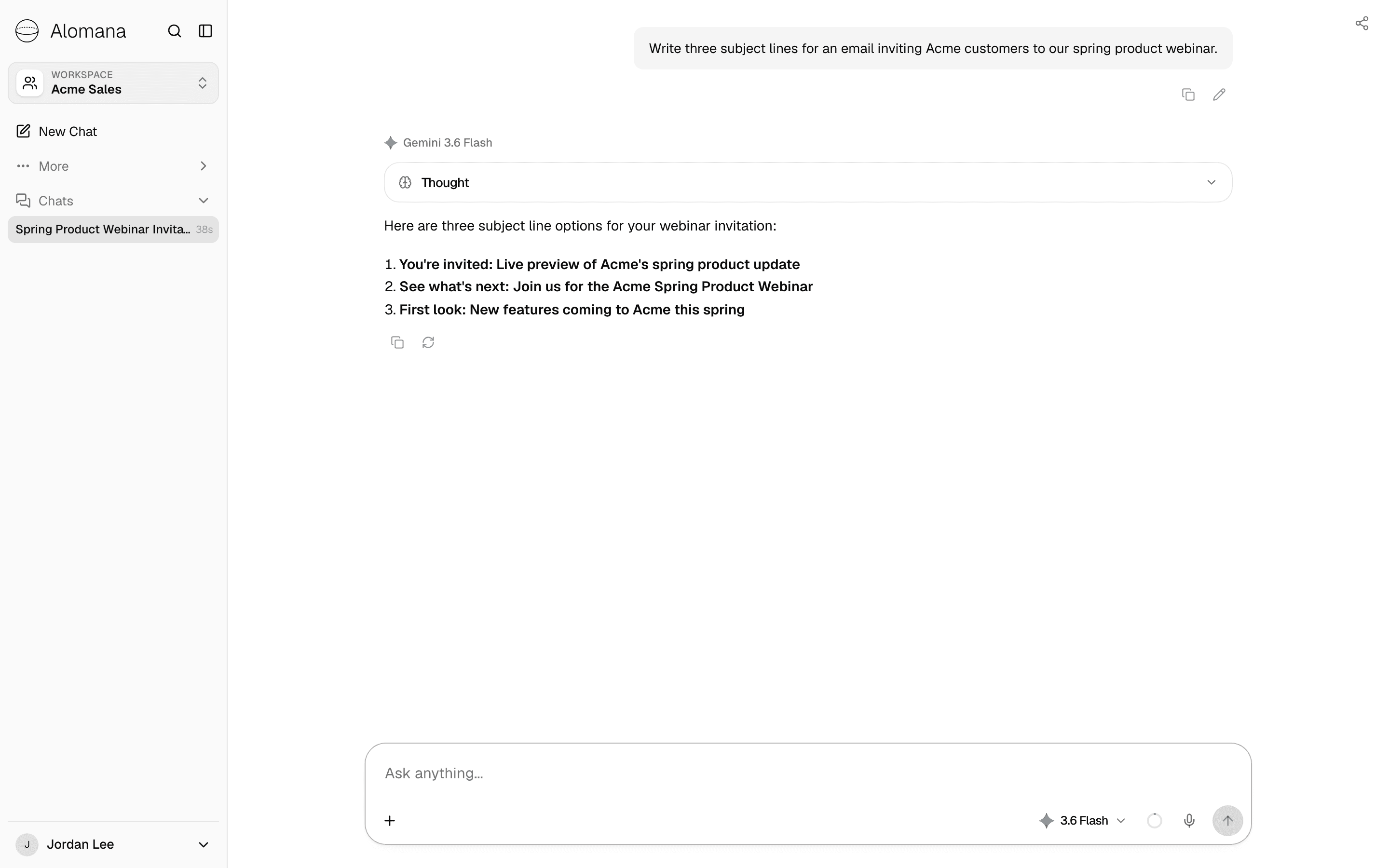
- A new chat goes to your workspace's default agent, Alo unless your workspace set another published agent, with that agent's model.
- Thought, above the answer, opens the reasoning the model showed while it worked.
- To pick another agent or model, or attach files, see Chat basics and Models.
Switch workspace
-
Select Workspace at the top of the sidebar.
-
Select the workspace you want.
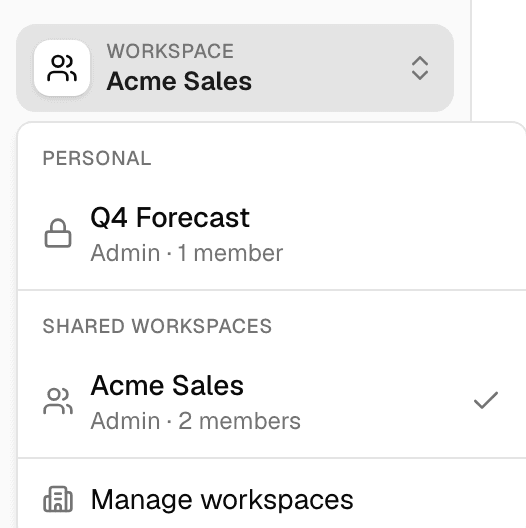
The home screen reloads in that workspace, with its own chats, agents, Library and connectors.
- Personal lists workspaces where you are the only member; Shared workspaces lists the rest.
- If you belong to an organization, the menu groups workspaces by organization instead: one section per organization you belong to, marked External where you are an external member, then No organization and Other organizations. The label above the current workspace's name shows its organization.
- Each row shows your role and the number of members.
- Manage workspaces opens My Workspaces, where you can also create a workspace.
- Alomana remembers the workspace you last used in each browser.
Next steps
- Key concepts: workspaces, roles, and what others can see.
- Chat basics: everything the message box can do.
- Agents: build an agent for a job you repeat.