

Chat with an agent
A chat is a conversation with one agent; Alo answers unless you pick another one.
Start a chat
-
Select New Chat in the sidebar.
-
Type your request in the composer.
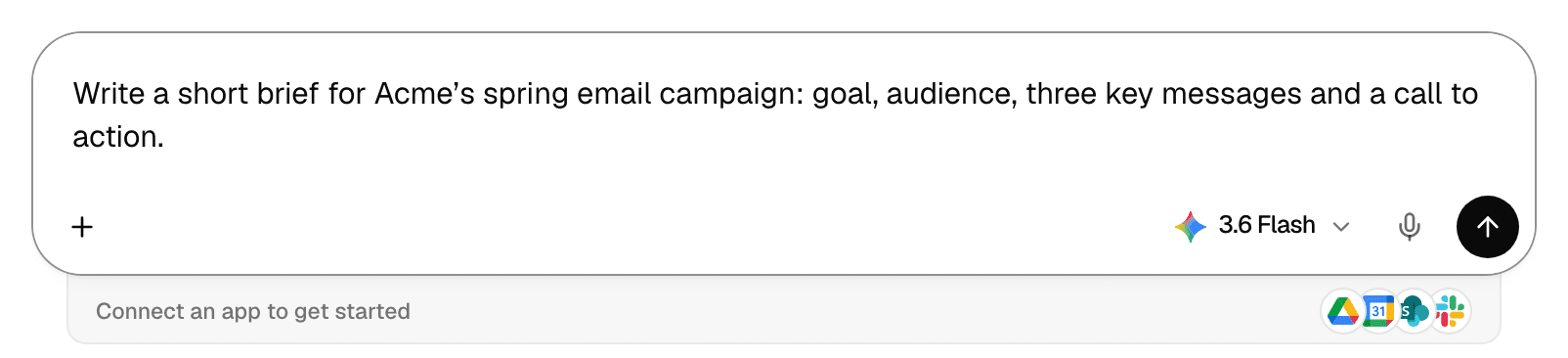
-
Press Enter, or select the arrow button. Shift+Enter starts a new line.
The agent's reply streams into the chat. The chat gets a title from your first message and appears under Chats in the sidebar.
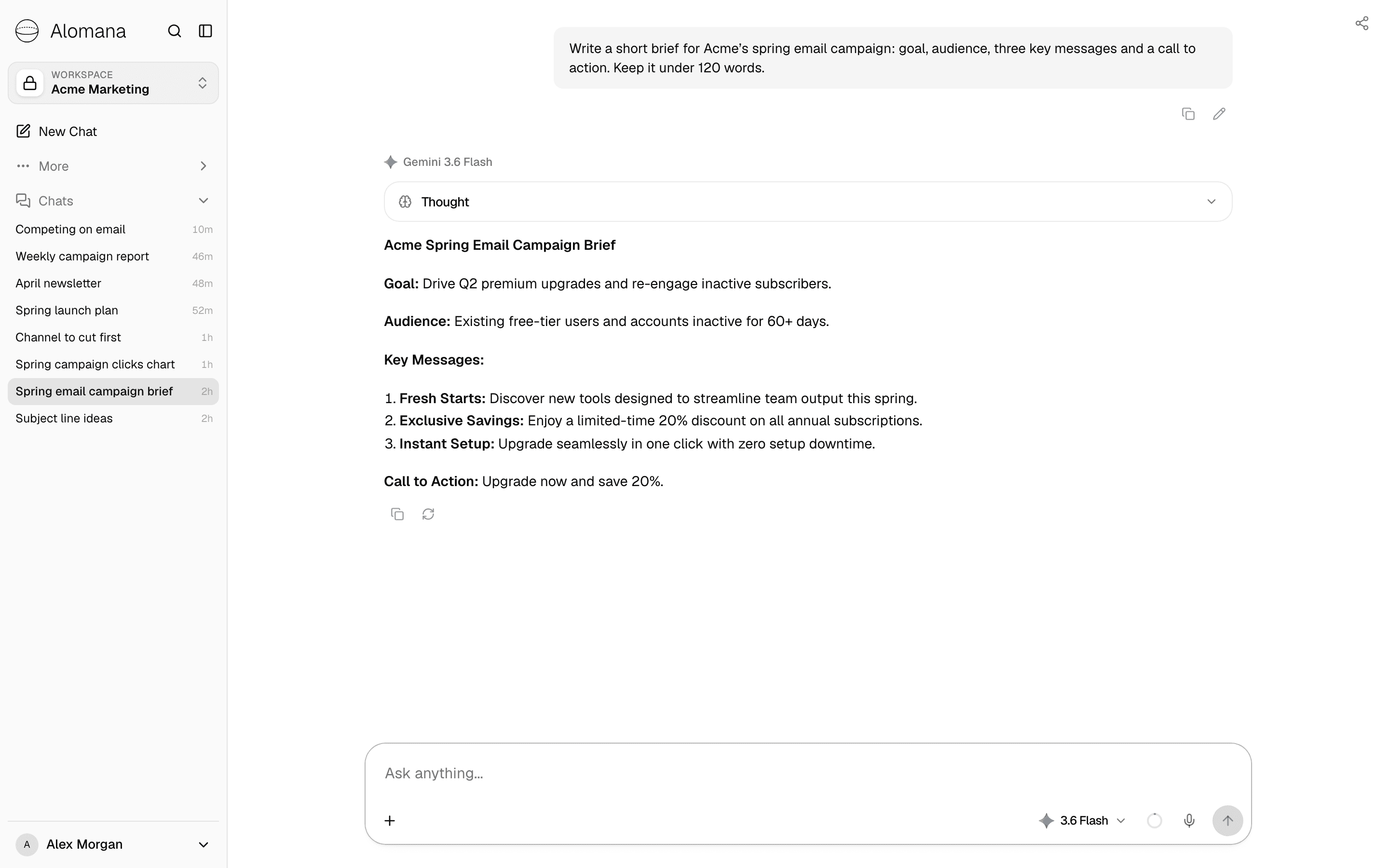
| Control | What it does |
|---|---|
| + | Attaches files and adds agents, skills, connectors, Library files and templates. See Files and attachments and Mentions and commands. |
| Model picker | Picks the model for the next message. See Choose a model. |
| Voice input | Turns what you say into text in the composer. Shown only in browsers that support speech recognition. |
| Arrow | Sends the message. Disabled while a file is still uploading. |
Choose an agent
-
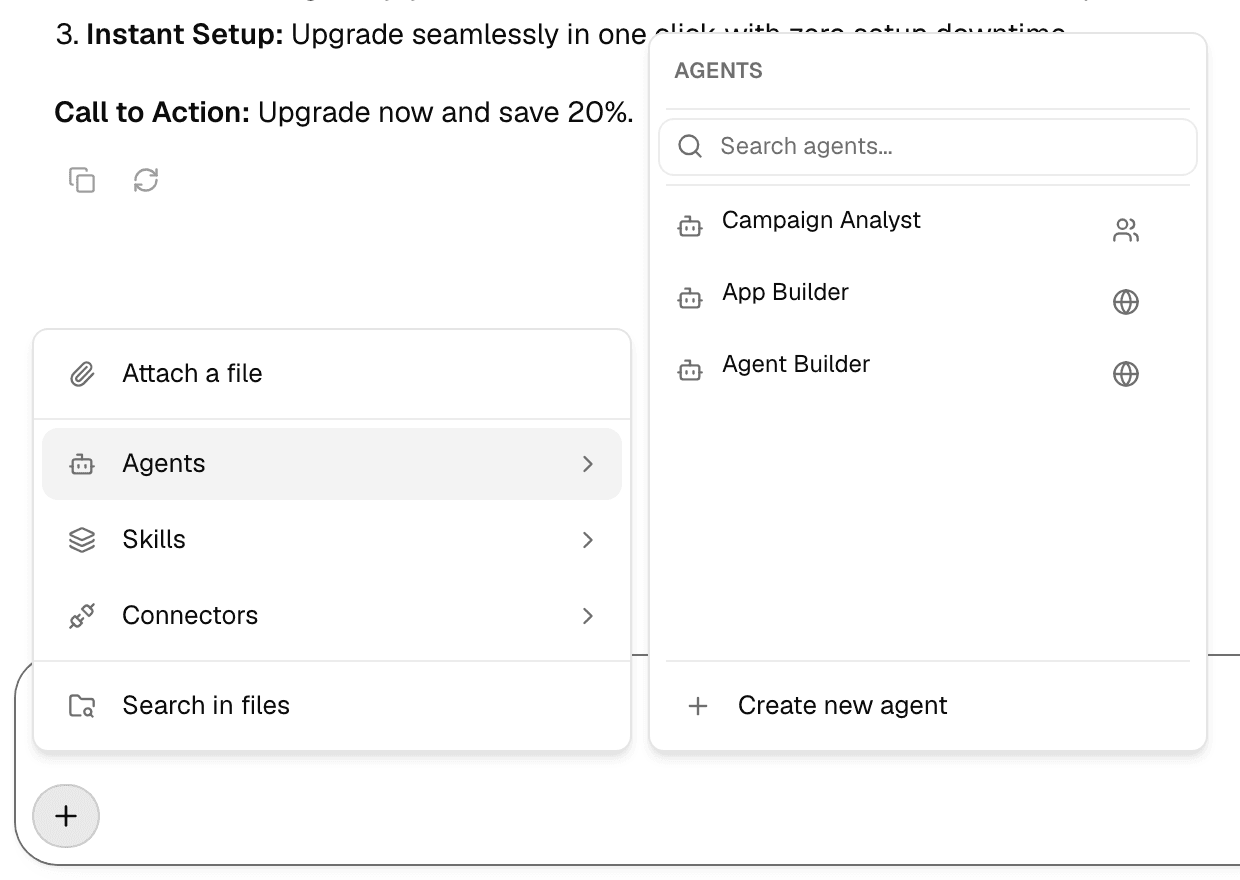
Select +, then Agents.
-
Select an agent. Search agents... filters the list.
The agent appears as a pill in the composer.
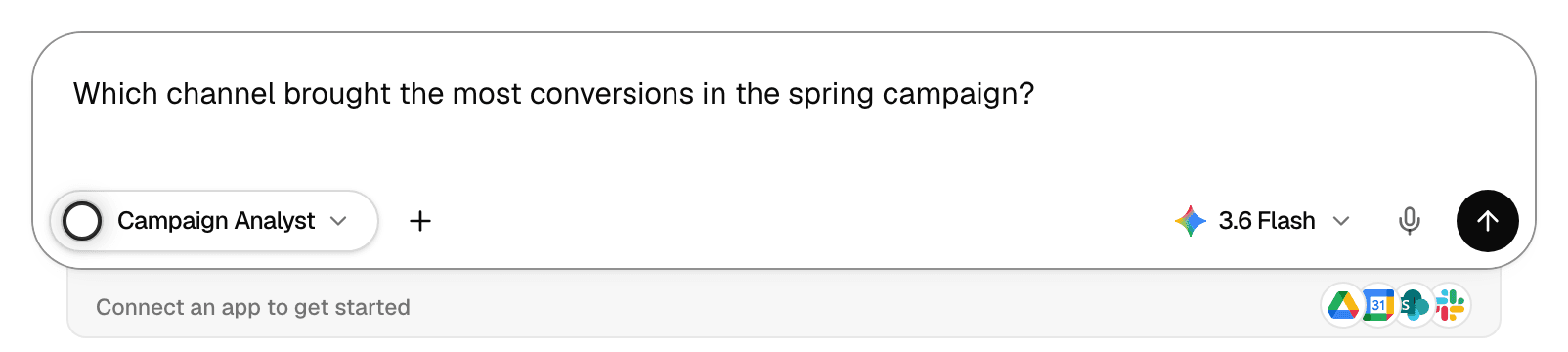
- The arrow on the pill switches to another agent; the pill's Use Alo button goes back to Alo.
- Picking an agent also picks its model, if your plan allows that model.
- In a chat that has started, the agent you pick answers your next messages. Its name appears above each reply it writes.
- Agents that were never published are not listed. See Test and publish an agent.
- Create new agent at the bottom of the list opens the agent editor. See Configure an agent.
You can also type @ and an agent's name in your message. See Mentions and commands.
Stop a reply
Select the square Stop generating button that replaces the arrow while the agent works.

The text the agent wrote so far stays in the chat, and the arrow comes back so you can send again.
Edit a message
-
Point at one of your messages and select the pencil (Edit).
-
Change the text.

-
Select Save, or press Enter. Escape cancels.
Every message after the one you edited is removed, and the agent answers the edited message. While a reply is still running, the editor shows Save once the current reply finishes.
Regenerate or copy a reply
Under each reply:
| Button | What it does |
|---|---|
| Copy | Copies the reply's text, with its formatting. |
| Regenerate | Asks the agent to write the reply again. Unavailable while a reply is running. |
Your own messages have Copy too.
Find your chats
The sidebar lists your chats in the current workspace, most recent first. Your chats are private unless you share them; see Share and collaborate.
| In the sidebar | Meaning |
|---|---|
| Pulsing dot | The agent is still working in that chat. |
| Green check | A reply finished that you have not opened yet. |
| Calendar icon | A run of a scheduled task. See Schedule an agent. |
| Shared with you and the owner's name | Someone else's chat that you joined. |
| Pinned | Chats you pinned, above the others. |
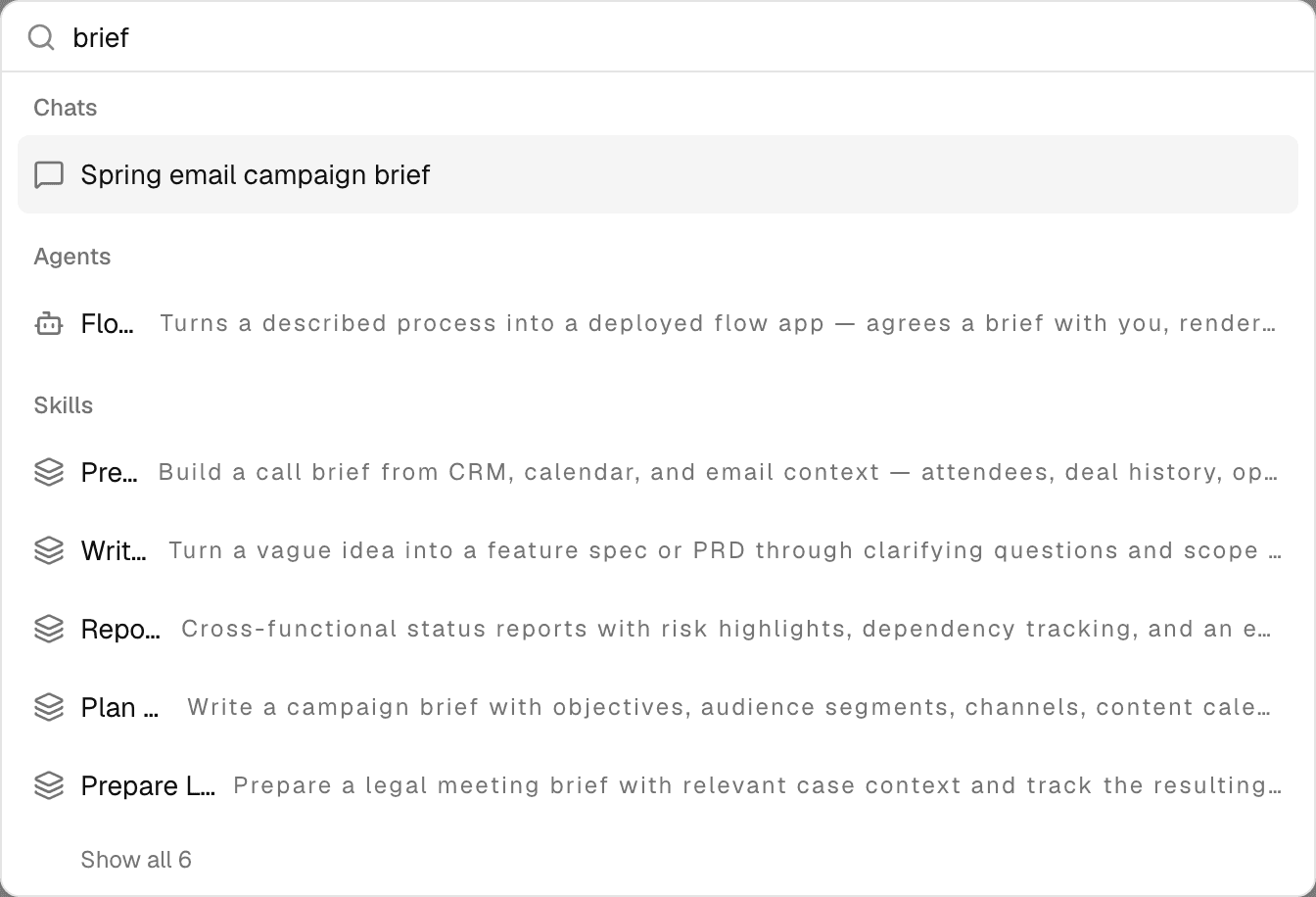
To search, select the magnifier at the top of the sidebar, or press ⌘K (Ctrl+K on Windows), and type part of a chat's title. The same search also finds agents, skills, prompts, apps, connectors, files and workspaces.
Rename, pin or delete a chat
Point at a chat in the sidebar and open its ⋯ menu.
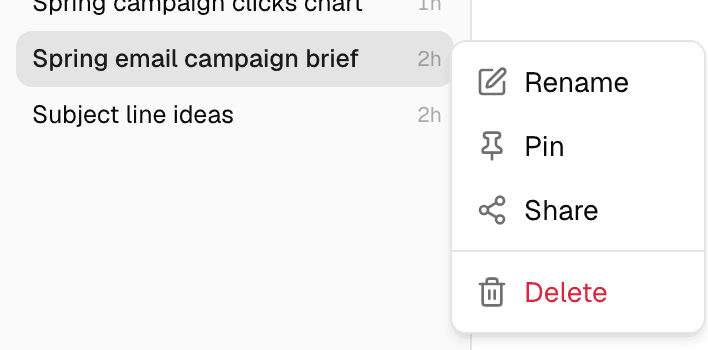
| Action | What it does |
|---|---|
| Rename | Opens Edit title. Type the new title and select Confirm. |
| Pin / Unpin | Keeps the chat at the top of the list. |
| Share | Opens Share chat. See Share and collaborate. |
| Delete | Deletes the chat after you confirm. This cannot be undone. |
In a chat someone shared with you, the menu has only Pin.
To read or delete chats with an API key, see Read and share chats in the API documentation.