

Mentions and commands
Type @ to bring an agent or a Library file into your message, and / to run a command or apply a skill.
@ mentions
Type @ in the composer. Pick Agents or Files, or keep typing to search both.
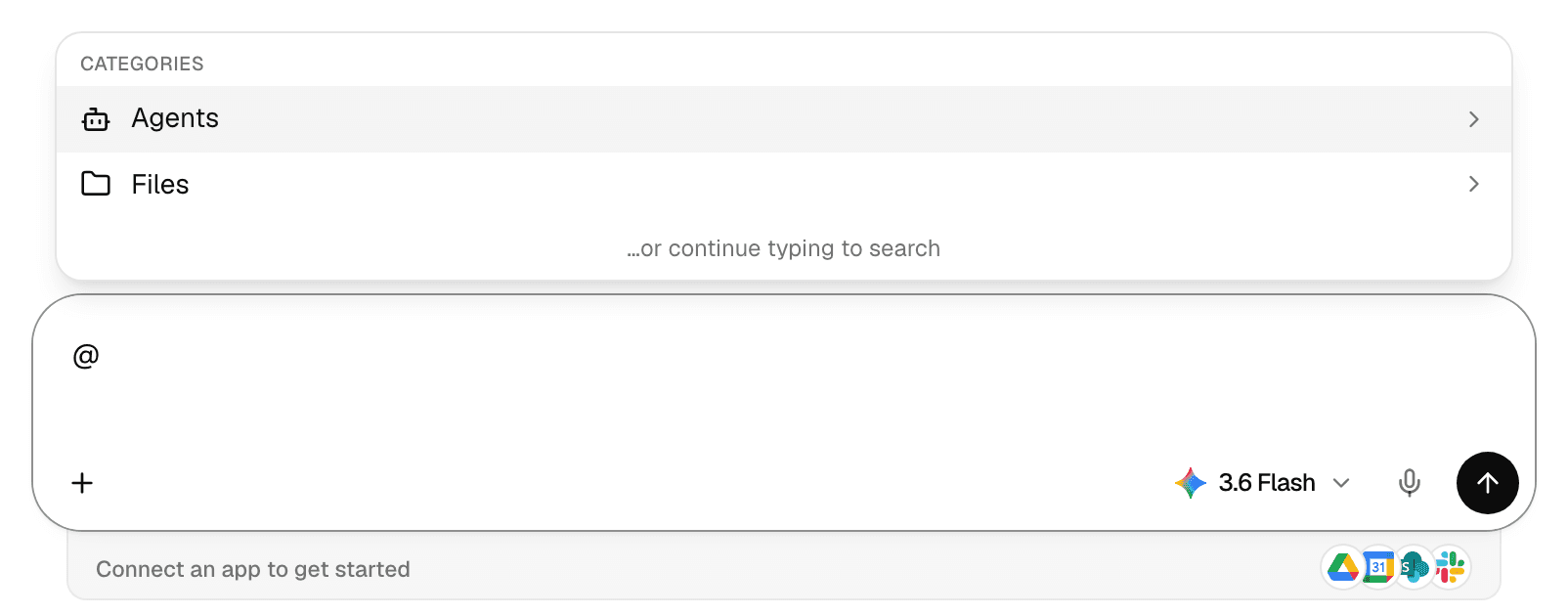
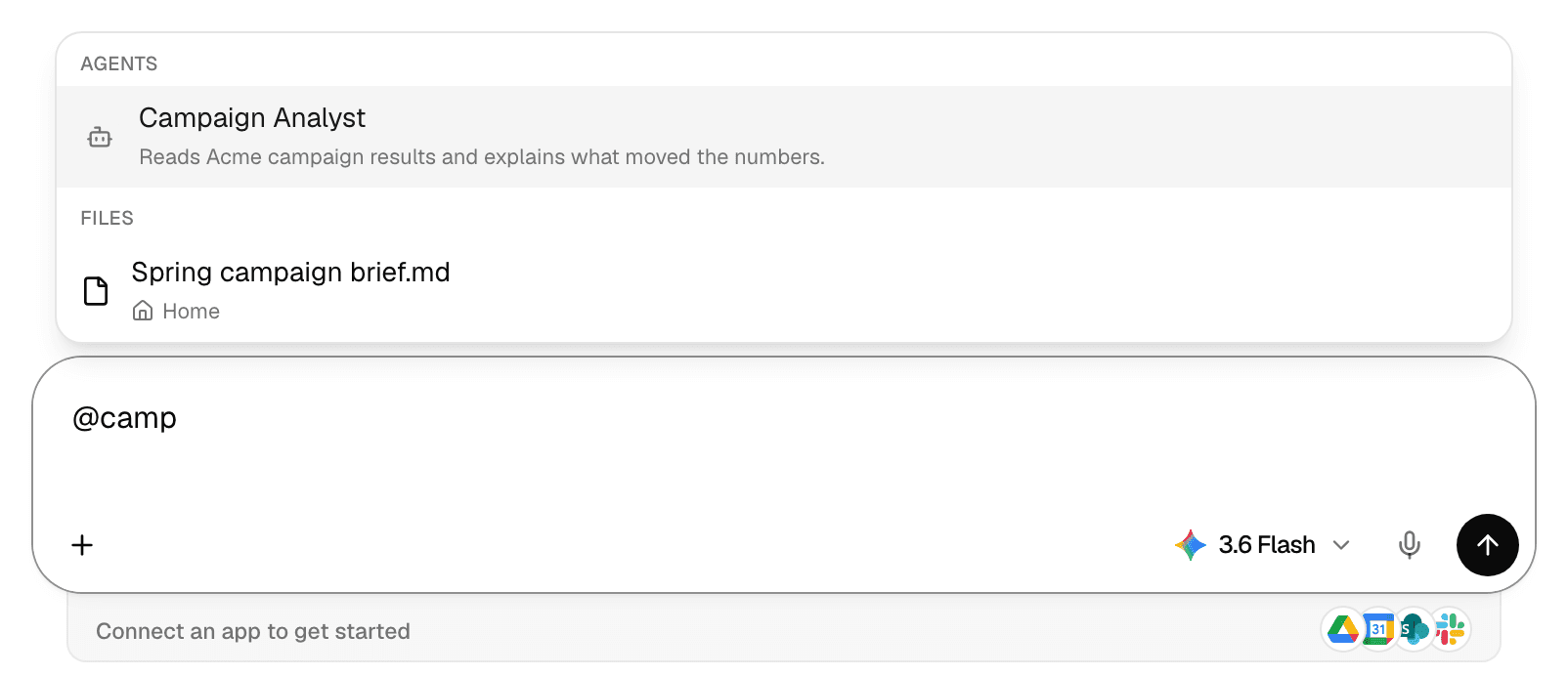
| You pick | What happens |
|---|---|
| An agent | The agent answers this message and the ones after it, as if you had picked it from + > Agents. See Chat with an agent. |
| A file | The file appears as a chip in your message, and the agent searches and reads it from the Library. |
| A folder | The folder appears as a chip, and the agent can use every file in it. Select the arrow on a folder, or press the right arrow key, to open it and pick a file inside instead. |
- Without a category, the search shows up to five matching agents, then matching files with the folder each one is in.
- Use the arrow keys and Enter to pick, Escape to close the menu.
- Agents are not offered in a chat whose agent is fixed. Agents that were never published are never offered.
- Files come from your workspace's Library. See Manage files and folders.
/ commands and skills
Type / in the composer, at the start or after a space.
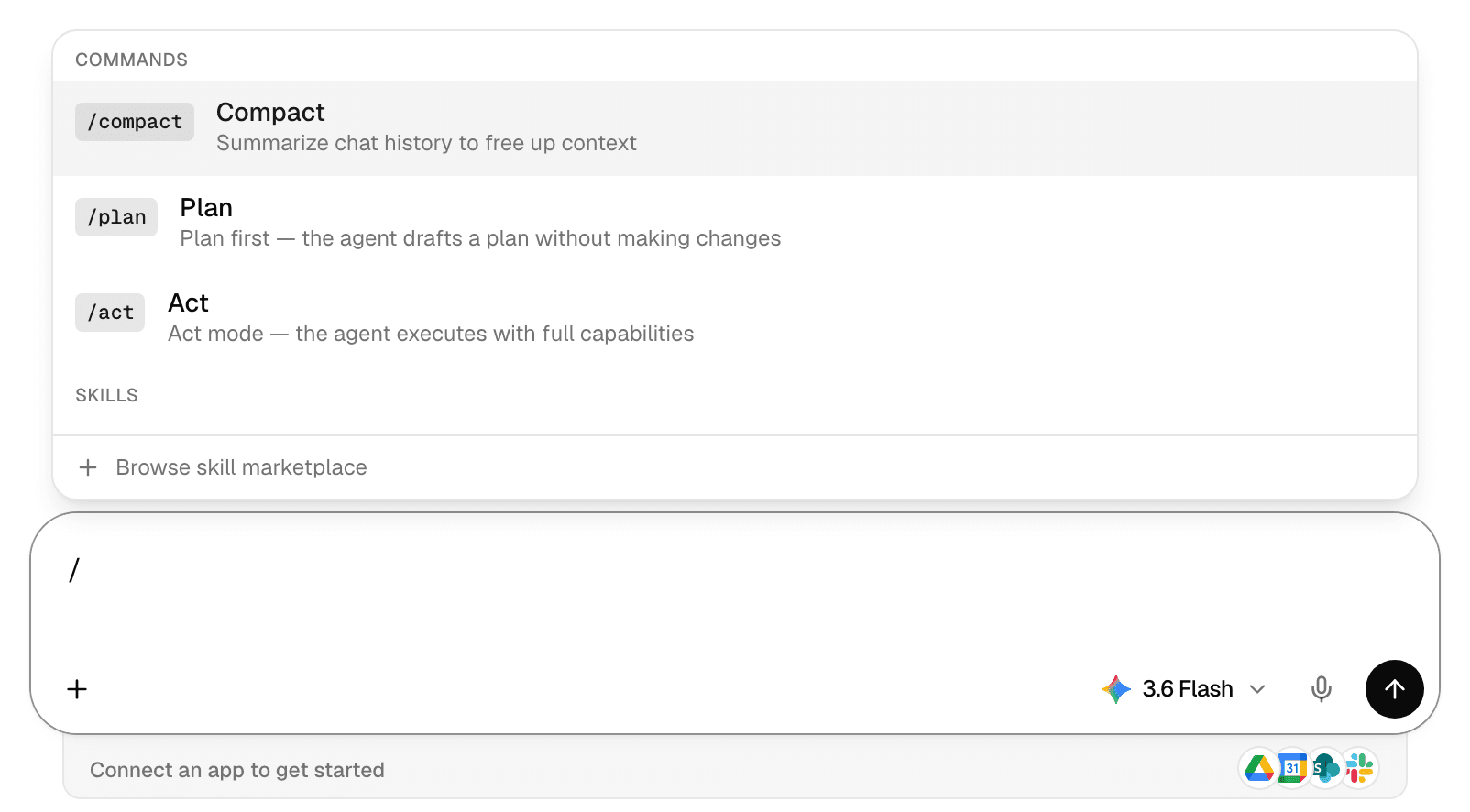
| Command | What it does |
|---|---|
| /compact | Summarizes the chat so far to free up room in the model's context. Offered only when it is the whole message. See Context and compaction. |
| /plan | Switches the composer to Plan mode: the agent researches and drafts a plan before it acts. See Plan mode and approvals. |
| /act | Switches back to Act mode, where the agent can use all its tools. This is the default. |
/plan and /act only switch the mode; nothing is sent.
Below the commands, the Skills section lists skills you can apply:
- Pick a skill to apply it to this chat. It shows as a chip in your message and stays applied to your later messages in the chat. Pick it again to remove it.
- Skills that are already applied come first. Skills the agent always has are listed last and cannot be removed here.
- With nothing typed after /, five skills show; the last row reveals the rest. Typing filters by name, then by description.
- Browse skill marketplace opens the skill catalogue. See Skills.
You can also apply skills from + > Skills.
Prompts
Prompts are saved instructions that shape how the agent answers. To add one to a chat:
-
Select +, then Skills, then Browse skill marketplace at the bottom. Add connection under Connectors opens the same window.
-
In the Library window, select Prompt, then the prompt you want. Search templates… filters the list.
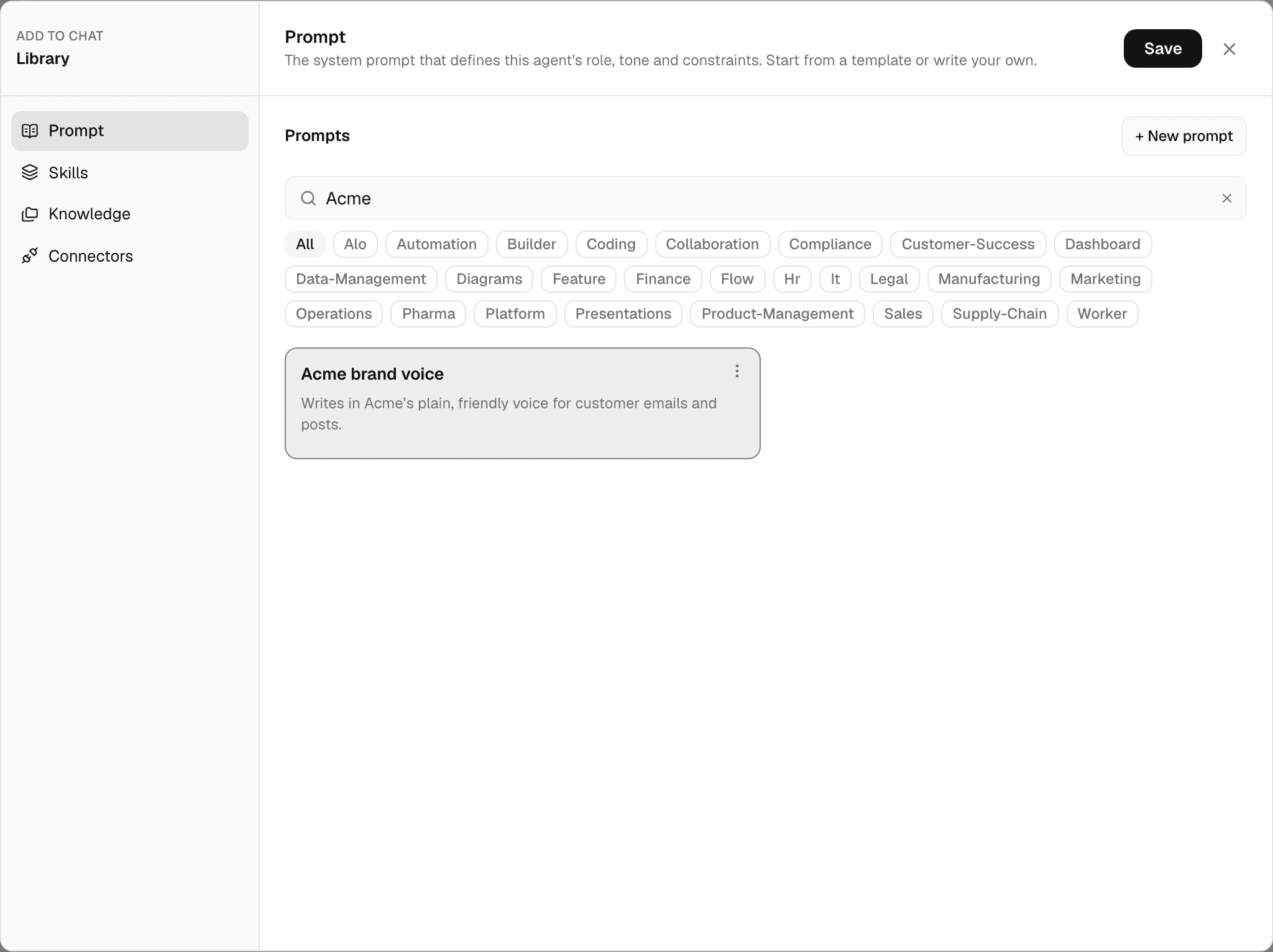
-
Select Save.
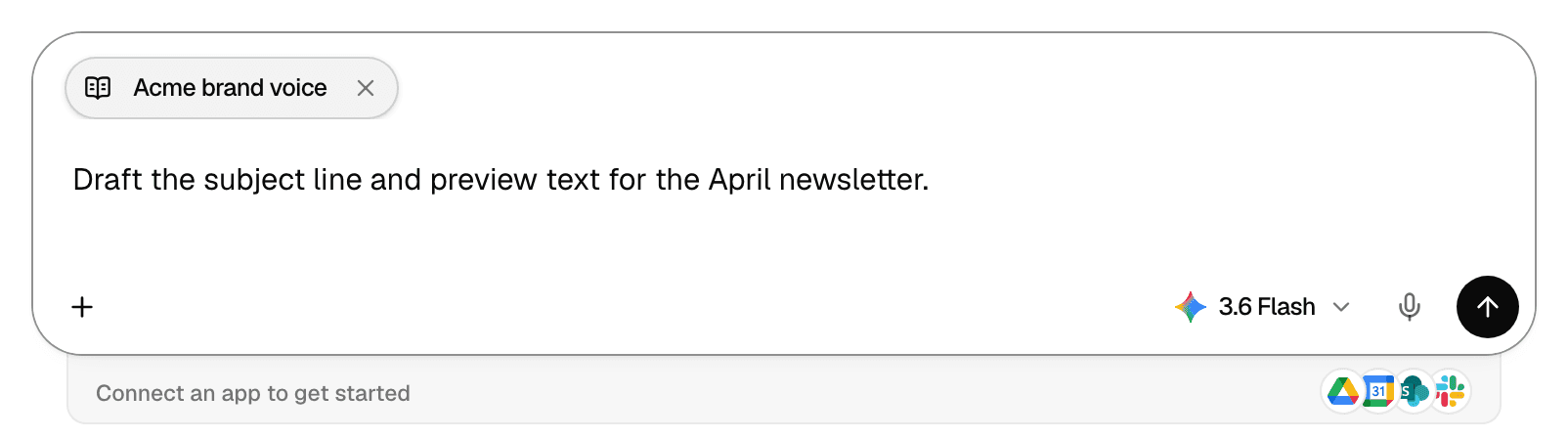
The prompt shows as a chip above your message and applies to the next message you send; the chip clears once that message is sent. Select the chip to read the prompt, or × to drop it before sending. To write prompts, see Prompts.
The connections chip
When connectors are active in a chat, their logos show in the composer, next to +.
| Point at a logo | Meaning |
|---|---|
| From and the agent's name | The agent has this connection. It is always on and cannot be turned off for one chat. |
| Added to this chat | You turned it on for this chat. |
| Needs your sign-in | The connection needs your own account. Select Connect next to it in the list. |
Select the chip to turn connections on or off for this chat, or Add connection to set up a new one. The same list is under + > Connectors. See Use connectors in chats and agents.
Work with files in a chat
Attach files to a message, point the agent at Library files, open and download the files it makes, and save them to the Library.
Plan mode, questions and approvals
How Plan mode works, how to approve or refine a plan, how to answer an agent's questions, and which actions ask for your approval.