

Share a chat
Share a frozen copy of a chat, or invite people from your workspace to work in the chat itself.
Only the chat's owner can share it.
| Share a copy | Collaborate live | |
|---|---|---|
| What the other person gets | Their own copy of the chat as it is now | The original chat, updated as you both work |
| Who can open the link | Anyone with an Alomana account on your deployment; anyone at all when Public is on | Current members of the chat's workspace |
| Later messages | Not included; yours and theirs stay separate | Everyone sees every message |
| Linked app | Not shared | Collaborators can update it |
Share a copy
- In the chat, select the share icon at the top right, or Share in the chat's ⋯ menu in the sidebar.
- Keep Share a copy selected.
- Check Public if people should be able to read the chat without signing in.
- Select Share & copy. The link is created and copied.
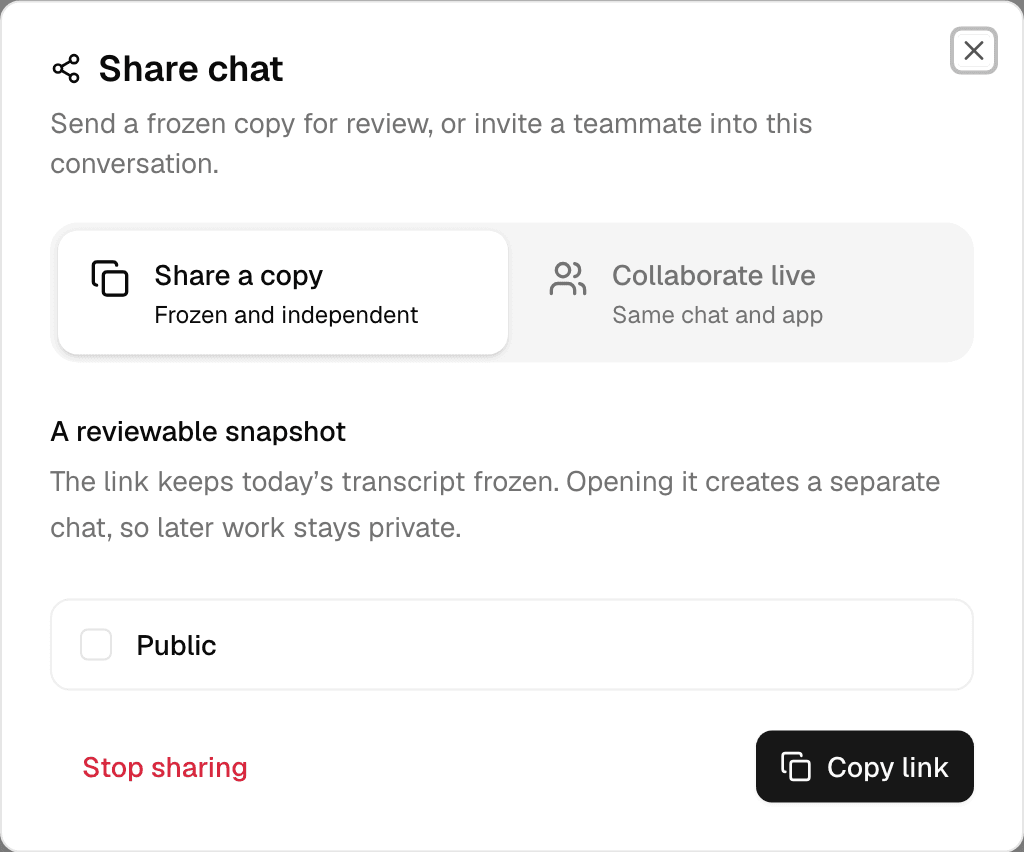
Once a link exists, the window shows Copy link and Stop sharing.
- The link shows the chat as it was when you shared it. If you keep chatting, the window warns New messages are not included in this link. Select Update link to share the latest version; the previous link stops working.
- Stop sharing turns the link off. Copies people already made stay theirs.
- Turning Public off later makes the link require sign-in again.
Open a shared copy
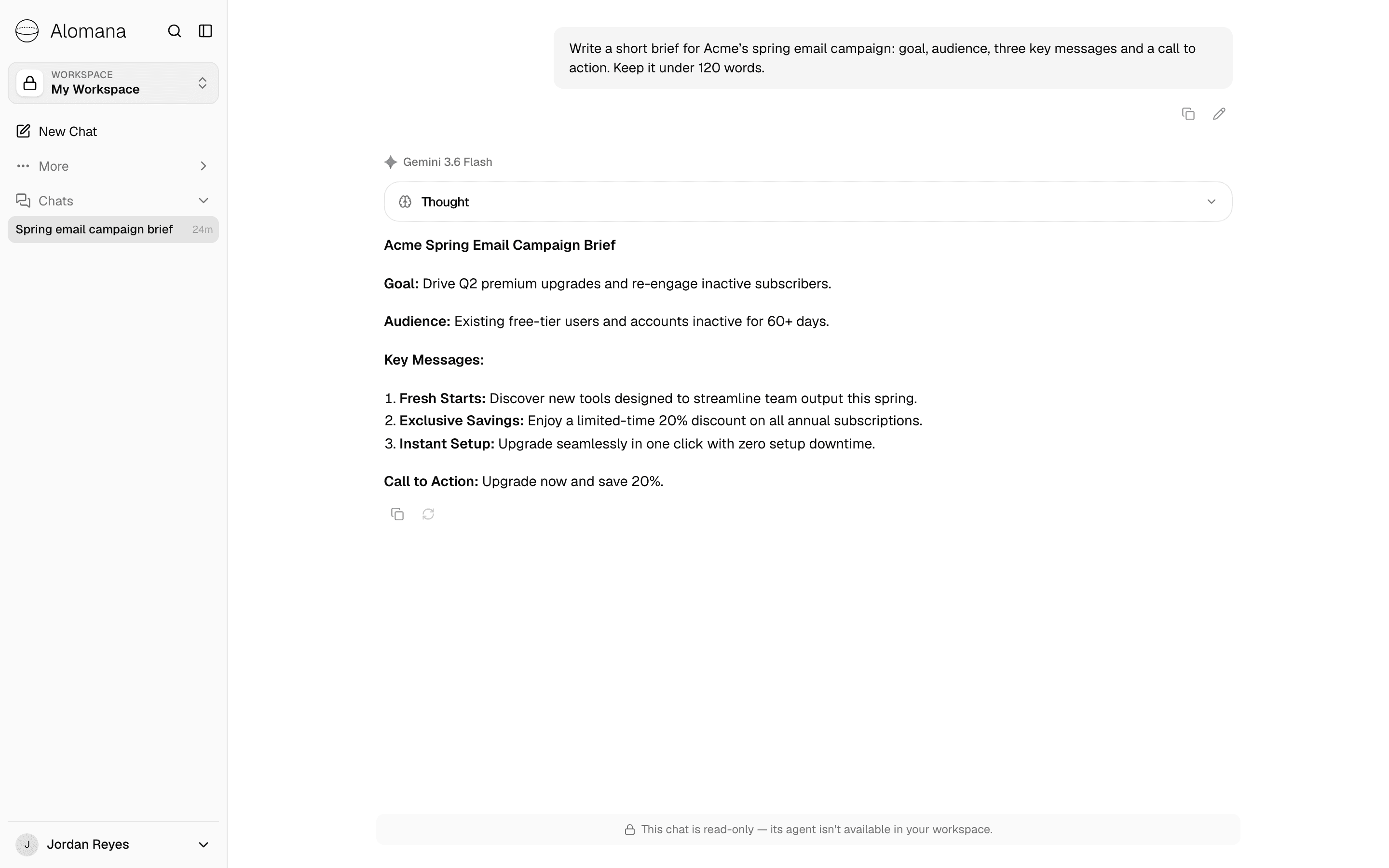
Opening a copy link makes a copy of the chat for you right away, in your sidebar. Opening the same link again brings you back to that copy.
| Your copy | Where it is, and what you can do |
|---|---|
| You are a member of the chat's workspace | In that workspace. You can continue the chat if you can use its agent; otherwise it is read-only. |
| You are outside the workspace, link not public | In your personal workspace (My Workspace, created for you if needed), read-only: This chat is read-only — its agent isn't available in your workspace. |
| You are outside the workspace, link public | In your personal workspace. You can continue the chat; if you cannot use its agent, your workspace's default agent takes over. |
- In a copy you can continue, a divider reads Messages beyond this point are only visible to you.
- Attached files and files the agent made come with the copy. A file that could not be kept shows Not available.
- Without signing in, a public link shows the chat with Sign in to continue; signing in makes your copy.
Collaborate live
-
Open Share chat and select Collaborate live.
-
Select Share & copy, then send the link to people in the same workspace.
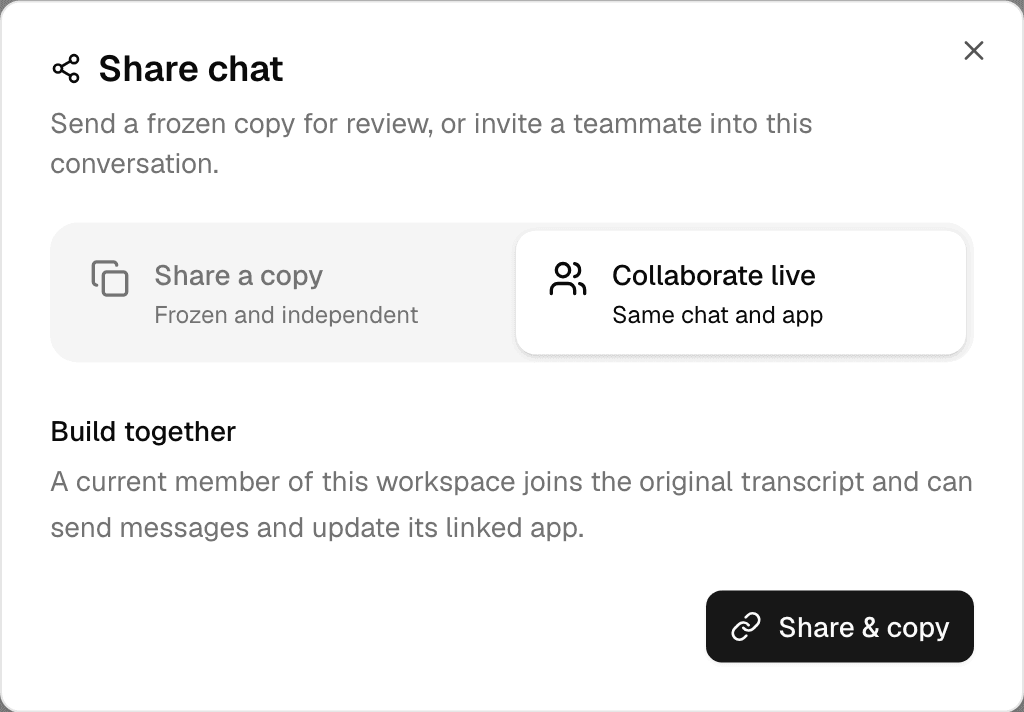
When someone opens the link, they join the chat and appear under Collaborators in the same window.
- Collaborators see the chat in their sidebar marked Shared with you and the owner's name. Each message shows who sent it.
- They can send messages to the chat's agent, watch replies as they stream, open the chat's files and work on its linked app.
- They cannot rename, delete or share the chat, or edit messages.
- One reply runs at a time. While someone else's message is being answered, the send button turns into a spinner that reads Another participant is working when you point at it.
- Remove next to a collaborator takes away their access and turns the link off, so they cannot rejoin with it. Share a new link for the others.
- Stop sharing stops new people from joining; people who already joined keep access.
Being in the workspace is not enough to see a chat: people need your link. Their workspace role does not matter.
To create and manage share links with an API key, see Read and share chats in the API documentation.