

Plan mode, questions and approvals
Plan mode lets the agent research and propose before it acts; questions and approval cards are how it checks with you along the way.
Plan and Act modes
| Mode | What the agent does |
|---|---|
| Act | The default. The agent uses all of its tools. |
| Plan | The agent looks things up and writes a plan instead of acting. |
Type /plan in the composer and press Enter to switch to Plan mode, and /act to switch back. Nothing is sent when you switch. In Plan mode the composer reads Describe what you'd like me to plan…, or Tell me what to change in the plan… once a plan exists.
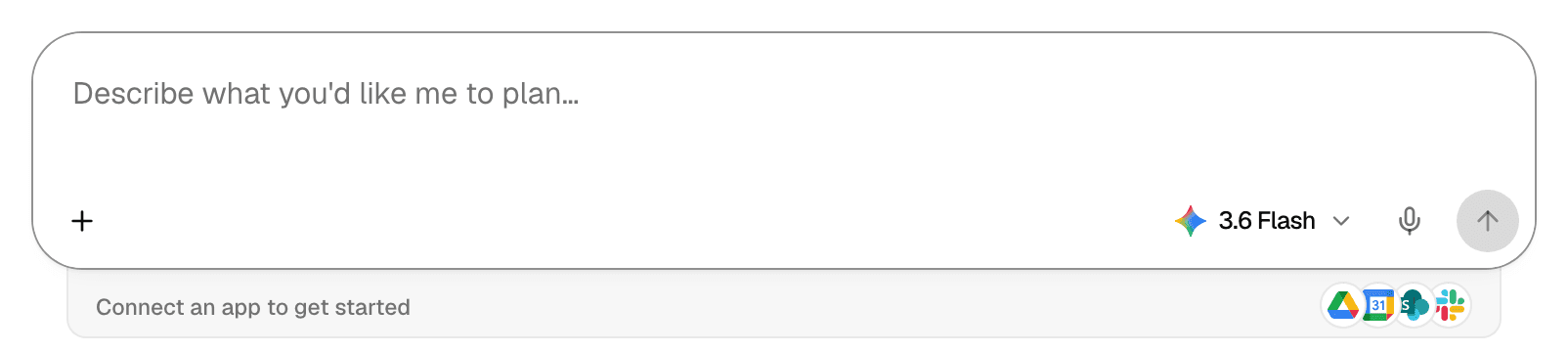
The mode stays on until you switch it. New Chat always starts in Act mode.
| In Plan mode the agent can | It cannot |
|---|---|
| Search and read the web, including YouTube videos | Run code or change files in its sandbox |
| Read files in its sandbox and search the Library | Generate images |
| Read from connectors | Build or update apps |
| Read its skills | Hand work to other agents |
| Ask you questions | Schedule tasks |
| Use tools from MCP servers |
Connector queries and MCP server tools stay available in Plan mode. One that changes data still asks for your approval first; see Approval cards.
Approve or refine a plan
The plan arrives as a Plan card with five parts: Context, Approach, Steps, Files / resources touched and Verification.
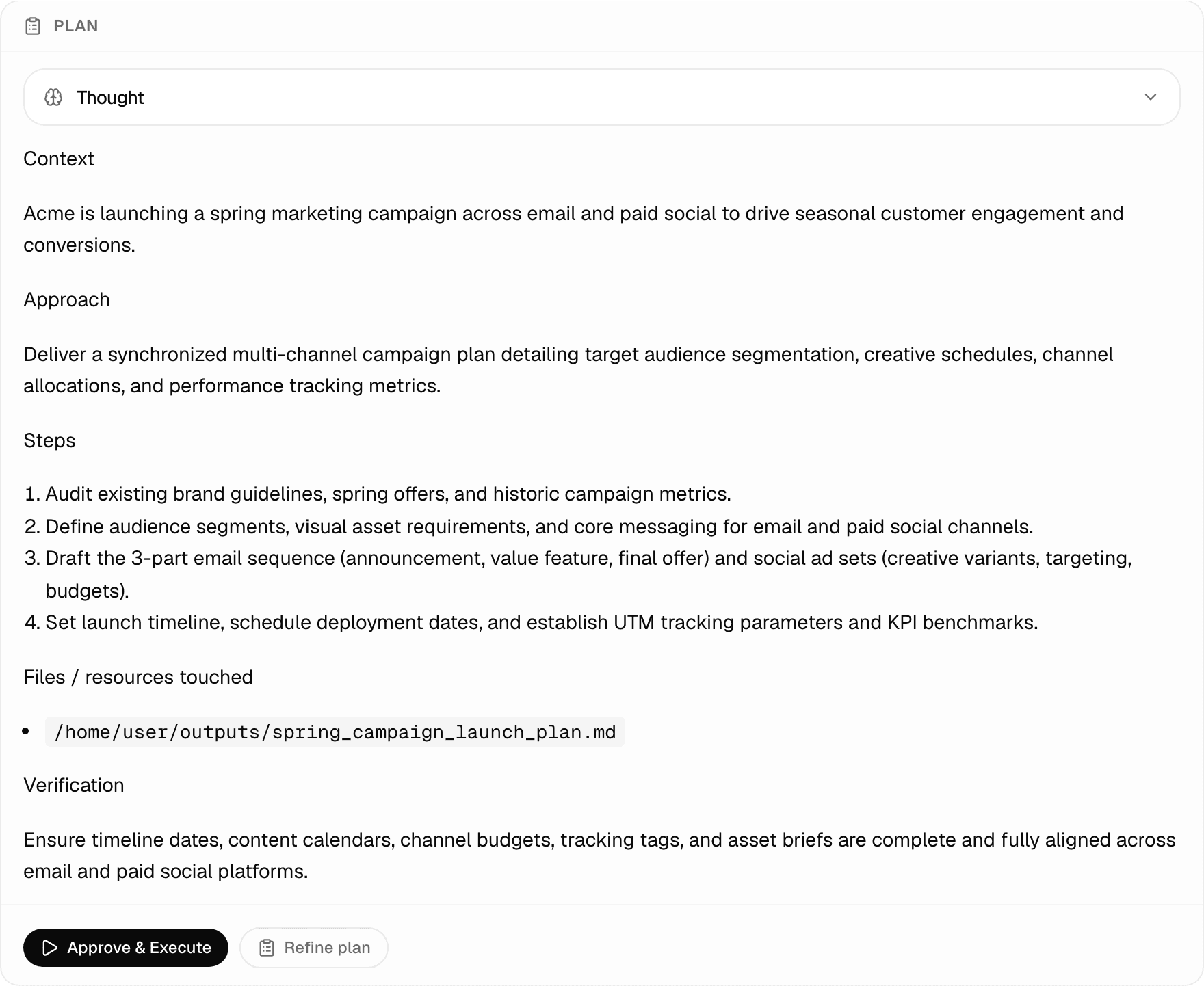
| Button | What it does |
|---|---|
| Approve & Execute | Switches to Act mode and tells the agent to carry out the plan, in the same chat. |
| Refine plan | Opens What would you like to change about this plan?. The agent rewrites the plan and stays in Plan mode. |
The chat keeps its latest plan. Select +, then View plan, to read it again with the same two buttons, and Copy to copy it. When the agent works through the plan with a progress checklist, the checklist shows under Progress.
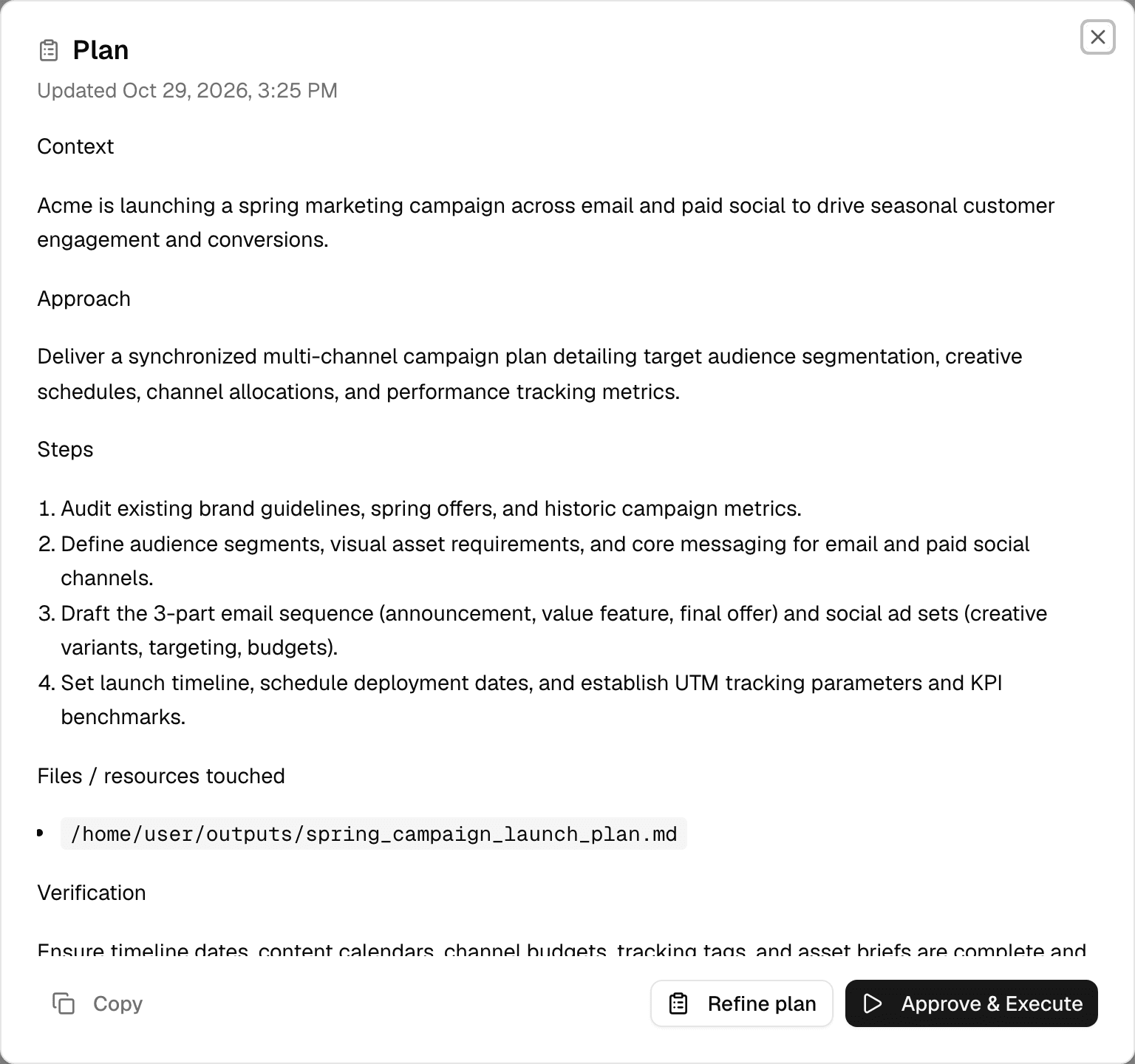
After you reload a chat, the plan shows as an ordinary reply without the buttons; use + > View plan instead.
Answer the agent's questions
When the agent needs a choice from you, its questions replace the composer.
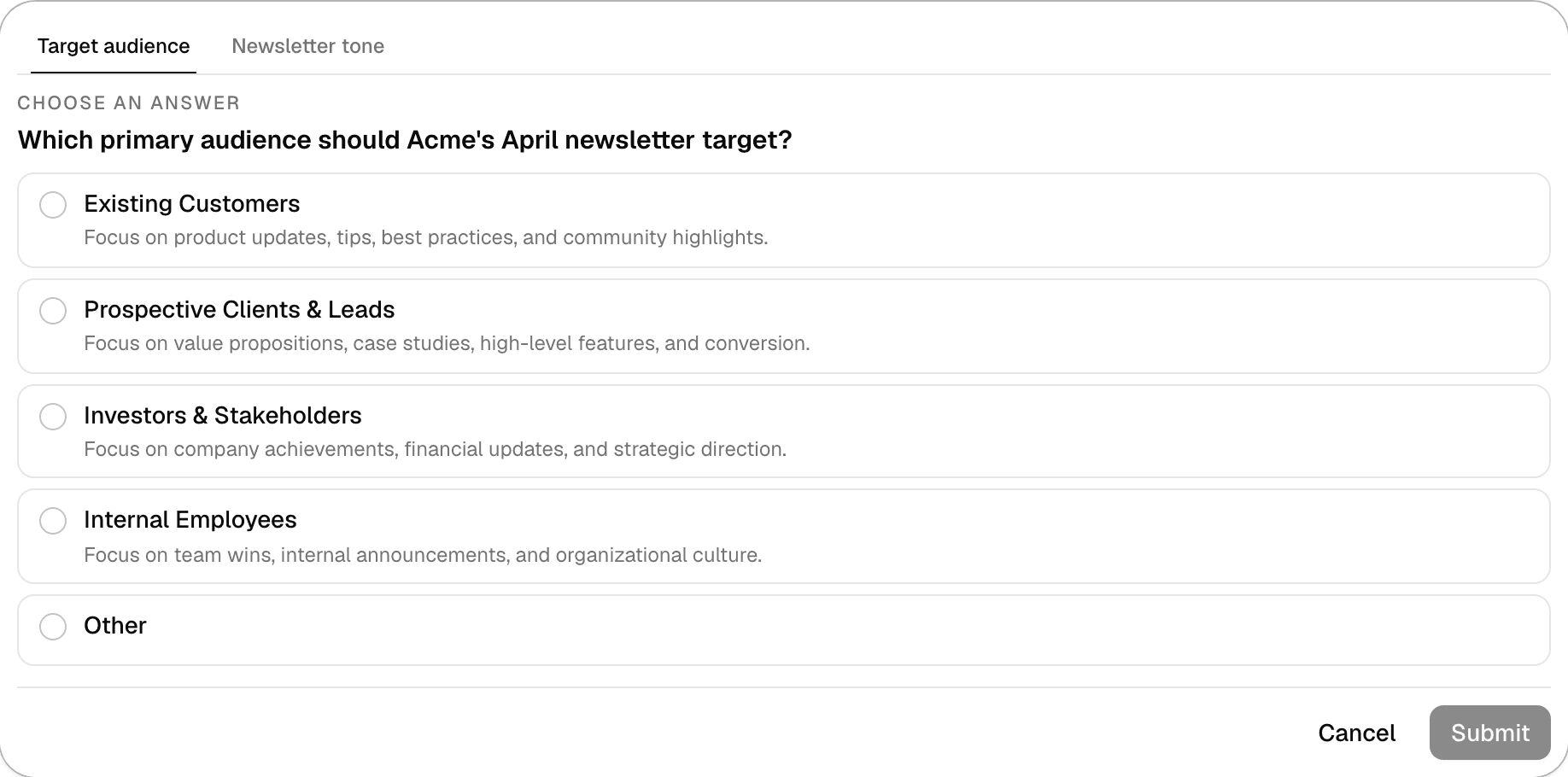
- The agent asks one to three questions at a time, each with two to five answers and Other.
- Other opens Write your answer for your own text.
- With several questions, a tab per question sits above them.
- Submit becomes available once every question has an answer. Cancel closes the questions so you can type instead.
In a scheduled run nobody is there to answer, so the agent decides for itself. See How scheduled runs work.
Approval cards
Before an action that changes something outside the agent's own sandbox, the agent stops and shows an approval card. The action has not run yet.

| Card | Shown before |
|---|---|
| Data write | A connector query or action that changes data, such as a database statement that is not a plain read. |
| Send | A connector action that sends something, such as an email or a form. |
| MCP write | An MCP server tool that the server marks as changing data. Tools the server does not mark run without asking. |
| Scheduled task | Creating a scheduled task. See Schedule an agent. |
| Action | A connector action whose effect the connector does not declare. |
Running code, and creating or editing files in the agent's sandbox, never asks: the sandbox is the agent's own scratch space. Details on a card shows exactly what the agent wants to run.
| Button | What it does |
|---|---|
| Allow | Runs the action this time. |
| Always allow for this chat | Runs it, and the agent does not ask again for the same action in this chat. |
| Deny | Asks you for a reason, then tells the agent not to run it. |
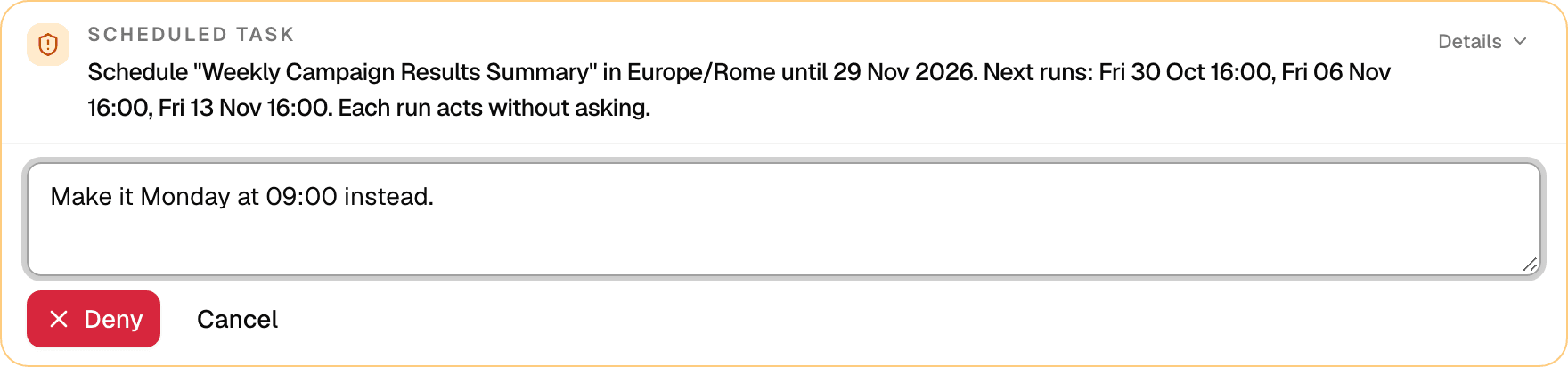
- A denial needs a reason, up to 2,000 characters. The agent reads it and adjusts instead of retrying the same action.
- Your answer is sent at once and the agent carries on.
- A card that is no longer waiting reads This request is no longer waiting for an answer.
- When another agent asks through a delegated task, the card names it: asked by and the agent's name.