

Work with files in a chat
Attach files to a message, or let the agent search your Library, and get the files the agent makes back as downloads.
Attach files to a message
Do one of these in the composer:
- Select +, then Attach a file, and choose one or more files.
- Drag files onto the chat.
- Paste files into the composer.
Each file shows above your message while it uploads. Send once every file shows its size; the send button stays disabled while an upload runs. Select × on a file to remove it.
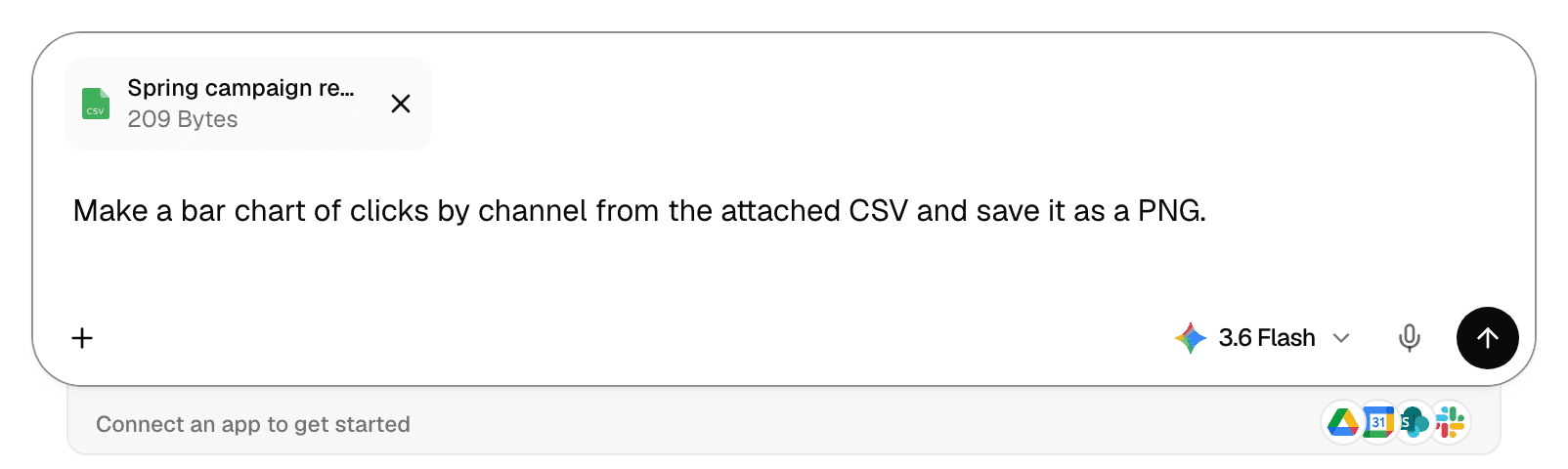
Any file type can be attached, and the composer sets no size limit. Attachments are yours: only you, and people you share the chat with, can open them.
What the agent reads, and how
The agent always gets the file. What differs is whether the model looks at it directly or the agent opens it with code in its sandbox.
| File | What happens |
|---|---|
| Images: .jpg, .png, .gif, .webp | The model looks at the image, up to the size limit below. |
| The model reads short PDFs directly, up to the limits below. Longer ones, and password-protected ones, are opened with code. | |
| Word (.docx, .doc) and Markdown | Converted to text for the model. A very long document is opened with code instead. |
| Spreadsheets (.xlsx, .xls), .csv, PowerPoint (.pptx, .ppt), .svg | Always opened with code, so the agent can calculate with the data. |
| Anything else | Opened with code, when the agent can read the format. |
Size limits for an image or PDF the model reads directly, by the model's provider:
| Provider | Image | |
|---|---|---|
| Gemini | 90 MiB | 20 MiB, 100 pages |
| OpenAI (GPT) | 20 MiB | 8 MiB, 25 pages |
| Anthropic (Claude) | 4 MiB | 8 MiB, 20 pages |
| Models served through OpenRouter | Never read directly | Never read directly |
Your deployment can serve a model through a route with lower limits. A file over the limit is not lost: the agent opens it with code, but it cannot see the picture or the page layout. If the agent seems to ignore an image, try a Gemini, GPT or Claude model.
Use files from the Library
Library files belong to the workspace, so everyone in it and their agents can use them. See Manage files and folders.
| To | Do this |
|---|---|
| Let the agent search the Library | Select +, then Search in files. The strip above the composer shows All files and Searching all files in the workspace. |
| Search only some files | In the list that opens, check files or folders, or Select all. The strip then shows Searching the selected files only. |
| Point at one file or folder | Type @, choose Files, and pick it. See Mentions and commands. |
| Start a chat from the Library | In Library, check files and select Chat with Files. |
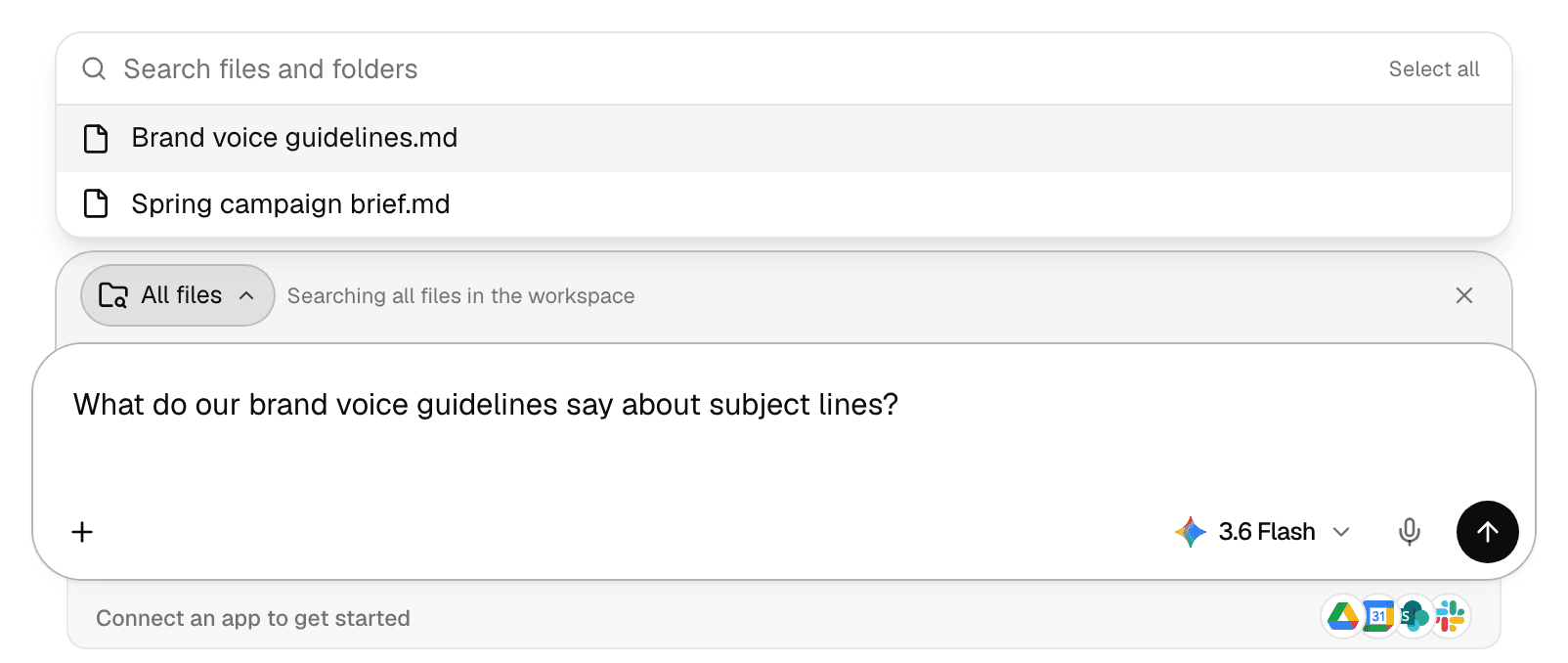
Select × at the end of the strip to stop searching the Library. An agent that has Library files in its own knowledge shows From the selected agent · always included instead, and those files cannot be removed for one chat.
Open and download files the agent makes
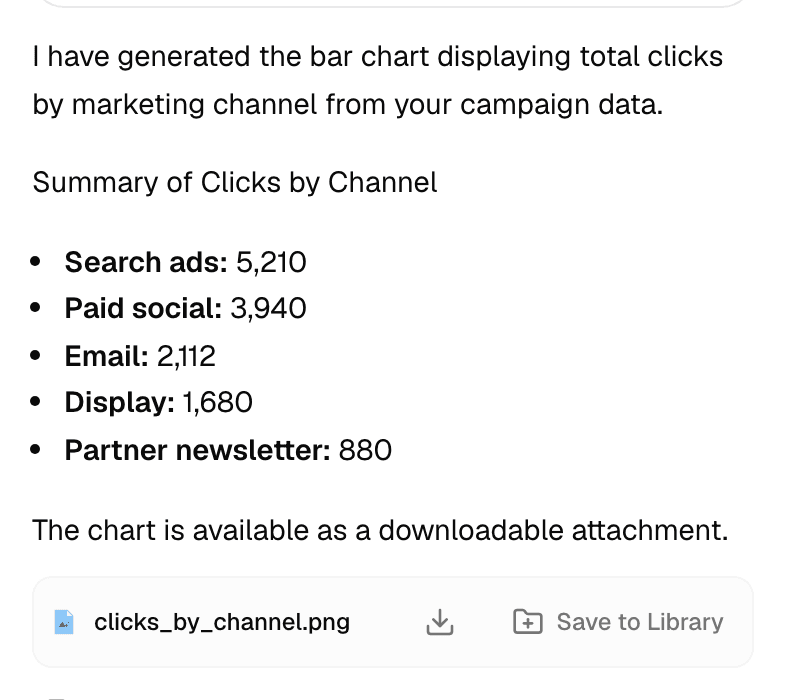
Files the agent creates appear under its reply, one row per file.
| To | Do this |
|---|---|
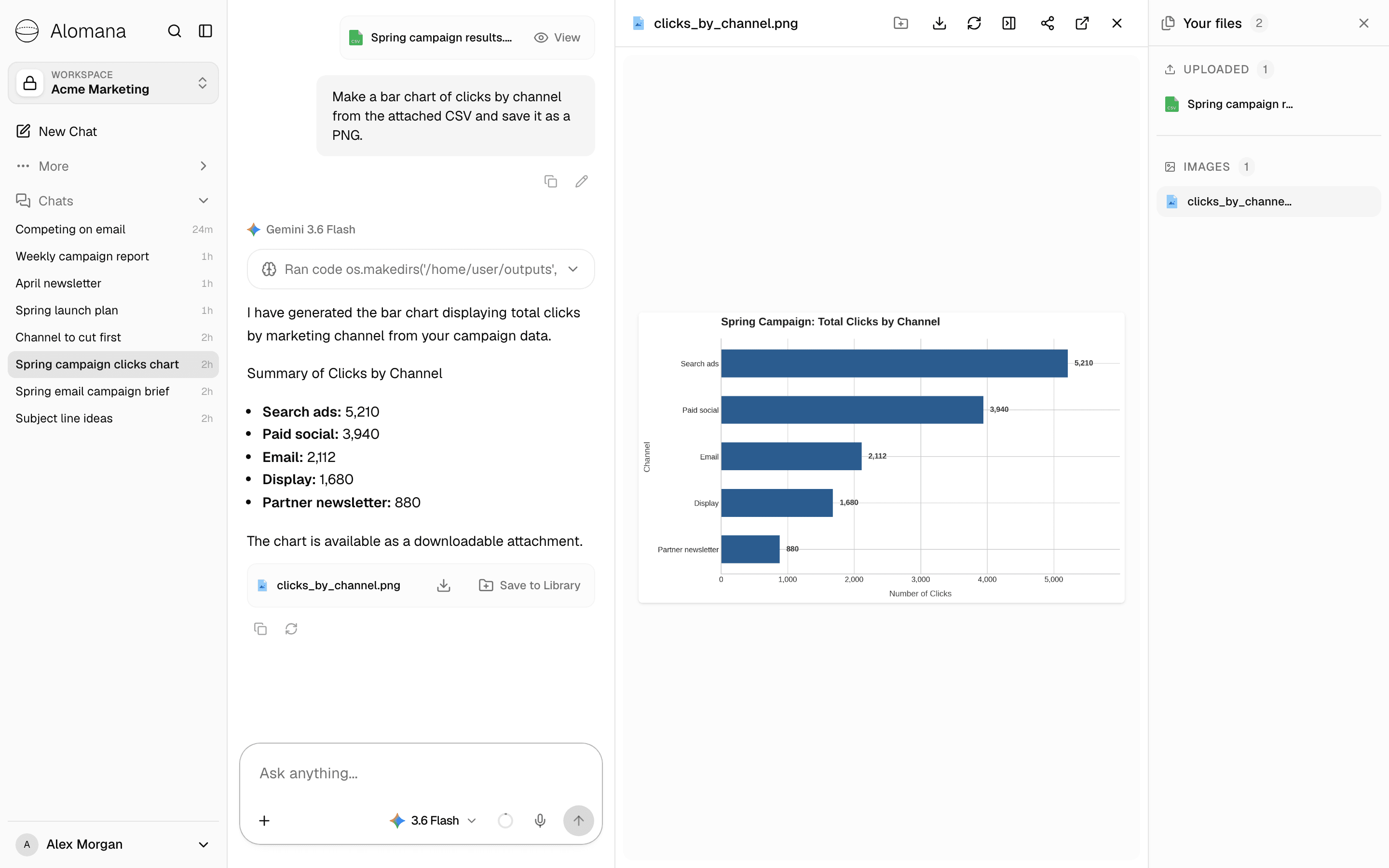
| Preview the file | Select its name. The preview opens beside the chat. MP4, WebM and MOV videos play in it. |
| Download it | Select the download arrow on its row, or in the preview. |
| Copy it to the Library | Select Save to Library. |
The buttons at the top of the preview save the file to the Library, download it, refresh it, show or hide Your files, share the chat, open the file in a new tab and close the preview.
Your files lists every file in the chat, grouped as Templates, Uploaded, Documents, Images and Archived; empty groups are hidden.
Save a file to the Library
Select Save to Library on the file's row. The file is copied into the Library's Output folder, in a topic folder picked for it; the button then reads Saved.
- Save to Library works once the reply has finished.
- The Library takes only the file types it supports. For any other file, the button explains why and you can download it instead.
- If the topic folder already has a file with that name, choose Replace or Keep both.
Where saved files land, and the folder rules, are in Manage files and folders.