

Manage files and folders
Upload files to Library > Files so everyone in the workspace, and the agents they chat with, can use them.
Create a folder
-
Select Library in the sidebar. The Files tab opens.
-
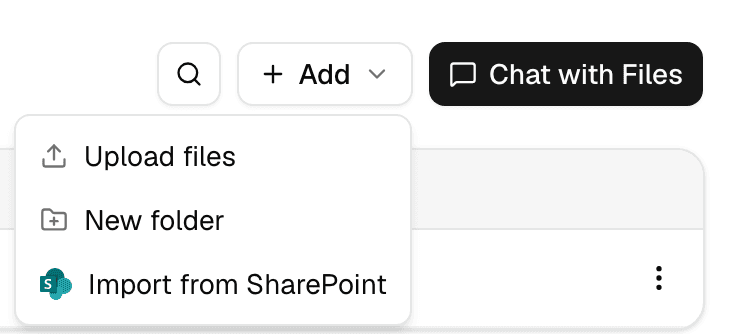
Select Add, then New folder.
-
Enter a name and select Create folder.
Folders can contain folders. Select a folder's name to open it; the path above the list takes you back.
Upload files
-
Open the folder the files belong in.
-
Select Add, then Upload files, or drag files onto the list.
-
Choose up to 100 files and select Upload.
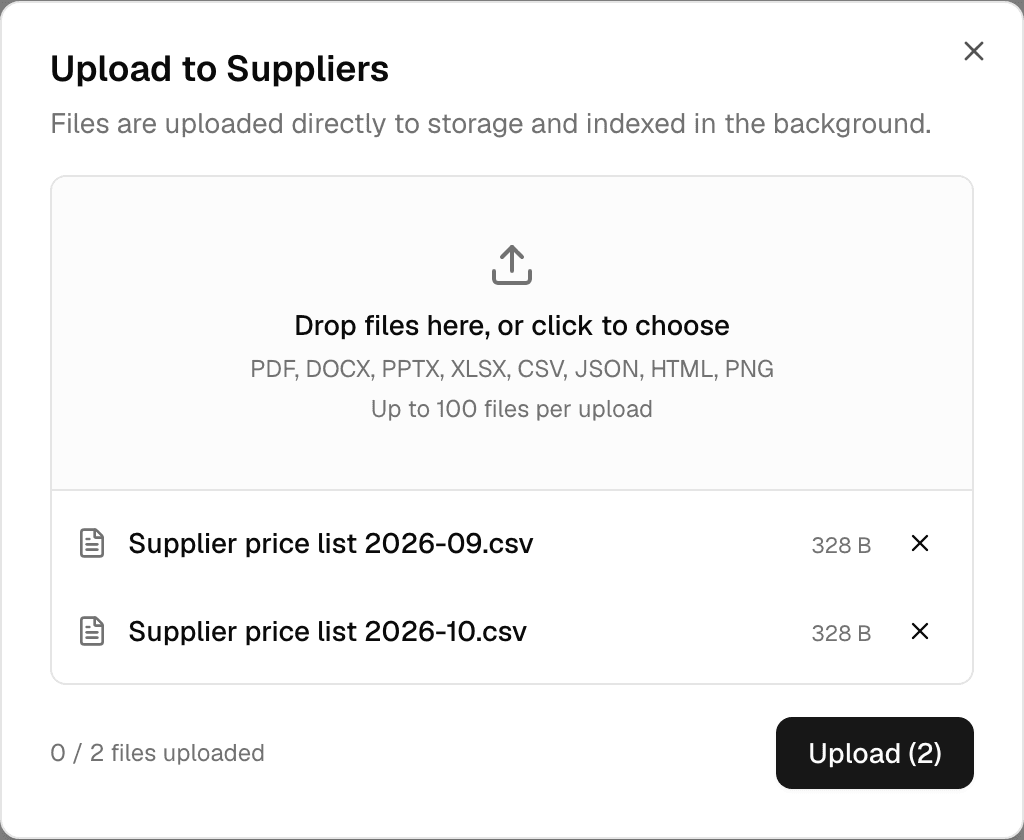
The dialog closes once every file is uploaded. Each file is then processed in the background:
| Status | Meaning |
|---|---|
| Uploaded | Saved and waiting to be read. |
| Parsing | Its text and structure are being extracted. |
| Parsed, Indexing | Its content is being made searchable. |
| Indexed | Ready: agents can search its content. |
| Stored | Ready: agents can open it, but its content is not searchable. |
| Error | Processing failed. Hover the status to see why. |
If the folder already has a file with the same name, select Resolve next to the new file: Make a copy here keeps both, Delete existing and re-upload replaces the old file.
Add > Import from SharePoint brings in files from a SharePoint connection instead.
Supported files
| Kind | Extensions | Searchable by agents |
|---|---|---|
| Documents | .pdf, .docx, .pptx, .doc, .ppt | Yes |
| Spreadsheets | .xlsx, .xlsm, .xlsb, .xltx, .xltm, .xls, .xlt, .ods, .csv | Yes |
| Text and web pages | .txt, .md, .json, .xml, .html, .htm | Yes |
| .eml, .msg | Yes, without attachments | |
| Images | .png, .jpg, .jpeg | Yes |
| Design and CAD | .svg, .psd, .ai, .indd, .idml, .dwg, .dxf, .ifc, .step, .stp, .rvt, .rfa | No: status Stored |
| Signed files | Any of the above with .p7m added | Like the file inside; the signature is not checked |
| Limit | Value |
|---|---|
| Files per upload | 100 |
| .docx and .pptx length | 500 pages |
| .doc and .ppt size | 100 MiB |
| .txt, .md, .json, .xml and .html size | 64 MiB |
Find a file
Select the search button and type part of a name. Search covers every folder in the Library, ignores case and accents, and shows where each result is in Location. Every word you type must appear in the name.
Preview a file
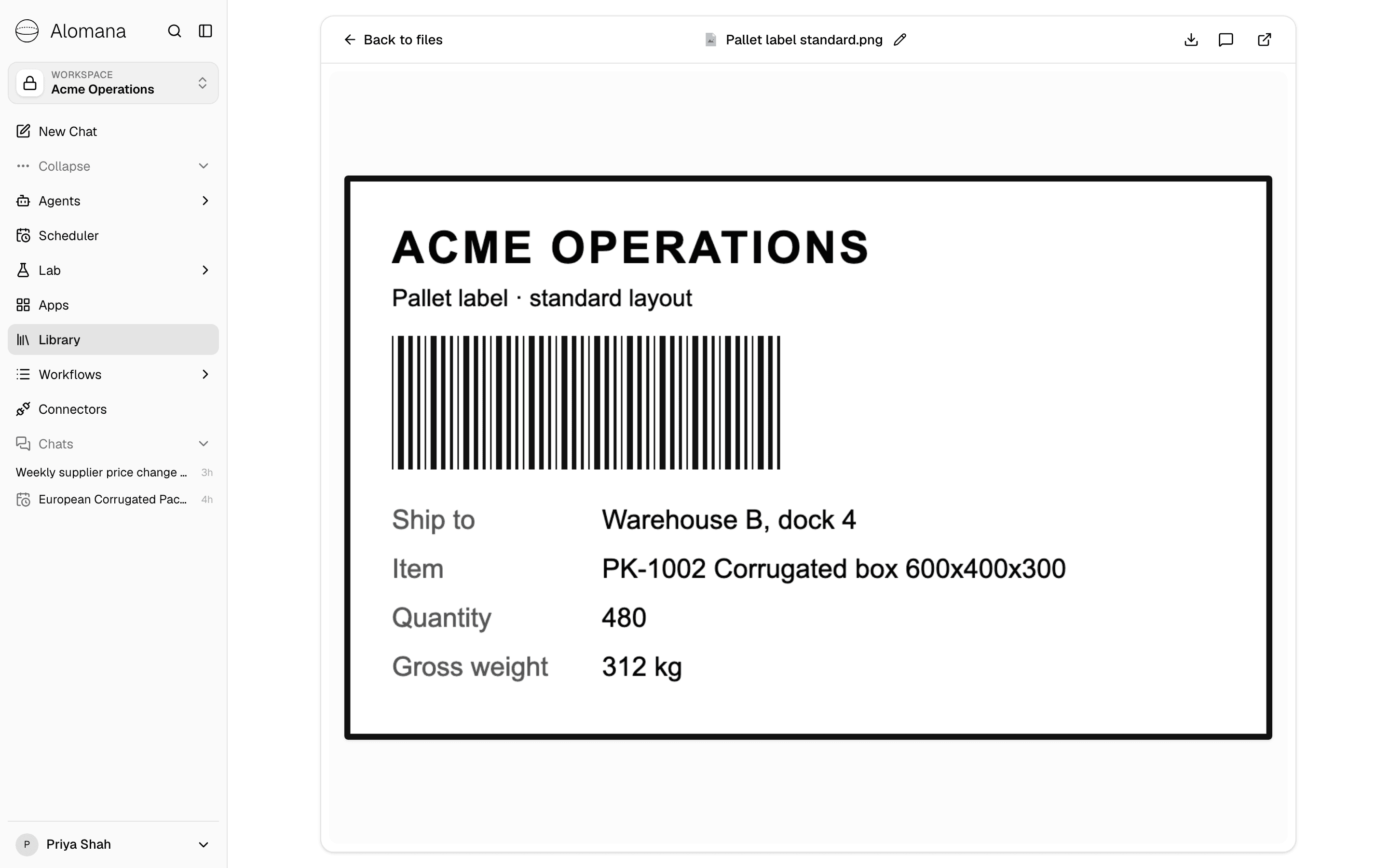
Select a file's name. The buttons at the top download the file, start a chat about it and open it in a new tab; the pencil next to the name renames it.
Move, copy, download or delete
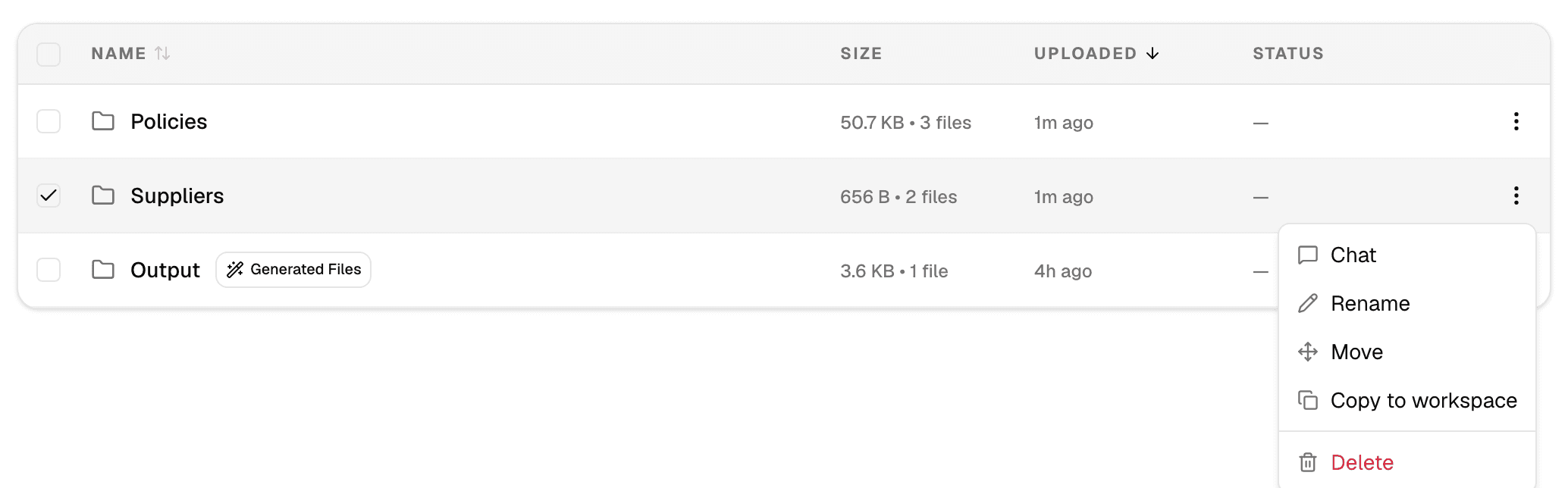
Open the ⋮ menu at the end of a row.
| Action | What it does |
|---|---|
| Chat | Starts a new chat with the workspace's default agent, with the file or folder attached. |
| Rename | Renames the file or folder. A file keeps its extension. |
| Move | Moves it to another folder in this workspace. |
| Copy to workspace | Copies it into another workspace you belong to, a folder with all its contents. The original stays. Files still processing are not copied. |
| Download | Downloads the file. Folders have no Download. |
| Delete | Deletes the file, or the folder and everything in it, after you confirm. This cannot be undone. |
To act on several items at once, check their boxes, then select Move, Delete or Chat with Files above the list.
Deleting a file or folder also removes it from every agent that used it as knowledge. Files and folders imported from SharePoint have no Rename or Move.
Files saved from chats
When an agent creates a file in a chat, Save to Library on that file copies it into the Library.
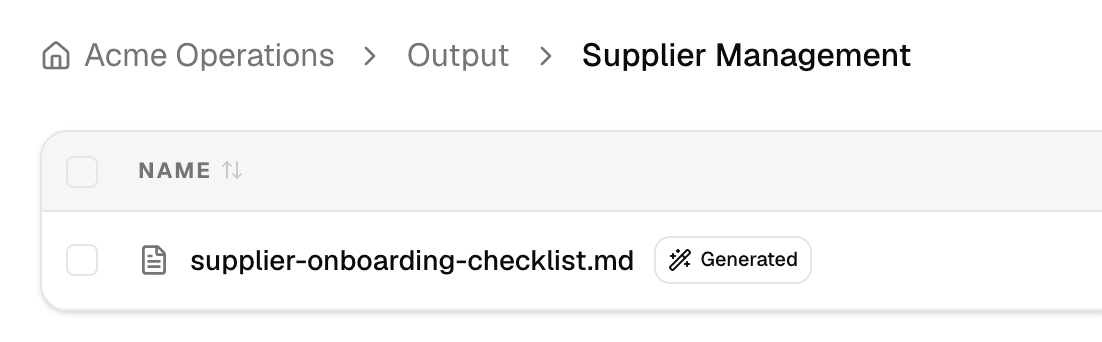
- The file goes to Output, in a topic folder chosen for it, such as Output > Supplier Management. Files on the same topic share a folder.
- Output holds at most 15 topic folders; after that, files on new topics go to Other.
- Output is marked Generated Files, and each saved file Generated.
- If the topic folder already has a file with that name, choose Replace or Keep both.
- Save to Library works once the agent's reply has finished, and only for the file types listed above.
- A saved file is visible to everyone in the workspace, like any upload.
Use Library files in chats and agents
- Select files or folders and then Chat with Files to start a chat with them attached. See Use files from the Library.
- Give an agent files and folders to search in its Knowledge settings. See Knowledge.
To manage files with an API key, see Upload and organize files in the API documentation.