

Use document templates
A template is a Word (.docx) or PowerPoint (.pptx) file whose design an agent follows when it creates a document for you.
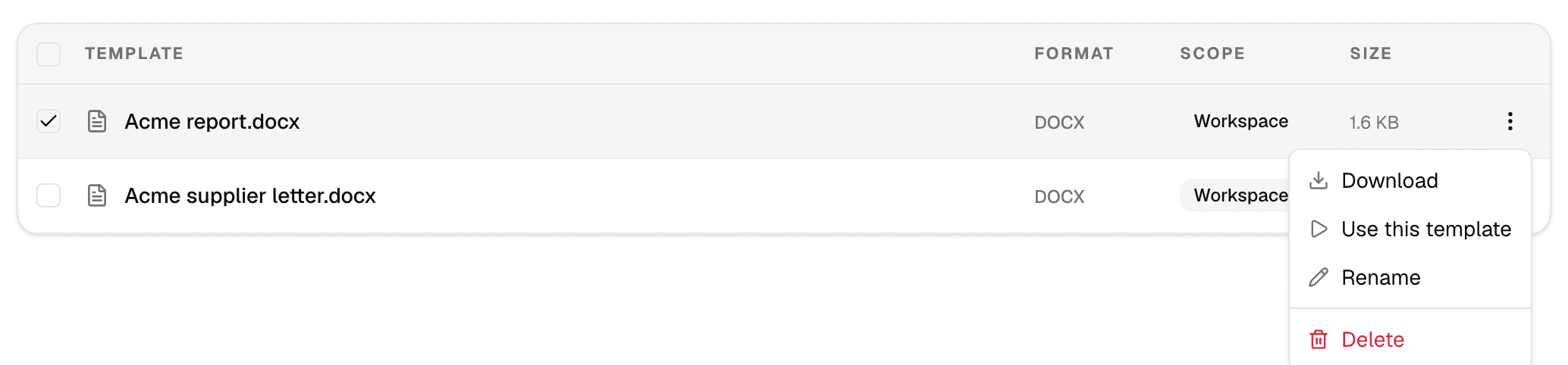
| Scope | Where it comes from | Who manages it |
|---|---|---|
| Workspace | Added in this workspace | Workspace admins |
| Global | Shared with every workspace on the deployment | Platform admins |
Create a document from a template
- Open Library > Templates.
- Open the ⋮ menu on a template and select Use this template. A new chat opens with the workspace's default agent and the template selected.
- Describe the document you need and send the message.
The agent creates a Word document from a .docx template and a PowerPoint deck from a .pptx template, using only the template you selected. You can pick a template only when a chat starts.
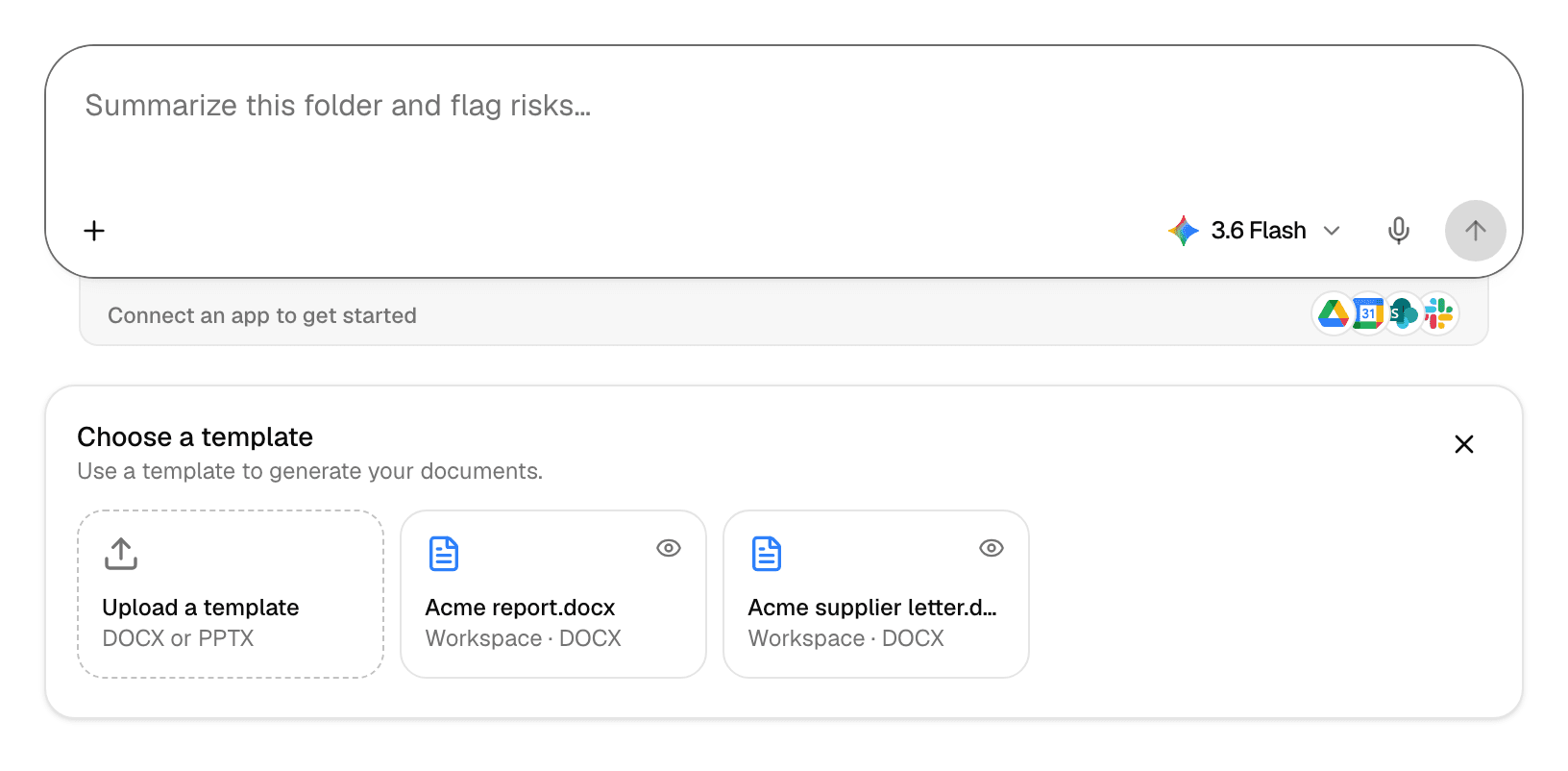
To compare templates first, select Create with Templates: a new chat opens with the Choose a template panel. Select a template there, then describe the document.
Add a workspace template
Workspace admins only.
- Open Library > Templates and select Add.
- Choose a .docx or .pptx file. Other file types are refused.
The template appears with the scope Workspace. Upload a template in the Choose a template panel does the same.
Manage templates
Select a template's name to preview it, or search with Search templates by name…. The ⋮ menu holds the other actions:
| Action | Who can use it |
|---|---|
| Download | Everyone in the workspace |
| Use this template | Everyone in the workspace |
| Rename | Workspace admins, on workspace templates |
| Delete | Workspace admins, on workspace templates |
To manage templates with an API key, see Workspace context and templates in the API documentation.
Manage files and folders
Upload files to the Library, organise them in folders, preview, download, move, copy and delete them, and find files saved from chats.
Connectors
Connectors let agents read databases and business apps and use the tools of MCP servers, with private or shared connections and per-person sign-in.