

Connectors
A connection links your workspace to a database, a business app or an MCP server, so agents can read its data and use its tools in chats.
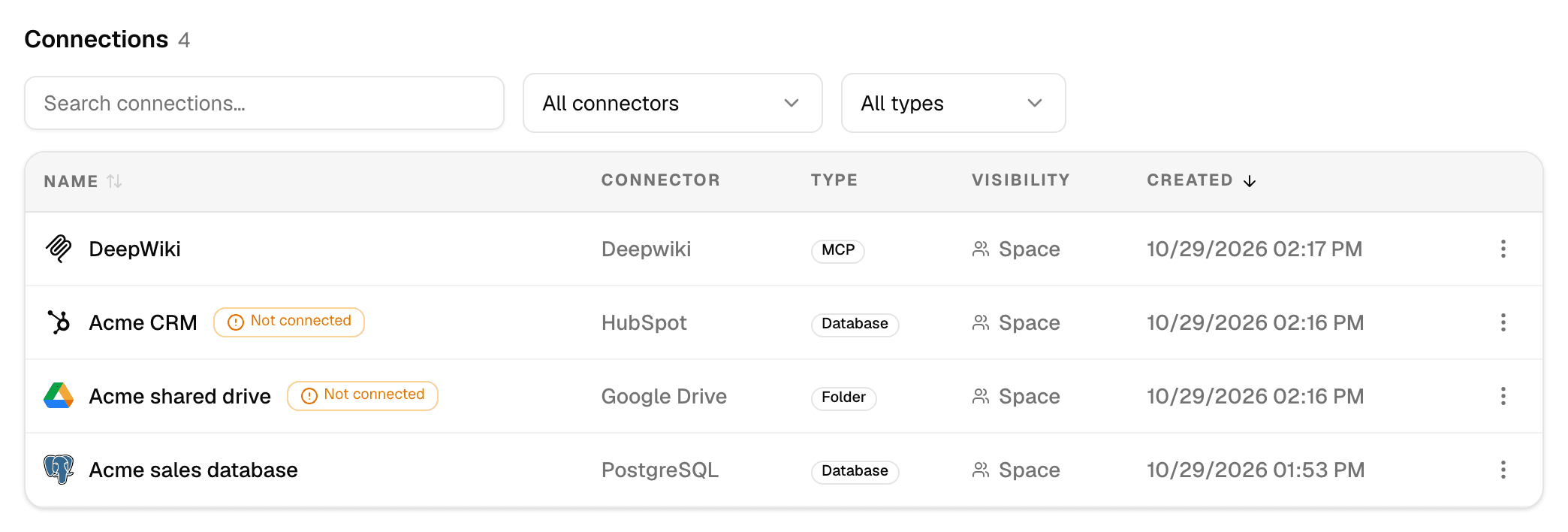
Open Connectors in the sidebar. The top of the page shows the most used connectors, with Search connectors… and Browse all for every other one; Connections below lists the connections you can use in this workspace.
Data sources, apps and MCP servers
| Kind | What it is | Examples | How agents use it |
|---|---|---|---|
| Data Source | A database, warehouse, file store or CRM agents read from. | PostgreSQL, Snowflake, Google Drive, SharePoint, HubSpot | They look at its tables or files and query them. |
| App | A business tool agents can act in. | Jira, Slack, Google Calendar, Tavily | They use the actions its connect dialog lists under Available tools. |
| MCP server | A remote server that speaks the Model Context Protocol and offers its own tools. | Ready-made servers such as Atlassian, Linear, Notion and Stripe, or your company's own | They call the server's tools. |
The Type column shows Database, Folder or File for most data sources, App for apps and MCP for MCP servers. Every connector and ready-made MCP server is listed in the connector directory.
Database connections also get a semantic layer: a description of their tables and business terms that agents read before they write a query.
Private or shared with the workspace
You choose who can use a connection when you create it.
| Visibility | Who can use it | Who can edit or delete it |
|---|---|---|
| Private | Only you. | You. |
| Space | Everyone in the workspace. | Data sources and apps: only you. MCP servers: anyone who can see it. |
- Space can be selected only in a workspace with at least two members. In a workspace of your own it is greyed out.
- A connection belongs to the workspace it was created in. Copy to workspace on its ⋮ menu copies it into another workspace you belong to; only the person who created it can copy it.
- Everyone who can use a connection can pick it in a chat or give it to an agent.
Per-person sign-in
Connectors that sign in with an account (OAuth), such as Google Drive, SharePoint, HubSpot or Salesforce, never share that account.
- The person who creates the connection signs in with their own account.
- Everyone else in the workspace sees Not connected next to the shared connection until they select Connect and sign in with their own account.
- An agent then works with each person's own access: it sees what that person can see in the service, and nothing more.
- A chat goes ahead without the connections you are not signed in to. See Reconnect an account.
Connections that use a password, an API key or a token work the same way for everyone who can use them: they all share the credentials entered when the connection was created.
Pages in this section
- Connect a data source: create, test, edit and delete a connection.
- Connect an MCP server: connect a ready-made server from the catalog, or add any remote MCP server.
- Semantic layer: what agents know about a database, and how to improve it.
- Use connections in chats and agents: pick a connection for one chat or give it to an agent.
- Reconnect an account: the Connect prompt and expired sign-ins.
- Connector directory: every connector and ready-made MCP server, and how each signs in.
To manage connections with an API key, see Connectors in the API documentation.
Use document templates
Add Word and PowerPoint templates to a workspace and start a chat in which the agent creates a document in that template's design.
Connect a data source
Create a connection to a database or business app from the Connectors page, sign in or enter its credentials, then edit, copy or delete it.