

Semantic layer
The semantic layer describes a database connection in business terms: what each table holds, how tables join, what your terms mean and how your KPIs are calculated. Agents read it before they query the database.
You can open it for PostgreSQL, Snowflake and Google BigQuery connections: select Semantic Layer on the connection's ⋮ menu on the Connectors page.
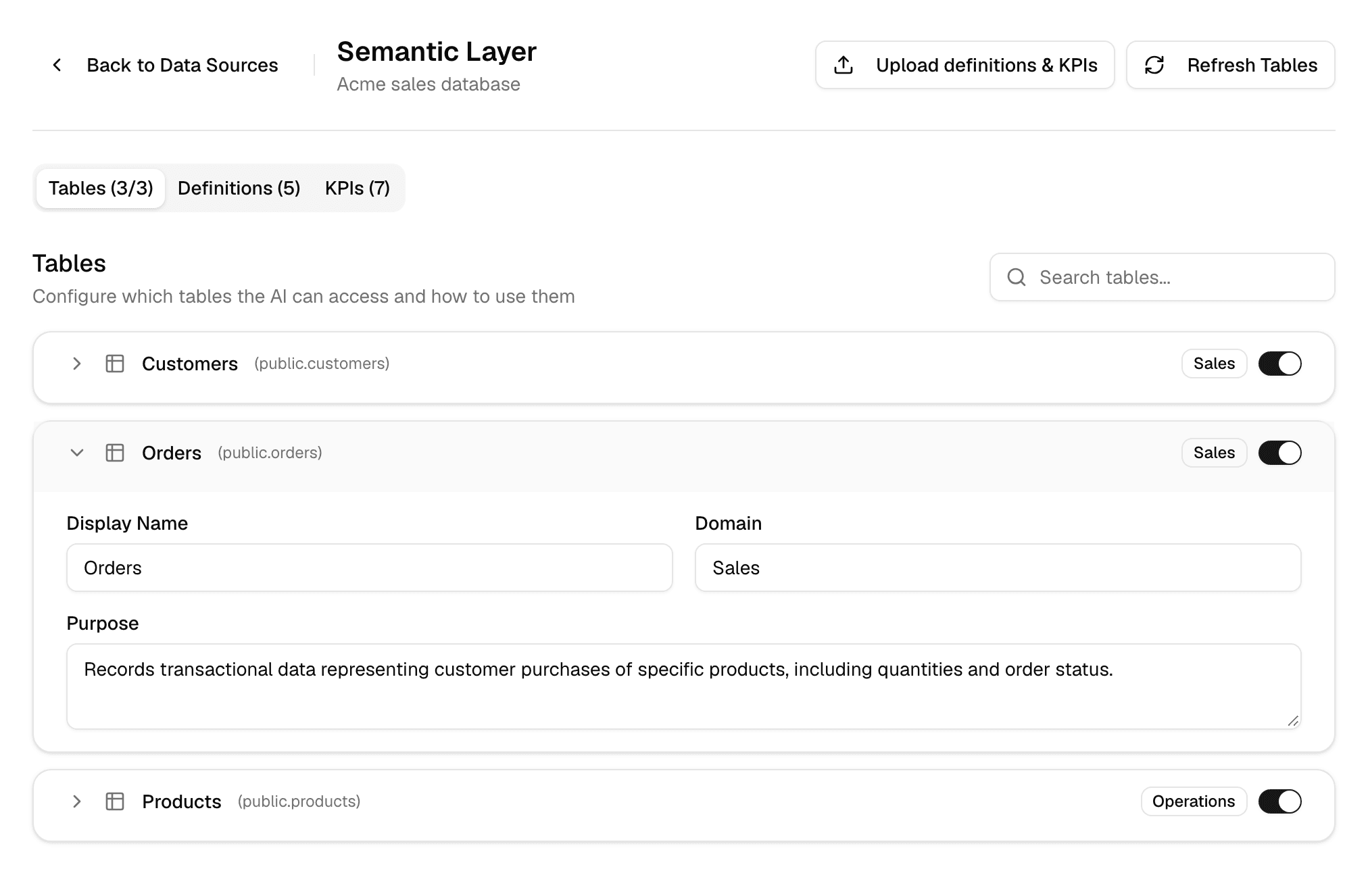
Everyone who can use the connection can open its semantic layer. Only the person who created the connection can change it.
What is generated
When you create the connection, Alomana reads the database's tables, columns and a few sample values, and a model writes a first version. It usually takes a minute or two; the page updates by itself.
| Part | What it holds | Where you see it |
|---|---|---|
| Tables | A display name, a domain such as Sales, and a purpose for each table, and whether agents may use it. | Tables tab. |
| Relationships | Which columns join two tables, and when to use the join. | Generated only; not shown on the page. |
| Definitions | Business terms such as "Delivered order", with a description. | Definitions tab. |
| KPIs | Named metrics with a description, a formula and the SQL behind it. | KPIs tab. |
The Source column shows where each definition or KPI came from: AI (generated), Manual (added by hand) or the name of the file it was imported from.
How agents use it
- Whenever an agent works with the connection in a chat, it gets the semantic layer: table purposes, sample values, joins, definitions and KPI formulas.
- An agent cannot query a table you switched off. If it tries, the query is refused and the agent writes another one.
- A chat uses the semantic layer whether you picked the connection in that chat or the agent has it. See Use connections in chats and agents.
A precise purpose and clear definitions are the most effective way to get correct answers: agents use your words for what a column means.
Edit tables
- Open the Tables tab. Tables (3/3) counts the tables agents may use out of all tables.
- Turn a table's switch off to keep agents away from it, or on to allow it. Refresh Tables switches every table back on.
- Select a table's name to expand it, then change Display Name, Domain or Purpose. Each change is saved when you click outside the field.
Search tables... finds a table by name, display name or domain.
Add and edit definitions
-
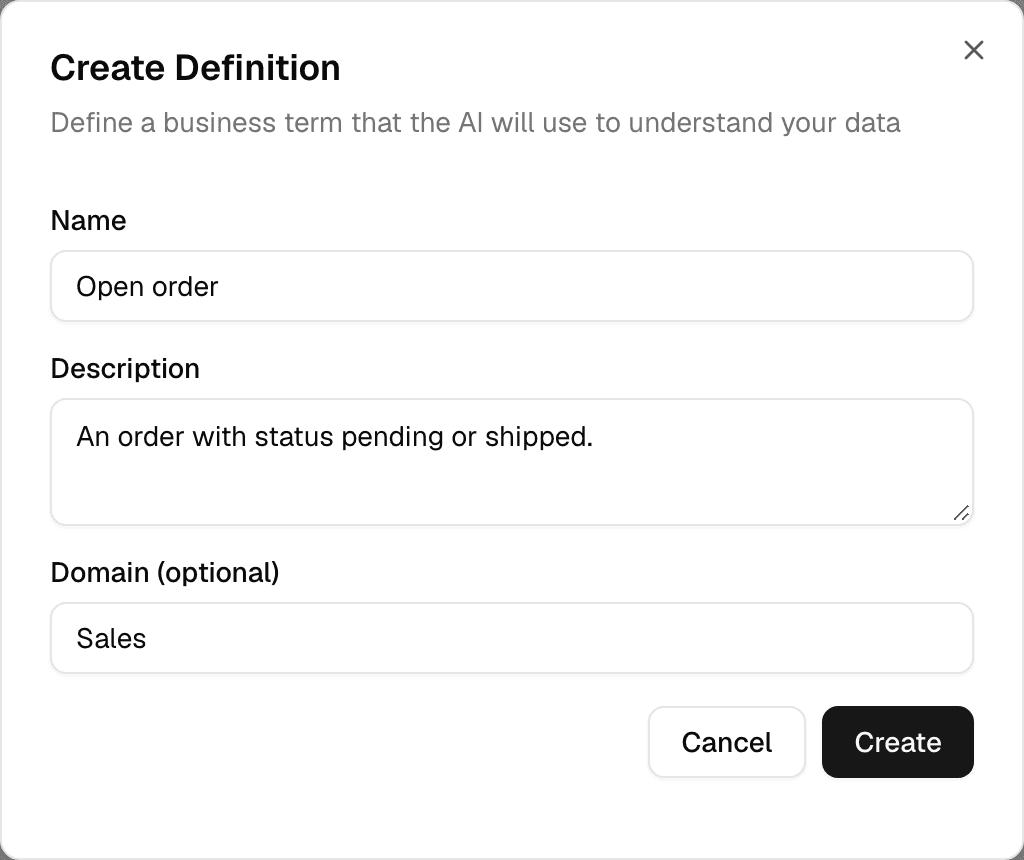
Open the Definitions tab and select Add Definition.
-
Enter a Name and a Description that says exactly which rows the term covers. Domain (optional) groups related terms.
-
Select Create.
The pencil next to a definition edits it; the bin deletes it.
Add and edit KPIs
- Open the KPIs tab and select Add KPI.
- Enter a Name and, in Description (optional), how the KPI is calculated in your own words.
- Select Create. A model writes the formula and the SQL from the description and the tables.
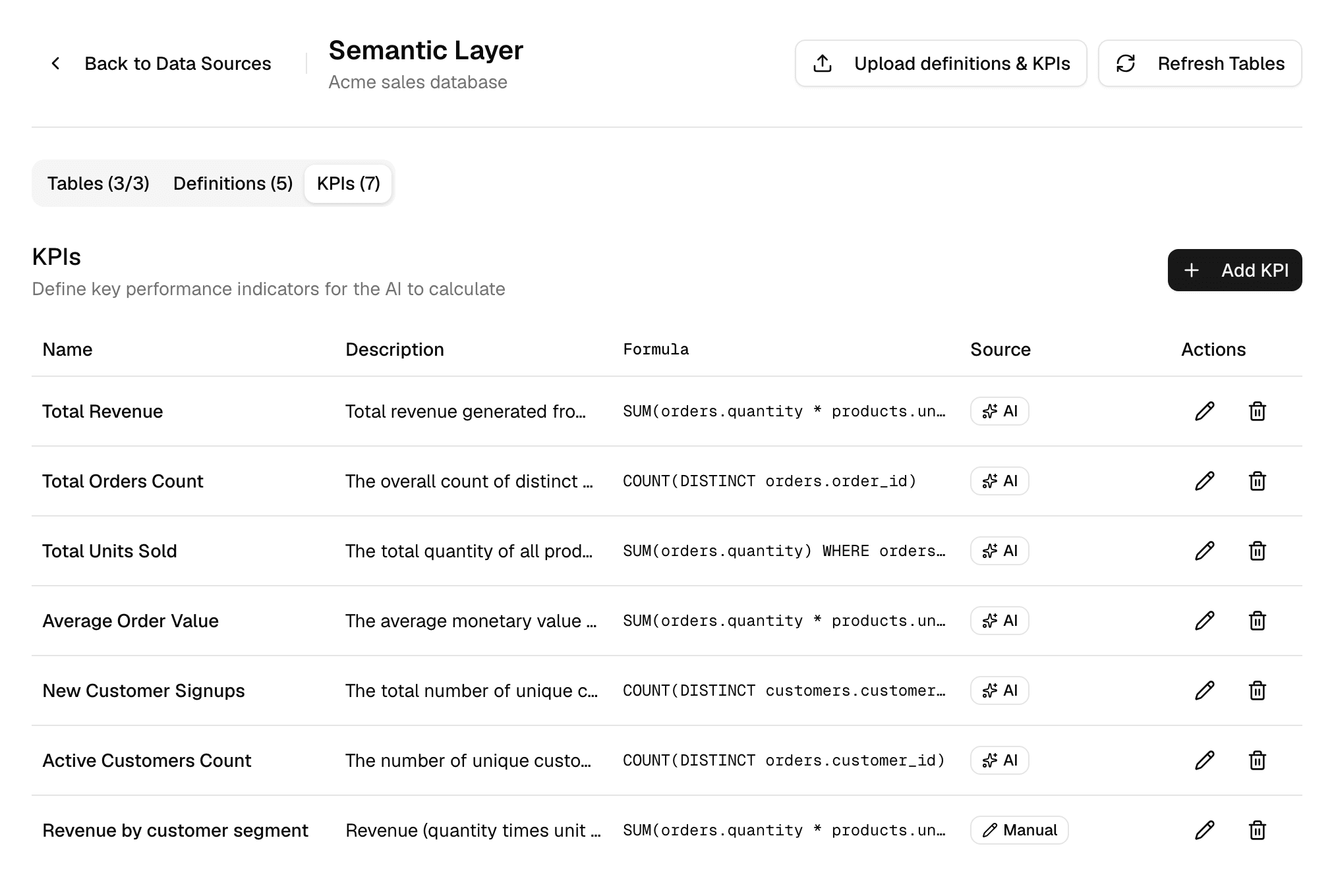
- Editing a KPI's name or description writes its formula again.
- If the formula cannot be written, the KPI is kept without one and Formula shows -.
- Read generated formulas before you rely on them, especially their filters: they are written by a model.
Import definitions and KPIs from a file
- Select Upload definitions & KPIs.
- Drop a .csv or .xlsx file of up to 5 MB, for example your KPI glossary.
- A model reads it and lists the definitions and KPIs it found. Uncheck the ones you do not want.
- Select Import. If some entries fail, Retry imports them again.
Imported entries show the file name as their Source. The button is available once the semantic layer has tables.
Generate it again
Refresh Tables discards every table edit. It rebuilds all tables from the database: each table's display name, domain and purpose are written again by the model, and every table is switched back on, including tables you switched off to keep agents away from them. It asks for no confirmation.
- Note the tables you switched off and the purposes you wrote.
- Select Refresh Tables. The page shows Generating… until it is done.
- Switch those tables off again and restore your purposes.
- Tables no longer in the database are removed; new ones are added.
- Your definitions and KPIs stay. New suggestions are added next to them; suggestions with the name of an existing entry are skipped.
Troubleshooting
| Shown | What to do |
|---|---|
| Generation failed | Select Initialize Semantic Layer or Refresh Tables to try again. Check that the connection's user can read the tables. |
| Generating… for a long time | After 15 minutes a generation counts as failed, and you can start it again. |
| No definitions or KPIs found after an upload | The file has no recognisable terms or metrics. Try another file, or add them by hand. |
| Semantic Layer Unavailable | The connection is not a PostgreSQL, Snowflake or Google BigQuery connection. |
To manage the semantic layer with an API key, see Configure the semantic layer in the API documentation.
Connect an MCP server
Connect a ready-made MCP server such as Atlassian, Linear or Notion in one click, or add any remote MCP server, then edit, refresh or delete it.
Use connections in chats and agents
Turn a connection on for one chat from the composer, or give it to an agent so every chat with that agent can use it.