

Use connections in chats and agents
Pick a connection in the composer to use it in one chat, or give it to an agent to use it in every chat with that agent.
You can pick any connection you see on the Connectors page: your private ones and the ones shared with the workspace.
Use a connection in one chat
-
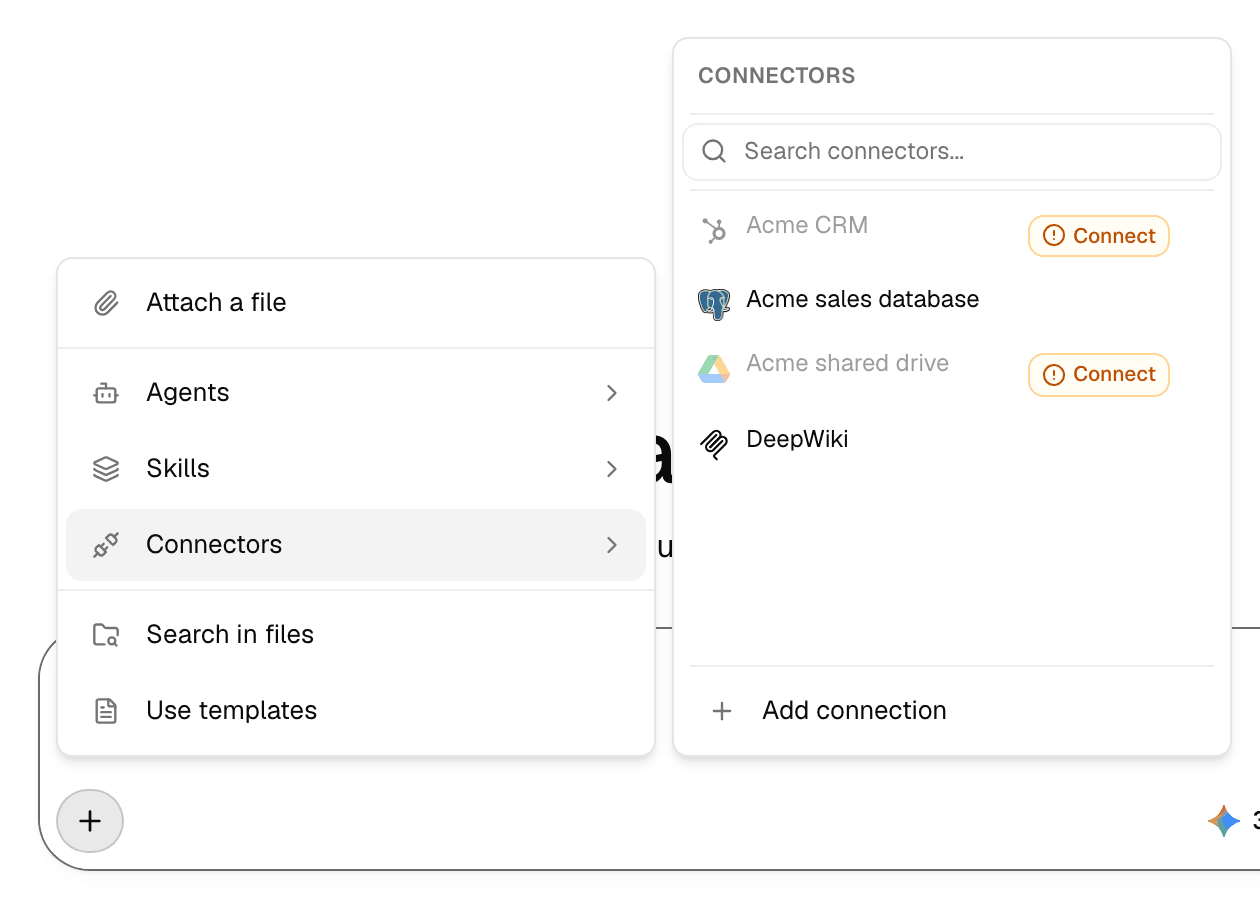
In the composer, select +, then Connectors.
-
Select the connections the agent may use. Selected ones show a check.
-
Ask your question and send it.
The agent queries the connection when your question needs it.
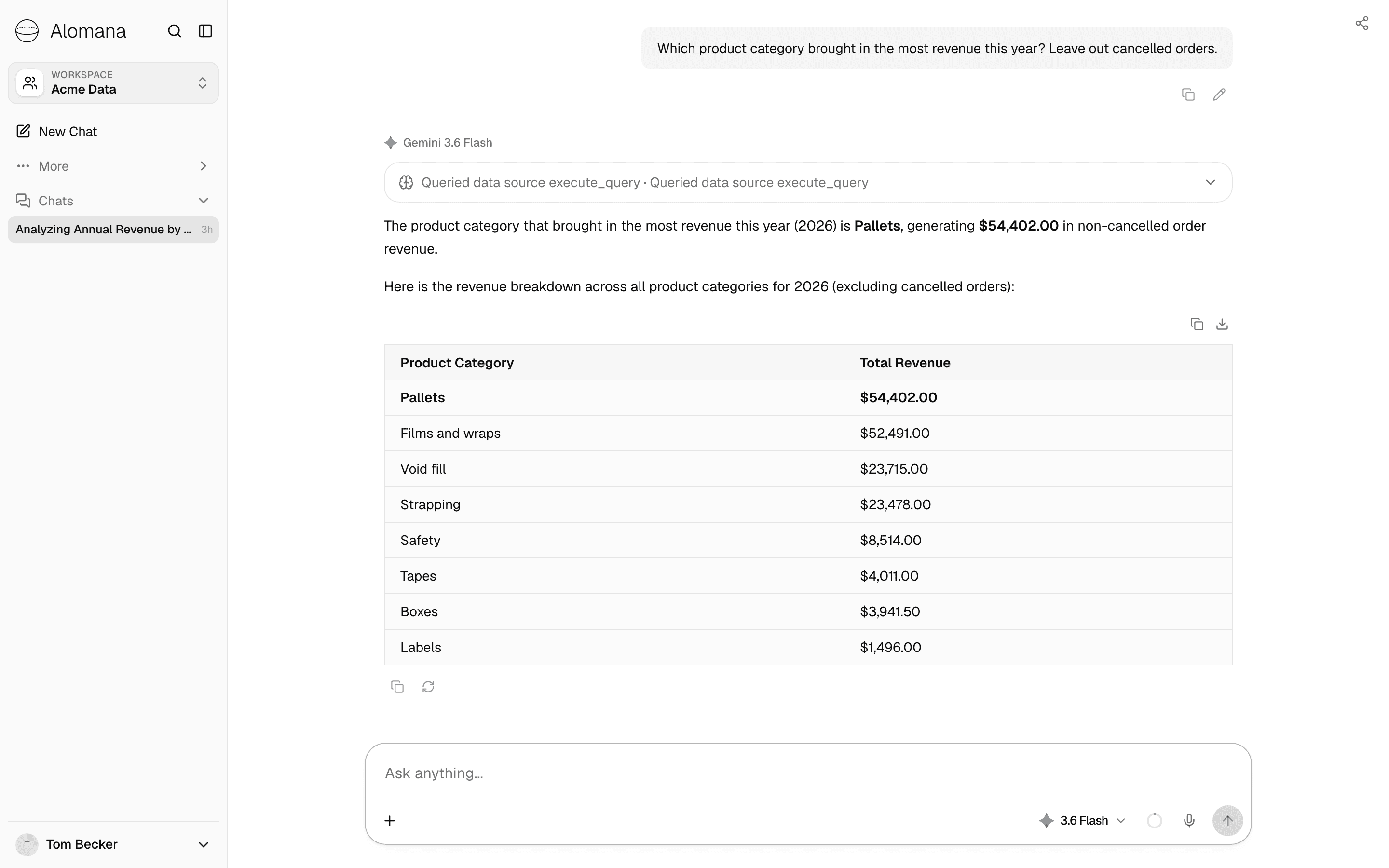
- The logos of the connections in use appear next to +. Point at one to see why it is on: Added to this chat, From and the agent's name, or Needs your sign-in. Select them to change the selection.
- Connect next to a greyed-out connection means you are not signed in to it yet. Select it to sign in; see Reconnect an account.
- A connection the agent already has shows a lock (Always on for this agent). It is used in every chat with that agent and cannot be turned off for one chat.
- Add connection at the bottom of the list creates a new connection without leaving the chat.
- Expand the step above the answer to see the queries the agent ran.
For the composer itself, see Chat basics and Tools.
Give a connection to an agent
-
Open the agent's settings. See Configure an agent.
-
Select Connectors in the settings menu.
-
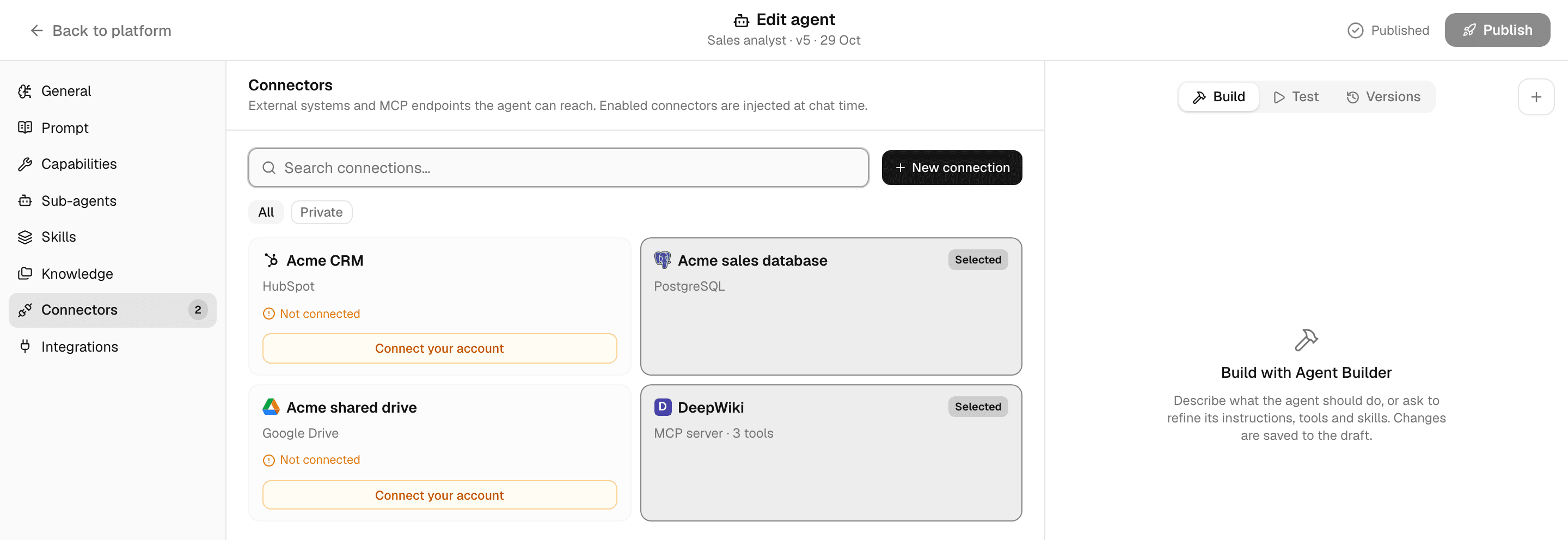
Select the connections and MCP servers the agent needs. Each shows Selected; select it again to remove it.
-
Select Publish, write a short What changed note, and select Publish in the dialog.
- Your selection saves to the agent's draft by itself. Chats with the agent keep the connections of its published version until you publish; with the default roles, workspace editors and admins can publish. See Test and publish an agent.
- New connection creates a connection or adds an MCP server from here.
- The number next to Connectors counts the connections the agent has.
- In every chat, the agent uses account connections with the sign-in of the person chatting. Someone who is not signed in gets the answer without that connection.
- A private connection is only yours. Share it with the workspace (Space) if other people will chat with the agent.
Troubleshooting
| Problem | What to do |
|---|---|
| A connection is missing from the list | It is private to someone else or belongs to another workspace. Ask its owner to share it, or create your own. |
| Authentication required appears when you send a message | You are not signed in to one of the connections. Select Connect next to it in the composer, or on the Connectors page. |
| The agent answers without using the database | Name what you want from it ("from the Acme sales database"), and check that the table it needs is switched on in the semantic layer. |
To attach connections to agents with an API key, see Create and query connections in the API documentation.