

Reconnect an account
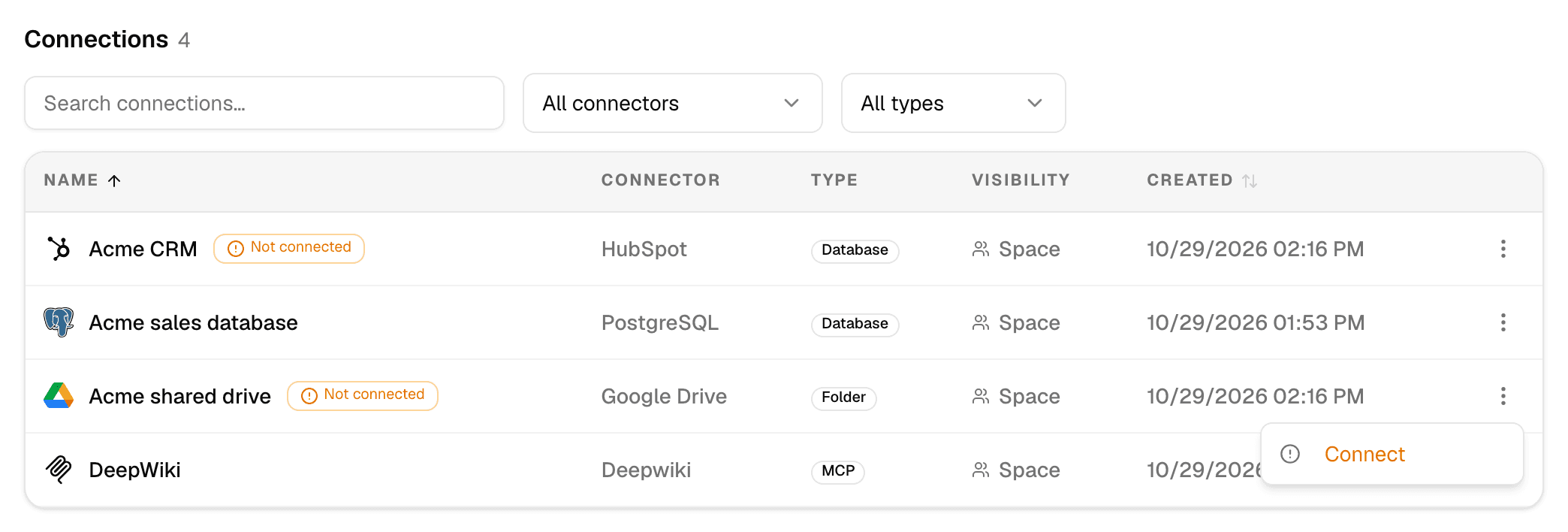
Not connected or Connect means Alomana has no working sign-in of yours for that account connection. Sign in once and every chat and agent can use it again.
Why it happens
Account connections (OAuth), such as Google Drive, SharePoint, HubSpot, Salesforce or an MCP server with OAuth (sign in), keep a separate sign-in for each person.
| Situation | Why you see it |
|---|---|
| A teammate shared the connection with the workspace | Their sign-in is theirs only. You sign in with your own account. |
| The connection was copied from another workspace | Sign-ins are never copied. |
| Your sign-in expired or was withdrawn | The service refused to renew it, for example after a password change or when an administrator removed your access. |
Alomana renews sign-ins by itself while the service allows it. Connections with a password, an API key or a token never ask you to connect.
Where the prompt appears
| Where | What you see |
|---|---|
| Connectors page | Not connected next to the name, and Connect on the ⋮ menu. An app someone else shared has no menu; use the composer. |
| Composer, + > Connectors | The connection greyed out, with Connect. |
| An agent's Connectors settings | Not connected and Connect your account. |
| After you send a message | Authentication required, naming the connections to connect. The answer comes without them. |
Sign in again
- Select Connect in any of the places above.
- In the window that opens, sign in with your own account and allow access.
- The window closes and Not connected disappears. Send your message again.
For an MCP server, Connect on the server's ⋮ menu works the same way.
Troubleshooting
| Problem | What to do |
|---|---|
| No window opens, or Failed to open popup. Please check your browser settings. | Allow pop-ups for Alomana in your browser and select Connect again. |
| Your account connection has expired. Please reconnect your account. | Select Connect and sign in again. |
| You signed in, but the agent still cannot read what you need | The agent sees only what your account can see in the service. Ask the service's administrator for access. |
| A Snowflake connection fails after you sign in | Your Snowflake sign-in works with one role at a time. Pick another role under Session role on the ⋮ menu; if the role you need is not allowed, sign in again or ask your Snowflake administrator to grant it. |
| A scheduled run shows Skipped, not connected | The run went without that connection because you were not signed in. Connect it before the next run. See How scheduled runs work. |
Use connections in chats and agents
Turn a connection on for one chat from the composer, or give it to an agent so every chat with that agent can use it.
Connector directory
Every connector on the Connectors page, Alomana's own and the ready-made MCP servers, with how each one signs in and which have a semantic layer.