

Connect a data source
Create a connection once on the Connectors page; you and, if you share it, your workspace can then use it in any chat or agent.
With the default workspace roles, every member can create connections. See Connectors for private and shared connections.
Create a connection
-
Select Connectors in the sidebar.
-
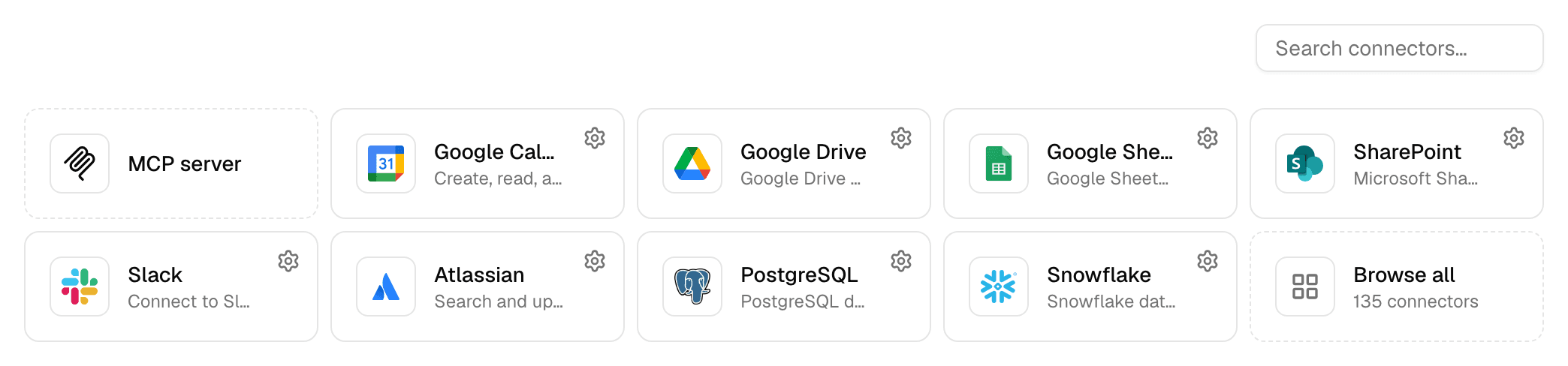
Select the service you want to connect. The page shows the most used connectors; find any other with Search connectors… or Browse all.
-
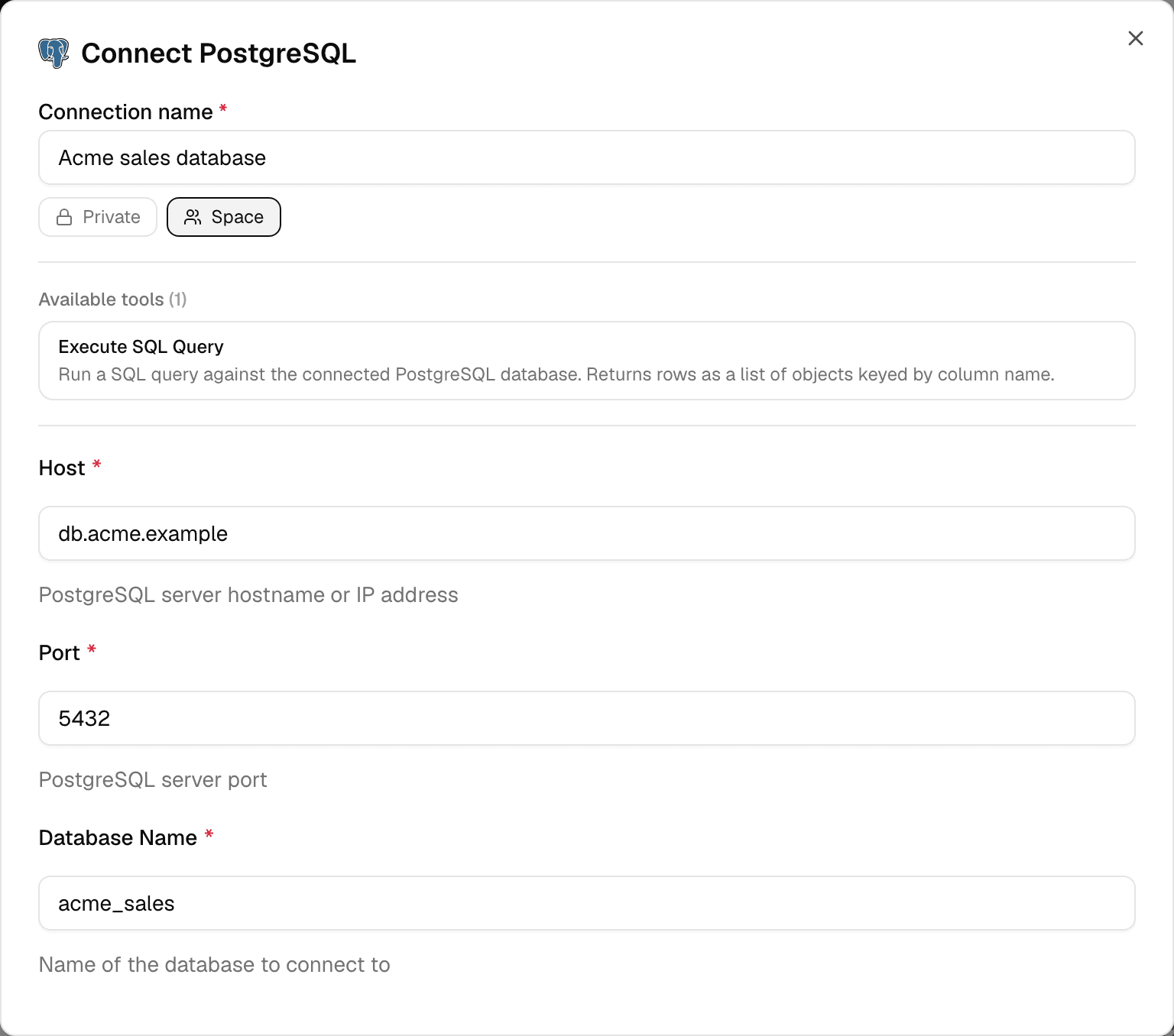
Enter a Connection name that tells people what it holds, for example "Acme sales database".
-
Choose Private to keep it to yourself, or Space to share it with the workspace.
-
Under Available tools, check what agents will be able to do with it.
-
If the connector offers more than one Authentication Method, pick one, then fill in the fields.
-
Finish the way the connector signs in:
Sign-in What to do Account sign-in (OAuth) Select Connect with and the method name, for example Connect with Google Account, and sign in in the window that opens. The dialog then shows Connected via and the method name. Password, API key, token or key pair Select Test connection to check the details. -
Select Connect.
Alomana tests the connection when you save it, and does not save it if the test fails. The new connection appears under Connections.
- Google Drive, Google Sheets, SharePoint and Confluence ask you to choose files, spreadsheets, sites or spaces after you sign in. Fields marked optional can stay empty.
- For a PostgreSQL, Snowflake or Google BigQuery connection, Alomana then builds its semantic layer. The row shows Semantic layer with a spinner until it is ready.
PostgreSQL fields
| Field | What to enter |
|---|---|
| Host | The server's host name or IP address, reachable from Alomana. |
| Port | Usually 5432. |
| Database Name | The one database this connection reads. |
| Username, Password | A database user. Give it read access to the tables agents may query, and nothing more. |
To connect several databases on the same server, create one connection for each.
Find a connection
Under Connections, type in Search connections…, or filter by connector with All connectors and by kind with All types (MCP or Standard). The list shows ten connections per page.
| Column | Meaning |
|---|---|
| Connector | The service it connects to. |
| Type | Database, Folder or File for a data source, App, or MCP. |
| Visibility | Private or Space. |
A badge next to the name tells you when something needs your attention:
| Badge | Meaning |
|---|---|
| Not connected | You have not signed in to this account connection yet, or your sign-in expired. See Reconnect an account. |
| Semantic layer with a spinner | The semantic layer is being built. |
| Semantic layer failed | Building it failed. Open the semantic layer and build it again. |
| Copied | The connection was copied from another workspace; point at it to see which. |
Edit, copy or delete a connection
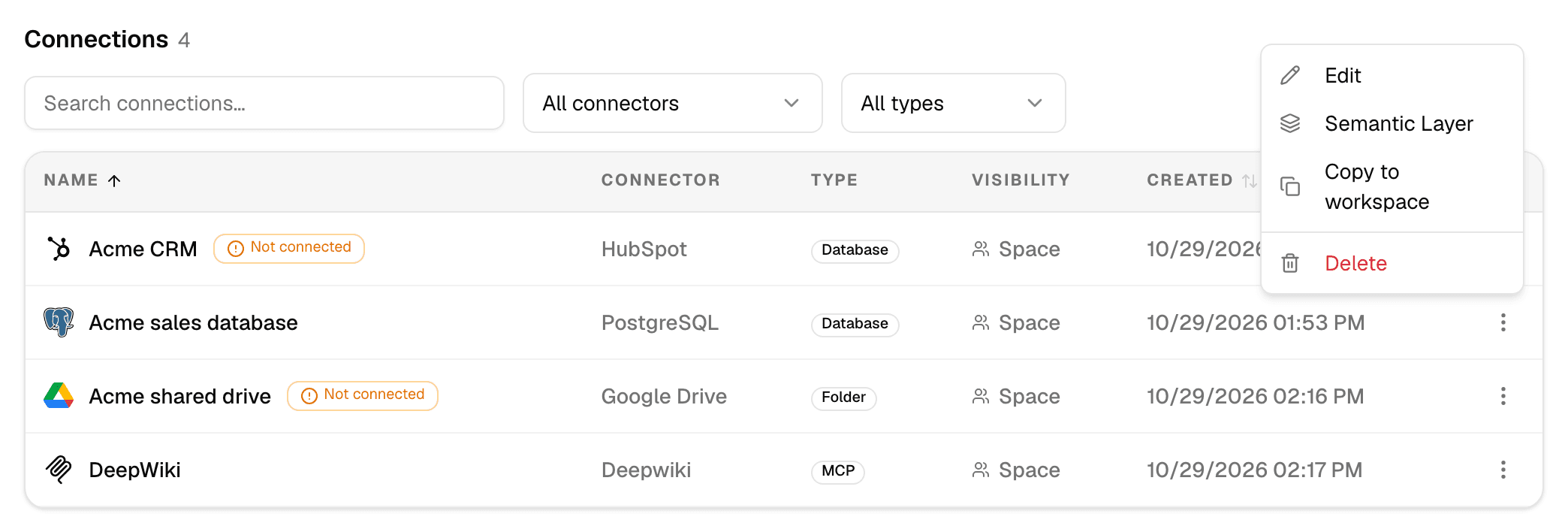
Open the ⋮ menu at the end of the row.
| Action | What it does | Who sees it |
|---|---|---|
| Connect | Signs you in with your own account. | Anyone, on an account data source they are not signed in to. An app someone else created has no ⋮ menu; sign in to it from the composer. |
| Edit | Opens the connection in the same dialog. Saved passwords and keys stay hidden; leave them empty to keep them. Test connection tests the saved details. | The person who created it. |
| Semantic Layer | Opens the connection's semantic layer. | Anyone, on PostgreSQL, Snowflake and Google BigQuery connections. |
| Copy to workspace | Copies the connection into another workspace you belong to, as a separate connection. The original stays. | The person who created it. |
| Session role | Switches the Snowflake role your own sign-in uses. | Anyone signed in to a Snowflake account connection that lists roles to switch to. |
| Delete | Removes the connection after you confirm. Agents and chats that used it lose access. | The person who created it. |
Selecting the name of a connection you created also opens Edit.
When you copy an account connection, the passwords and settings come along but nobody's sign-in does: everyone in the other workspace selects Connect before they use it. Copying the same connection into the same workspace again reuses the first copy.
Troubleshooting
| Message | What to do |
|---|---|
| Enter a connection name | Fill in Connection name. |
| Re-enter sensitive fields before testing | Type the password or key again, then test. |
| An error after Connect or Test connection | Alomana could not reach the service with those details. Check the host, port, credentials and that the service accepts connections from Alomana. |
To create connections with an API key, see Create and query connections in the API documentation.
Connectors
Connectors let agents read databases and business apps and use the tools of MCP servers, with private or shared connections and per-person sign-in.
Connect an MCP server
Connect a ready-made MCP server such as Atlassian, Linear or Notion in one click, or add any remote MCP server, then edit, refresh or delete it.