

Connect an MCP server
Connect a remote server that speaks the Model Context Protocol (MCP), and agents can use every tool it offers.
Alomana connects to servers that already run elsewhere; it does not host them.
Connect a ready-made server
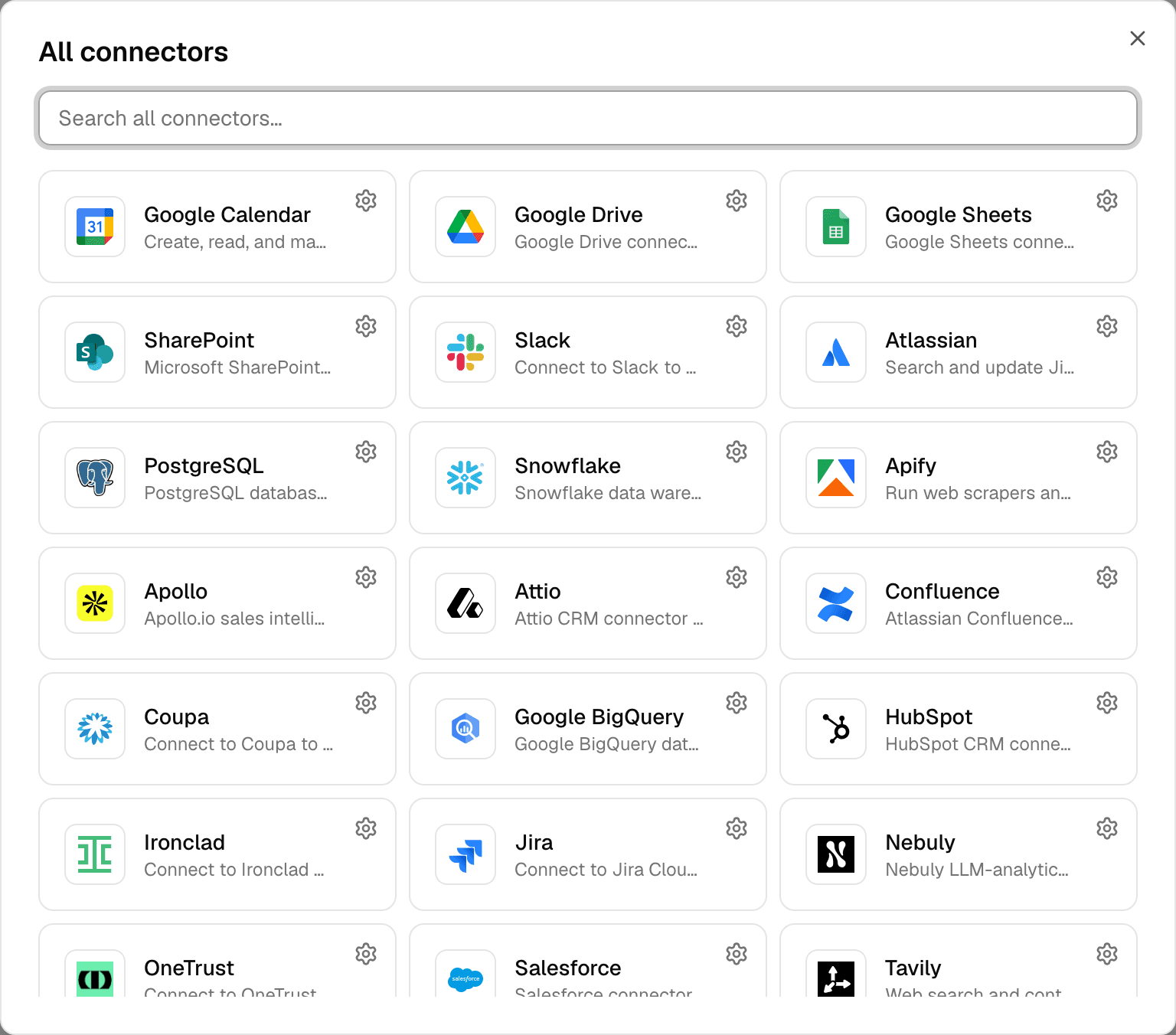
The Connectors page offers over 100 ready-made servers, such as Atlassian, Linear, Notion, Sentry and Stripe. Their tiles already know the server's address and how it signs in. The connector directory lists them all.
-
Select Connectors in the sidebar.
-
Select Browse all, or type the service's name in Search connectors….
-
Select the server's tile. What happens next depends on how it signs in:
Sign-in What happens Account A sign-in window opens. Sign in at the vendor; Alomana shows Connected and registered. None Alomana adds the server at once and shows MCP connection registered. API key or token, username and password Add MCP connection opens with the address filled in. Where to find your key opens the vendor's instructions. Enter the key, then select Register MCP. 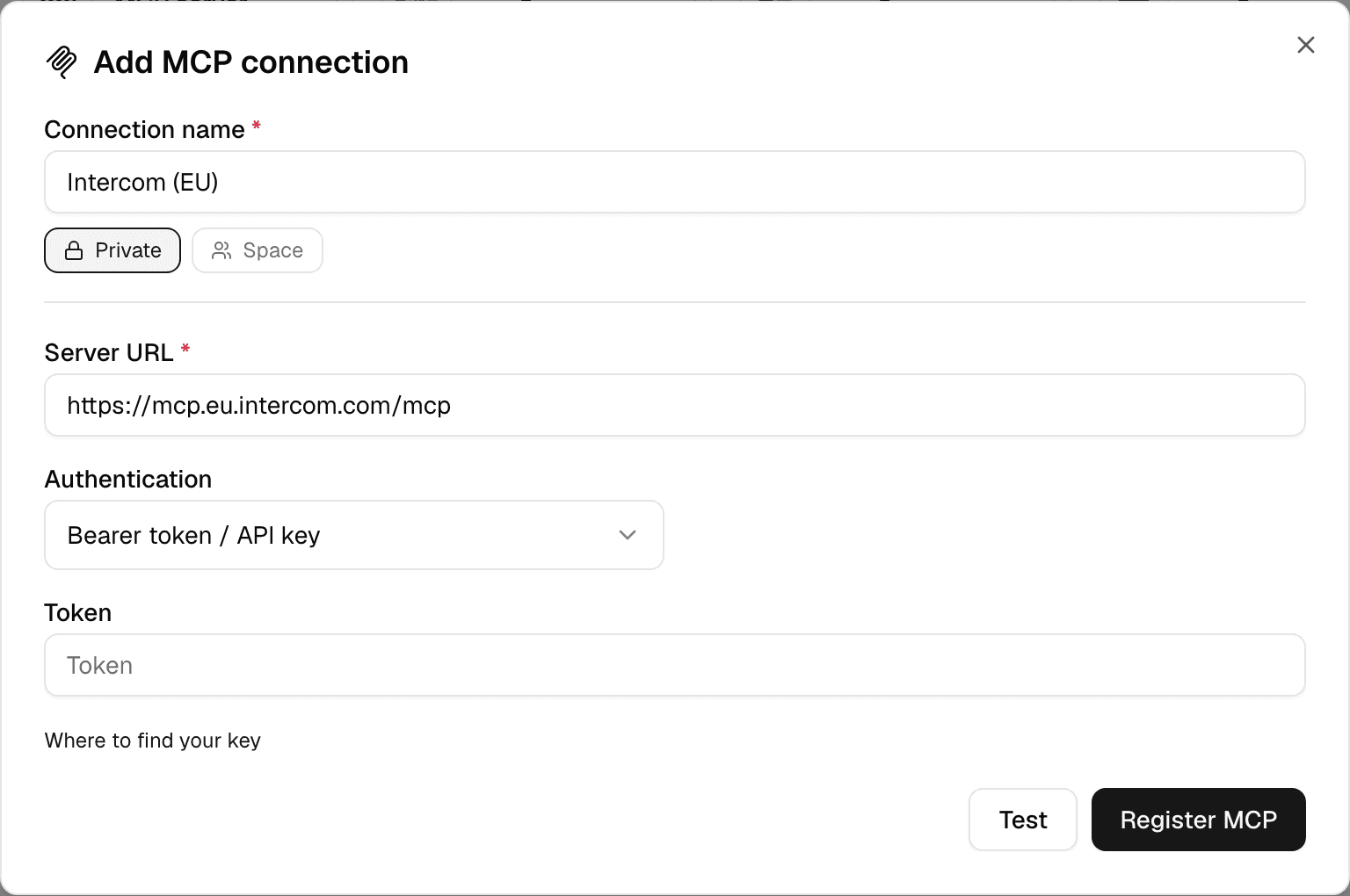
The server appears under Connections with the type MCP, named after the service and Private.
- To choose the name, share it with the workspace (Space) or sign in another way, for example with a token instead of an account, select the settings button on the tile instead. It opens Add MCP connection with everything filled in.
- A tile adds a new connection each time you select it, even if you already have one. Manage the ones you have under Connections.
Add any other server
You need the server's URL and, unless it is open to everyone, a way to sign in.
-
Select Connectors in the sidebar.
-
Select MCP server, the first tile.
-
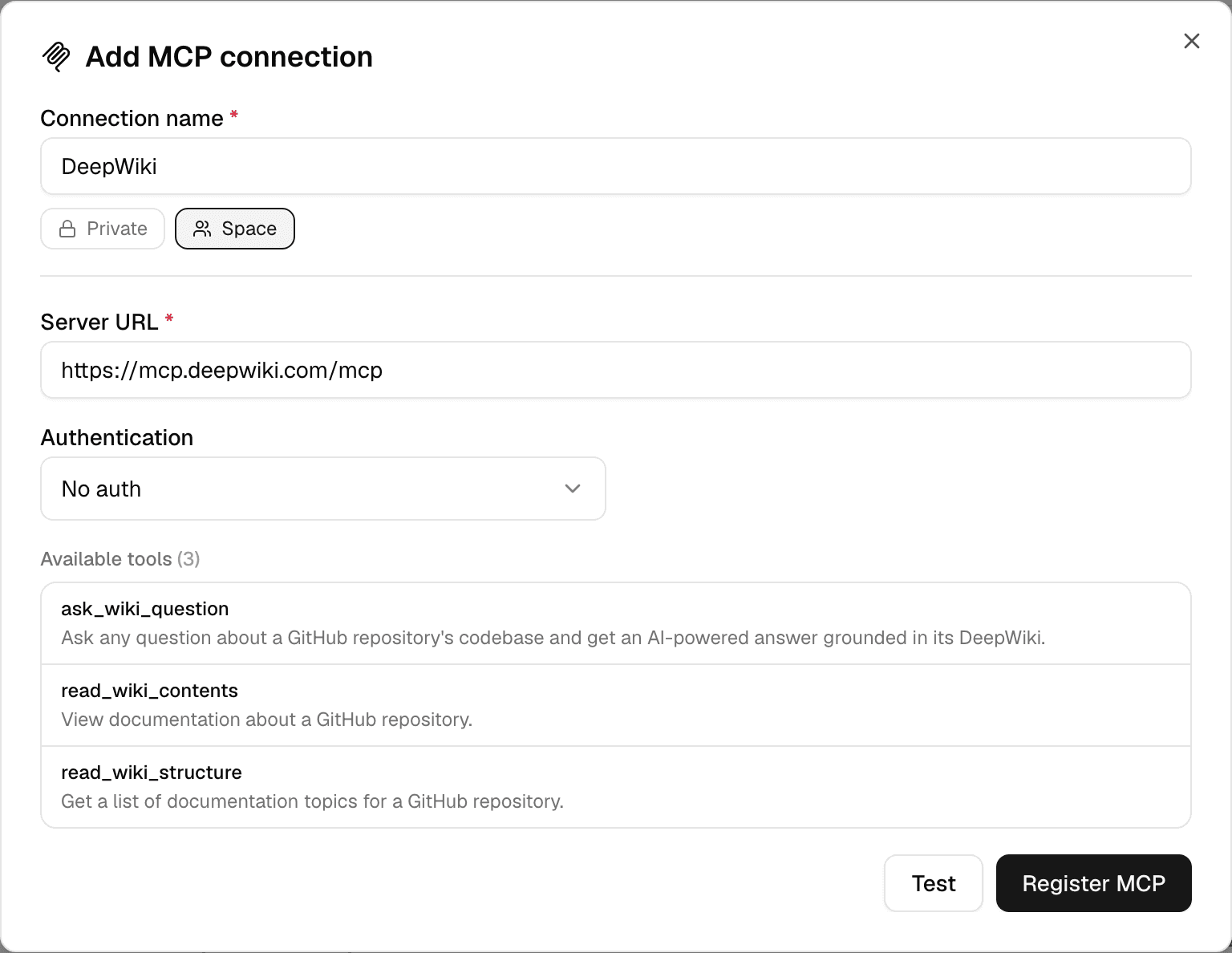
Enter a Connection name and choose Private or Space.
-
Paste the Server URL, for example
https://mcp.deepwiki.com/mcp. If the URL has no path, the dialog shows where most servers live, such as/mcpat the end. -
Choose the Authentication the server expects.
-
Select Test. The dialog lists the server's tools under Available tools.
-
Select Register MCP. For OAuth (sign in), a sign-in window opens first; sign in and the server is registered.
The server appears under Connections with the type MCP.
| Authentication | Use it when the server | What to enter |
|---|---|---|
| OAuth (sign in) | Asks each person to sign in with their own account. | Nothing. Each person signs in with Connect. Open Use my own OAuth client only if the server's provider told you to register a client; otherwise Alomana registers itself. |
| Bearer token / API key | Takes one token for everyone. | Token. |
| Basic auth (username + password) | Takes a service user name and password or token. | Username and Password. |
| Custom header | Expects the key in a header of its own. | Header name, for example X-API-Key, and Header value. |
| No auth | Is open to anyone. | Nothing. |
- With OAuth (sign in), every person in the workspace signs in with their own account, and the server sees each person's own access. See Reconnect an account.
- With the other methods, everyone who can use the connection shares the token or password you entered.
- The URL must start with
https://and point to a public address.
Edit, refresh or delete a server
Open the ⋮ menu at the end of the server's row, or select its name to edit it.
| Action | What it does |
|---|---|
| Connect | Signs you in with your own account. Shown on OAuth (sign in) servers you are not signed in to. |
| Edit | Changes the name, URL, sign-in or visibility. Saved tokens stay hidden; leave them empty to keep them. Changing the URL or sign-in reloads the tools. |
| Refresh tools | Reloads the list of tools, for example after the server added new ones. |
| Copy to workspace | Copies the server into another workspace you belong to. Only the person who added it sees this. |
| Delete | Removes the server after you confirm. |
Anyone who can see a server shared with the workspace can edit, refresh or delete it.
How agents use its tools
- An agent uses a server's tools in a chat when you pick the server in that chat or give it to the agent. See Use connections in chats and agents.
- When a server has more than 25 tools, the agent searches them and loads the ones it needs, instead of seeing them all at once.
- If a server is unreachable or rejects the sign-in during a chat, the chat goes on without its tools and the agent is told the server is unavailable.
Troubleshooting
| Problem | What to do |
|---|---|
| Test shows an error | Check the URL, including the path, and the authentication method and secret. |
| The tile says Unsupported protocol | The server only speaks the newest, stateless version of MCP, which Alomana cannot use yet. Ask the server's provider for an endpoint that also supports the previous version. |
| An agent's Connectors settings show 0 tools or an error under the server | Select Refresh tools on the server's row. If it stays empty, test the server again from Edit. |
| MCP URL must use HTTPS outside local environments | Use the server's https:// address. |
| MCP URL cannot target private hosts outside local environments | Alomana cannot reach servers on a private network address. Use the server's public address. |
To register MCP servers with an API key, see Connect MCP servers in the API documentation.
Connect a data source
Create a connection to a database or business app from the Connectors page, sign in or enter its credentials, then edit, copy or delete it.
Semantic layer
What Alomana learns about a database connection, how agents use it to write correct queries, and how to edit its tables, definitions and KPIs.