

Schedule an agent
A scheduled task runs one agent with your instruction at set times, and each run opens a new chat.
Scheduler appears in the sidebar only when your deployment has scheduling switched on. Your tasks are private: only you see them, and only in the workspace where you created them.
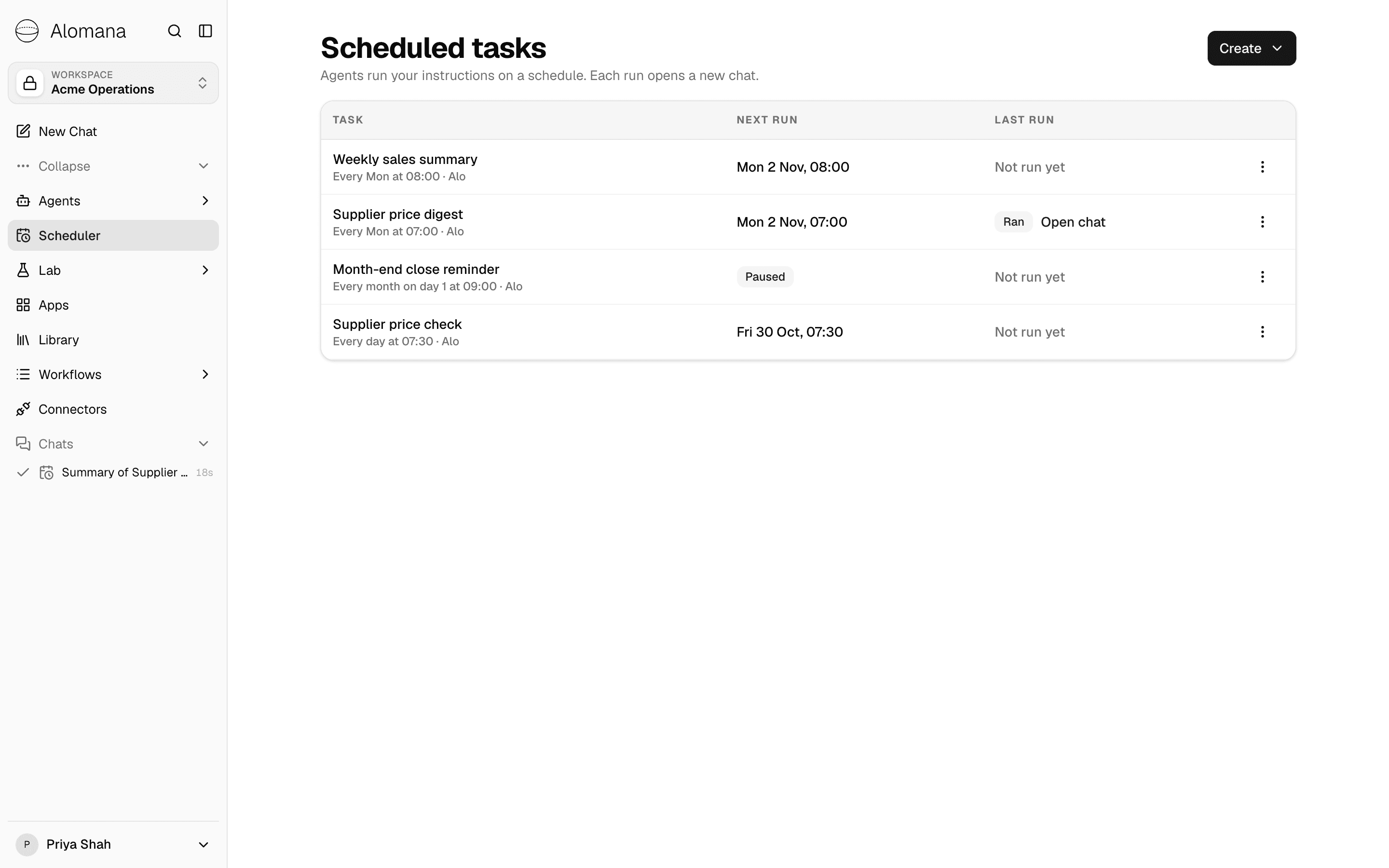
Create a task
-
Select Scheduler in the sidebar.
-
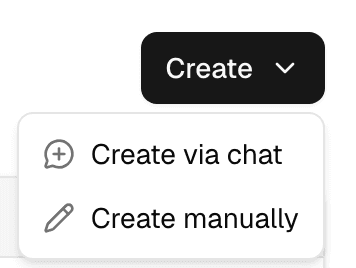
Select Create, then Create manually.
-
Fill in the form and select Save.
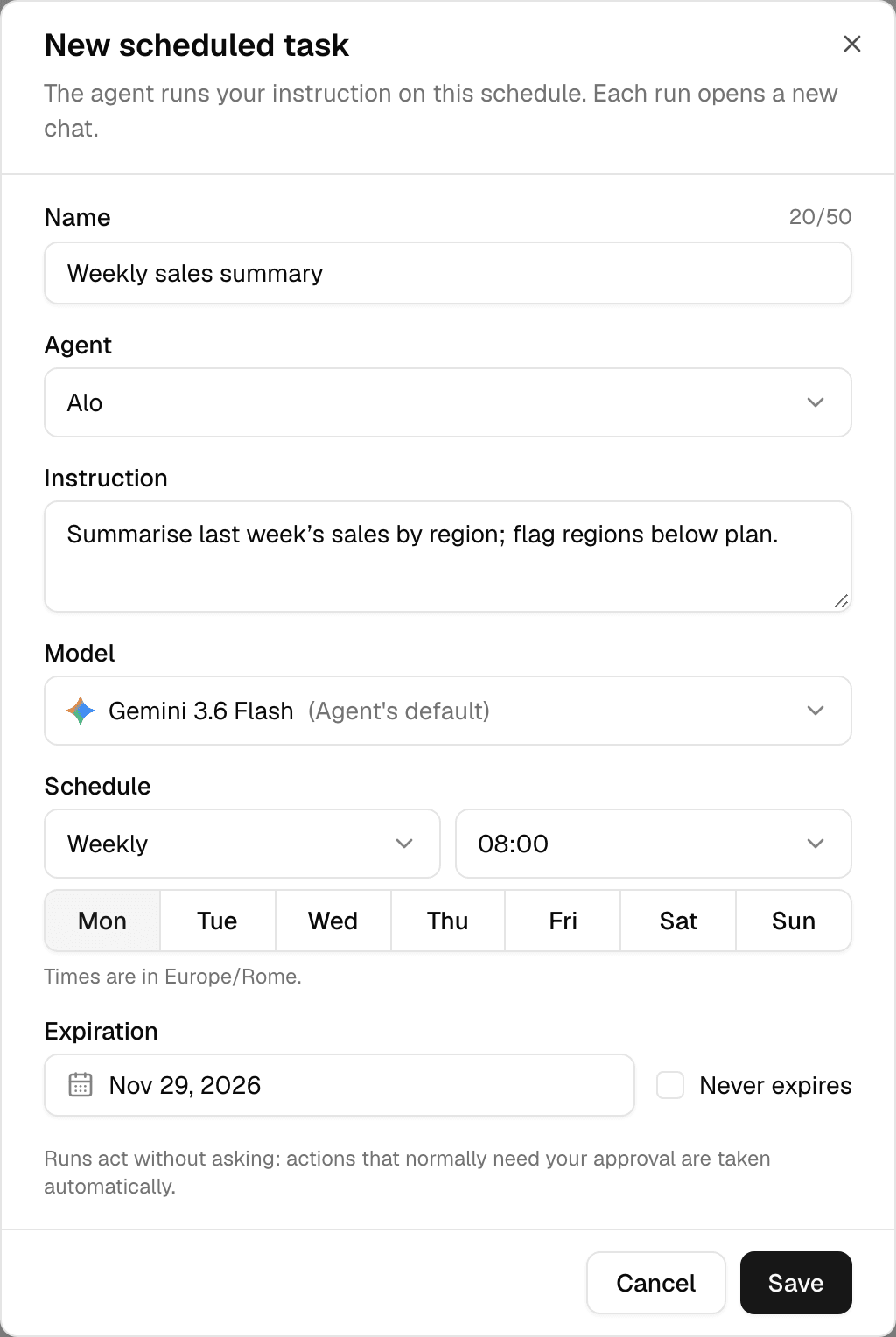
| Field | What to enter |
|---|---|
| Name | Up to 50 characters. |
| Agent | Any published agent you can chat with, most recently used first. An agent that was never published is not listed; see Test and publish an agent. |
| Instruction | What the agent does on every run, written as you would ask it in a chat. |
| Model | Agent's default, or another model for this task. |
| Schedule | Daily, Weekly (select the days), Monthly (a day from 1 to 31) or Once (a date), and a time in 5-minute steps. |
| Expiration | The last day the task runs, prefilled with a default for the frequency. Check Never expires to keep it running. Once has no expiration. |
Times use your browser's timezone, named under the schedule. A task keeps the timezone it was created in, also when you edit it.
Create a task from a chat
-
In a chat, ask the agent to do something on a schedule, for example: "Every Monday at 08:00, give me a short summary of last week's supplier price changes."
-
The agent shows a Scheduled task card with the task name, timezone, expiration date and next three runs.

-
Select Allow. The task is saved only now; Deny lets you tell the agent what to change instead.
- The task runs the agent you are chatting with, on that agent's default model.
- The agent uses your browser's timezone unless you name another one.
- On the Scheduler page, Create > Create via chat opens a new chat with a ready-made message that asks the agent to explain scheduled tasks and help you set one up. Send it to start.
Run, edit, pause or delete a task
Open the ⋮ menu at the end of the task's row.
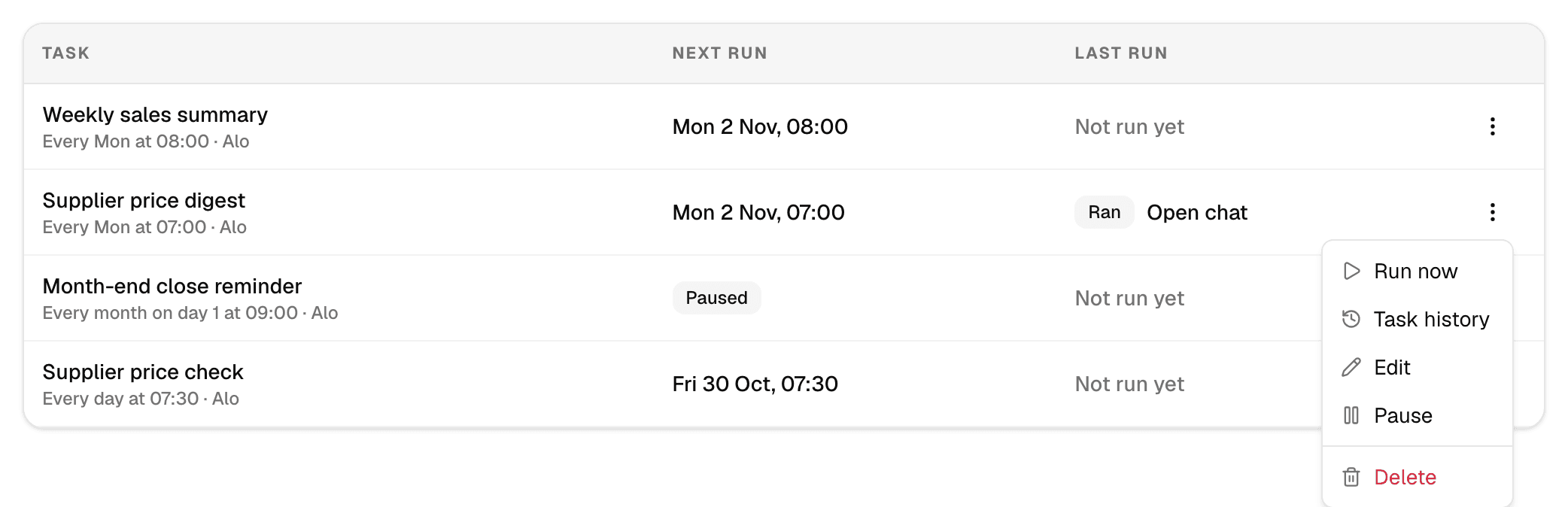
| Action | What it does |
|---|---|
| Run now | Starts a run immediately. The next scheduled run stays the same. |
| Task history | Opens the chat of the latest run, with the task's past runs beside it. |
| Edit | Opens the task in the same form as Create manually. |
| Pause / Resume | Stops or restarts the schedule. Resuming plans the next run from now. |
| Delete | Removes the task after you confirm. Chats from past runs are kept. |
The Next run column shows the next run in the task's timezone, or:
| Shown | Meaning |
|---|---|
| Paused | You paused the task. |
| Paused after failures | The task paused itself after several failed runs in a row. See How scheduled runs work. |
| Finished | The task has no runs left: a one-time task ran, or the task expired. |
Read past runs
Each run opens a new chat, marked unread and with a calendar icon in the sidebar. Open it with Open chat in the Last run column, or with Task history.
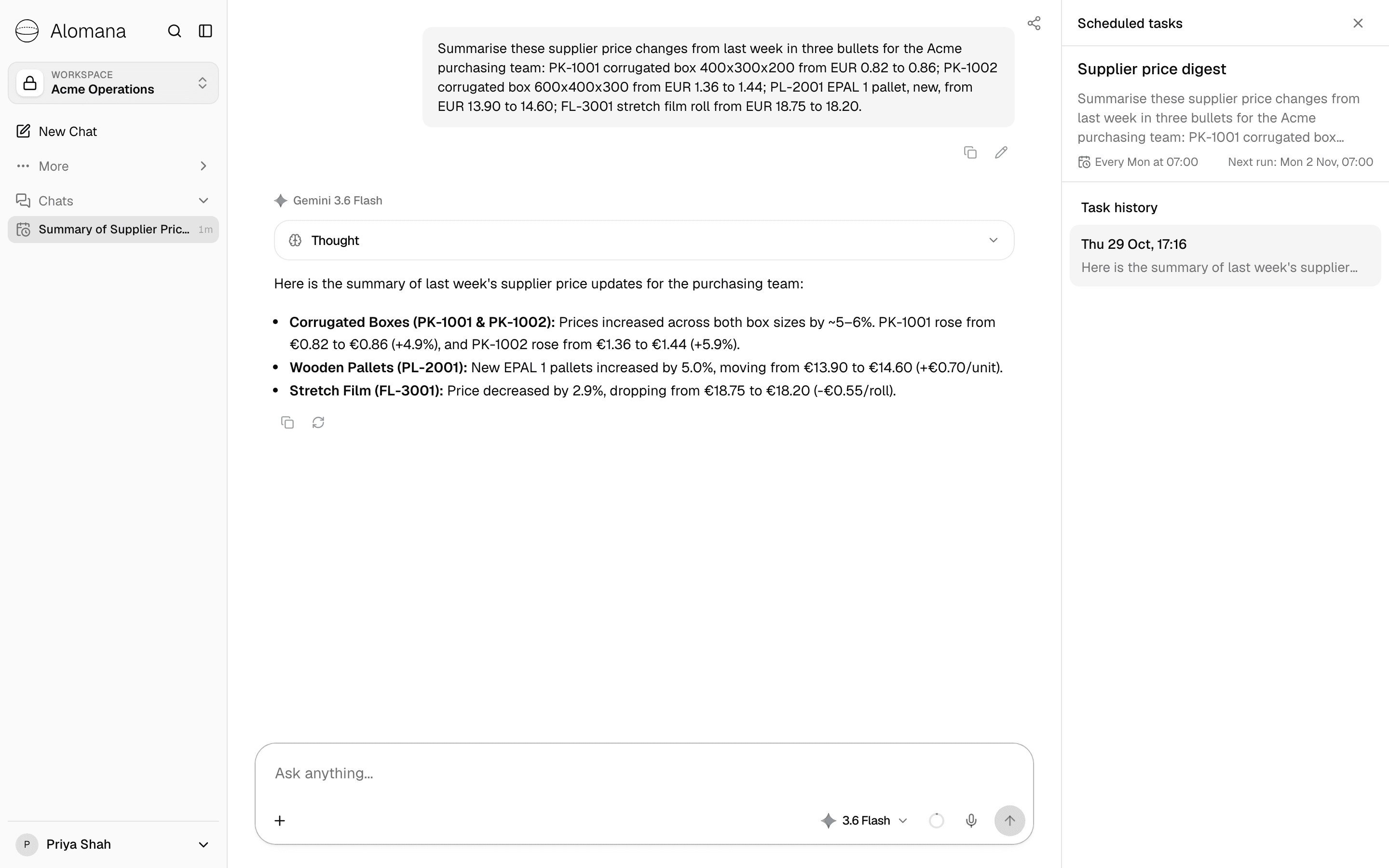
The panel next to a run's chat shows the task's instruction, schedule and next run, and under Task history one entry per run with its time and the first line of the answer. Select an entry to open that run's chat.
| Last run | Meaning |
|---|---|
| Queued, Running | The run is waiting to start or in progress. |
| Ran | The run finished. |
| Failed | The run hit an error or could not start. The reason is shown under the status. |
| Interrupted | The run stopped before it finished. |
| Stopped | You stopped the run in its chat. |
| Stopped by quota | You ran out of credits before or during the run. |
| Missed | The run did not start in time and was skipped. |
Skipped, not connected under a run lists connectors the run went without because you are not signed in to them.
Troubleshooting
| Message | What to do |
|---|---|
| Pick at least one day. | Select at least one day for a Weekly task. |
| No run before this task expires. | Move Expiration later, or check Never expires. |
| Scheduled tasks are not available on this deployment. | Scheduling is switched off on your deployment. Ask your administrator. |
To manage tasks with an API key, see Schedule an agent in the API documentation.
Install skills from the marketplace
Search the public skills.sh catalogue, preview a community skill and install it into your workspace or straight onto an agent.
How scheduled runs work
What a scheduled run does while nobody is watching, what is checked before it starts, and the limits on active tasks, failures, missed runs and expiry.