

Write prompt templates
A prompt template is a saved system prompt: the instructions that set an agent's role, tone and rules. Write it once and start any agent, or a single chat message, from it.
Open Agents > Prompts in the sidebar. The list shows your workspace's templates; Alo and Platform show the built-in ones.
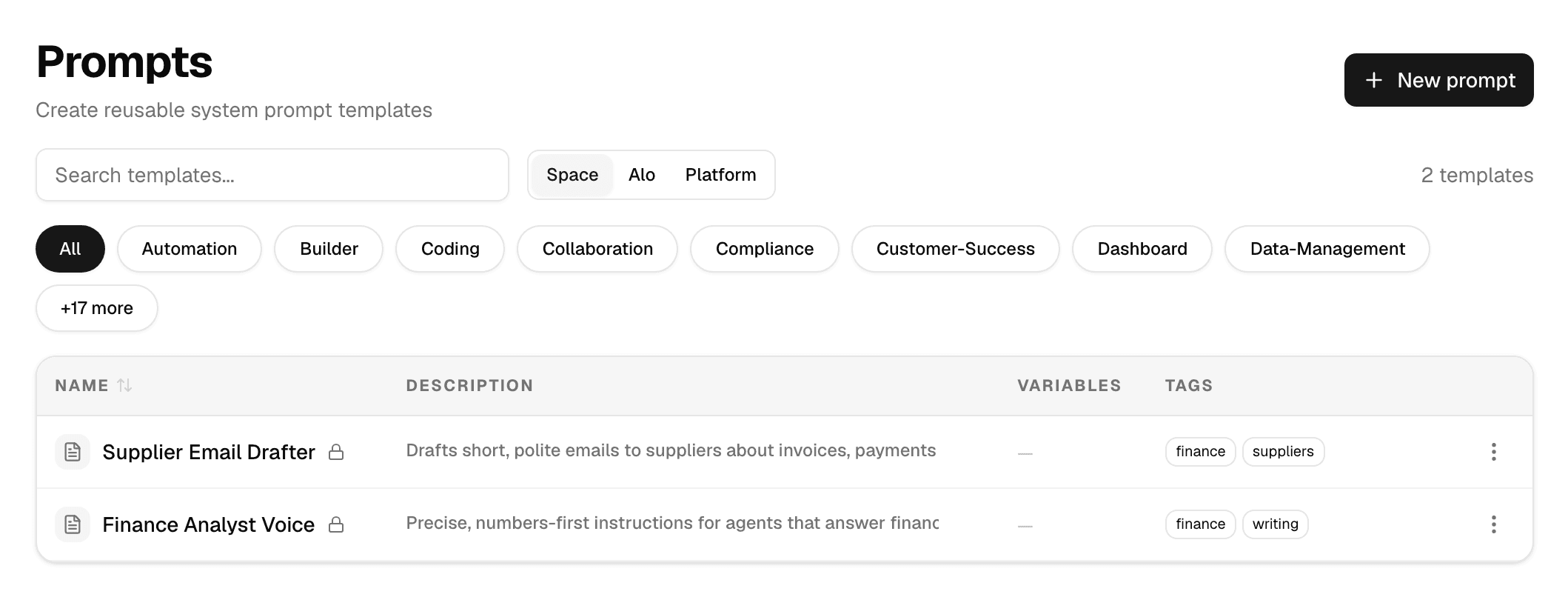
| Filter | Shows |
|---|---|
| Space | Templates created in this workspace. |
| Alo | Built-in templates of Alomana's own agents. |
| Platform | Every built-in template. |
Select a tag under the search box to narrow the list.
Create a template
- Select New prompt.
- Fill in the fields and select Create Template.
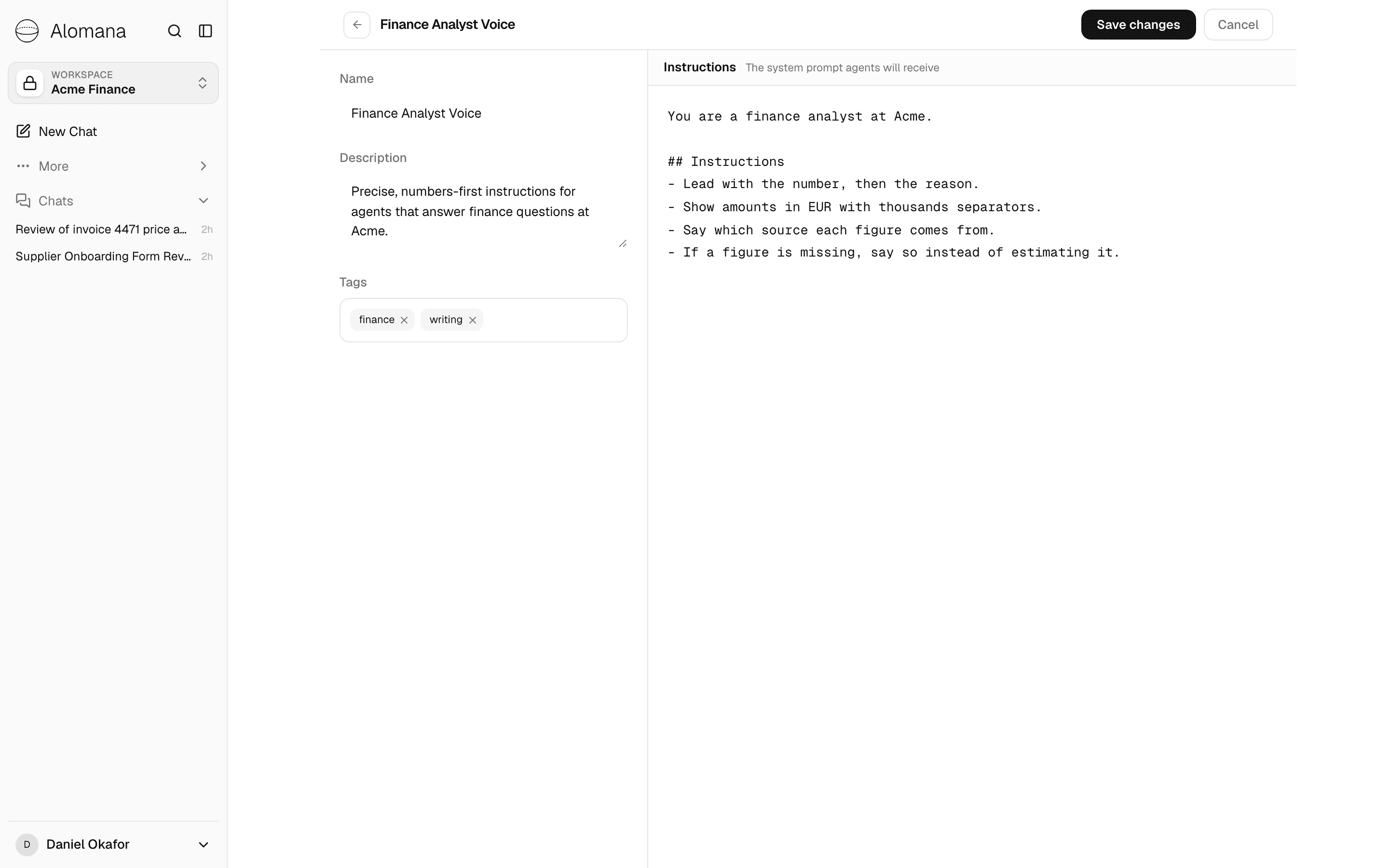
| Field | What to enter |
|---|---|
| Name | How the template appears in lists and pickers. |
| Description | One line shown in the template picker. |
| Tags | Labels to filter templates by. |
| Instructions | The system prompt itself, in plain text or Markdown. |
Every template you create is shared with the whole workspace.
Edit, copy or delete a template
Select a template's name to edit it, then Save changes. The ⋮ menu at the end of a row has:
| Action | What it does |
|---|---|
| Edit | Opens the template. |
| Delete | Deletes it after you confirm. This cannot be undone. |
| Fork to customize | Built-in templates only: copies the template into this workspace so you can change it. |
Start an agent from a template
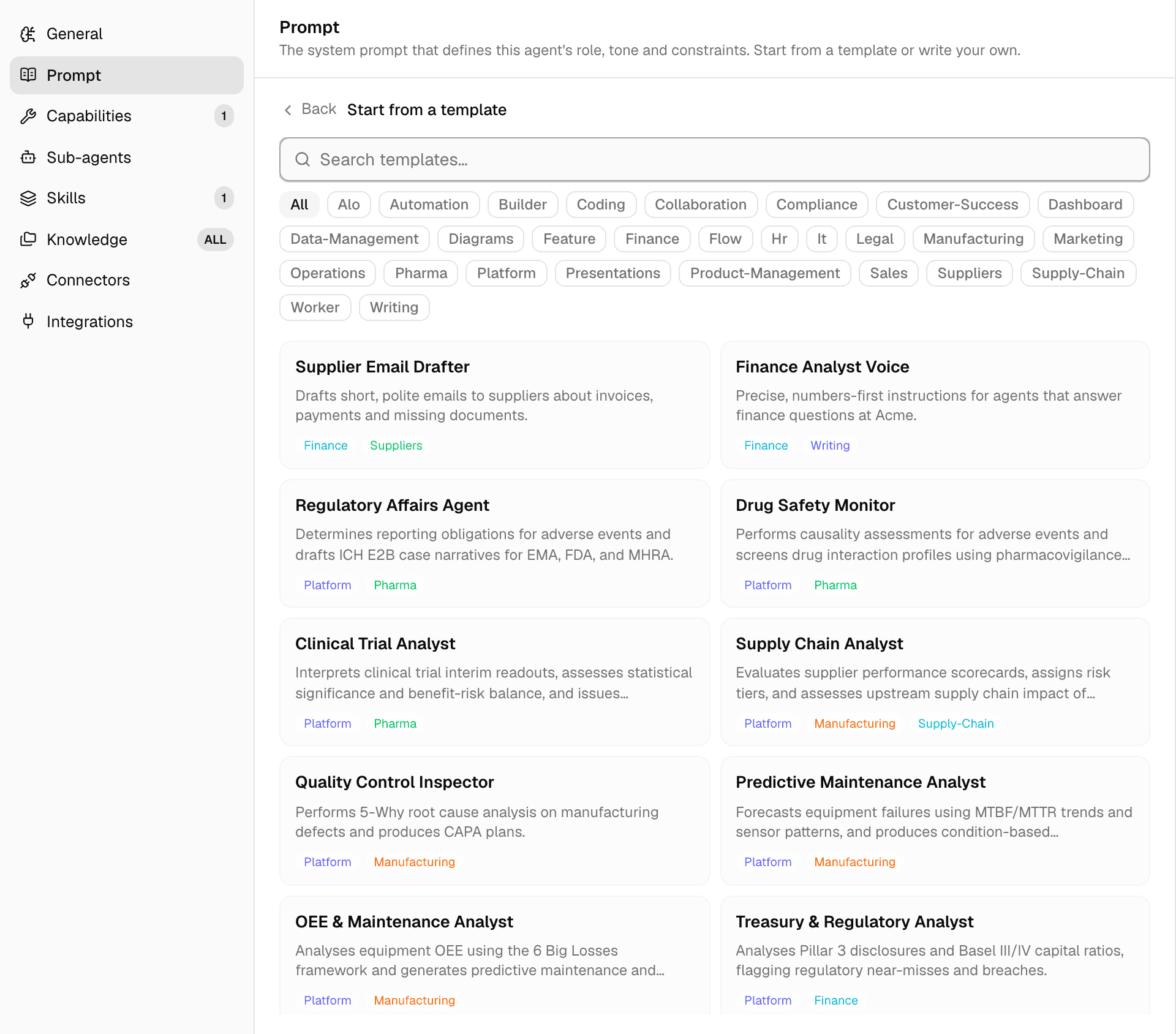
In the agent editor, open Prompt and select Start from a template, then pick a template. Its text replaces what is in the System prompt box.
The agent stays linked to the template:
- When the agent runs, it gets the template's text as it was when the agent was last published. If you changed the text in the System prompt box, it gets the template's text followed by yours.
- Editing the template reaches an agent linked to it when that agent is next published. Until then the agent's editor and card show Update available. Built-in agents from Alomana take the change at once.
- Deleting the template unlinks it from the agents' drafts; they keep only their own System prompt text from their next publish.
Use a template in a chat
-
In the composer, type / and select Browse skill marketplace.
-
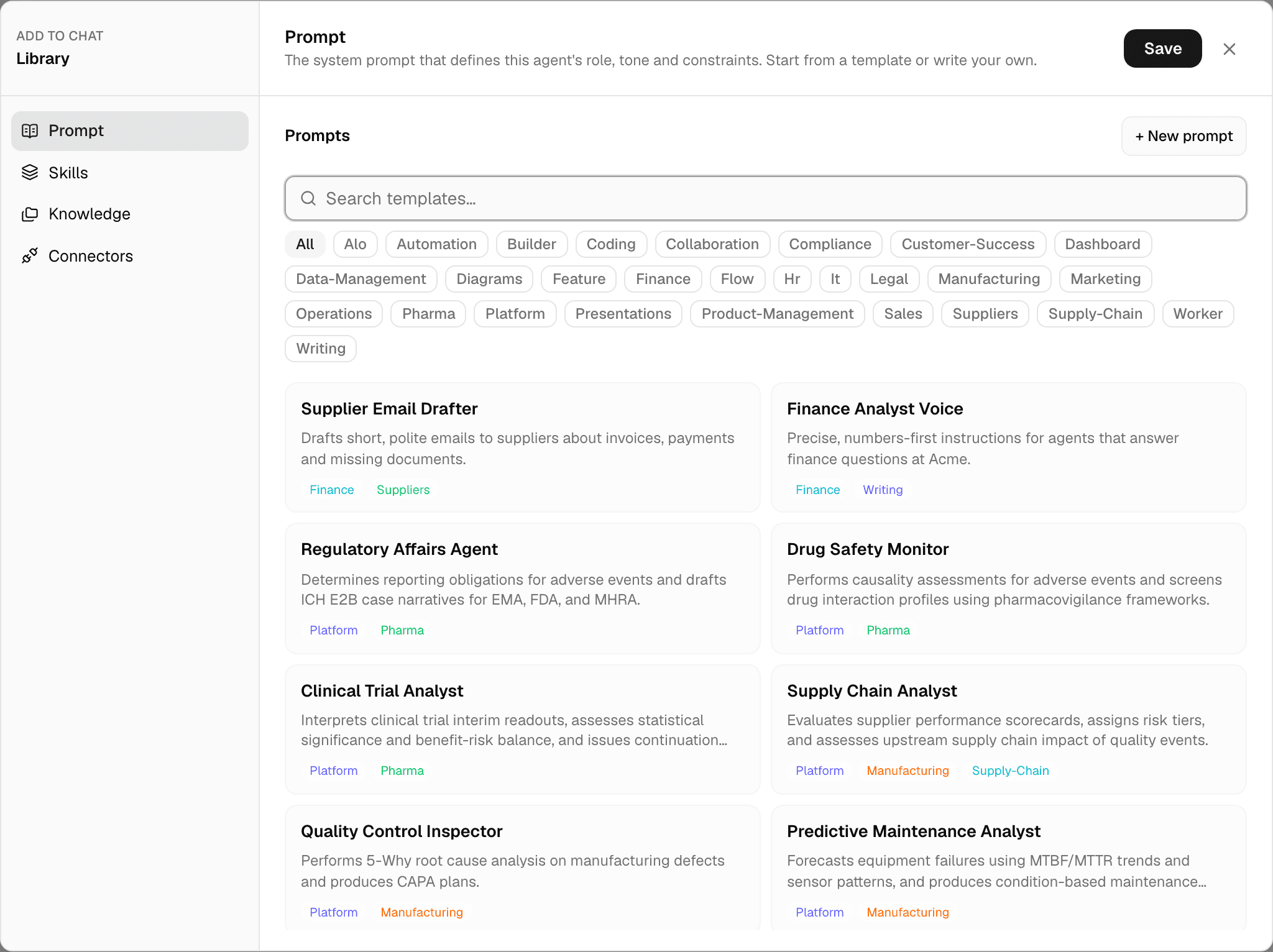
In the Library window, select Prompt, then the template.
-
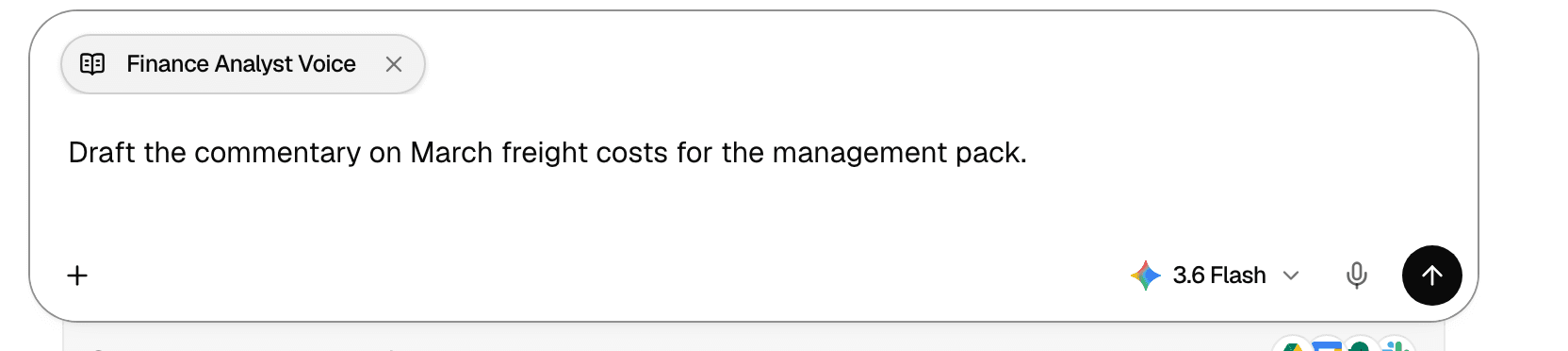
Select Save. The template shows as a chip above your message.
-
Send your message.
- The template's instructions are used instead of the agent's own instructions for the message.
- The chip clears when the message is sent. Add the template again for the next message, or select × on the chip to drop it before sending.
- Selecting the chip shows the template's text.
To manage prompt templates with an API key, see Create and configure an agent in the API documentation.
Sub-agents
Let an agent hand self-contained tasks to other agents, choose which ones it may call, and follow their work from the chat while they run.
Share and copy agents
Who sees an agent in a workspace, and how to copy one into another workspace, pull its source's updates, fork it, or move it as a ZIP.