

Use Alomana in Microsoft Teams
Ask your Alomana agents from a Teams chat or channel. Setup happens once: add the app, then connect your account.
Your Teams admin must have installed Alomana for your organization first. See Install Alomana in Microsoft Teams.
1. Add the app
-
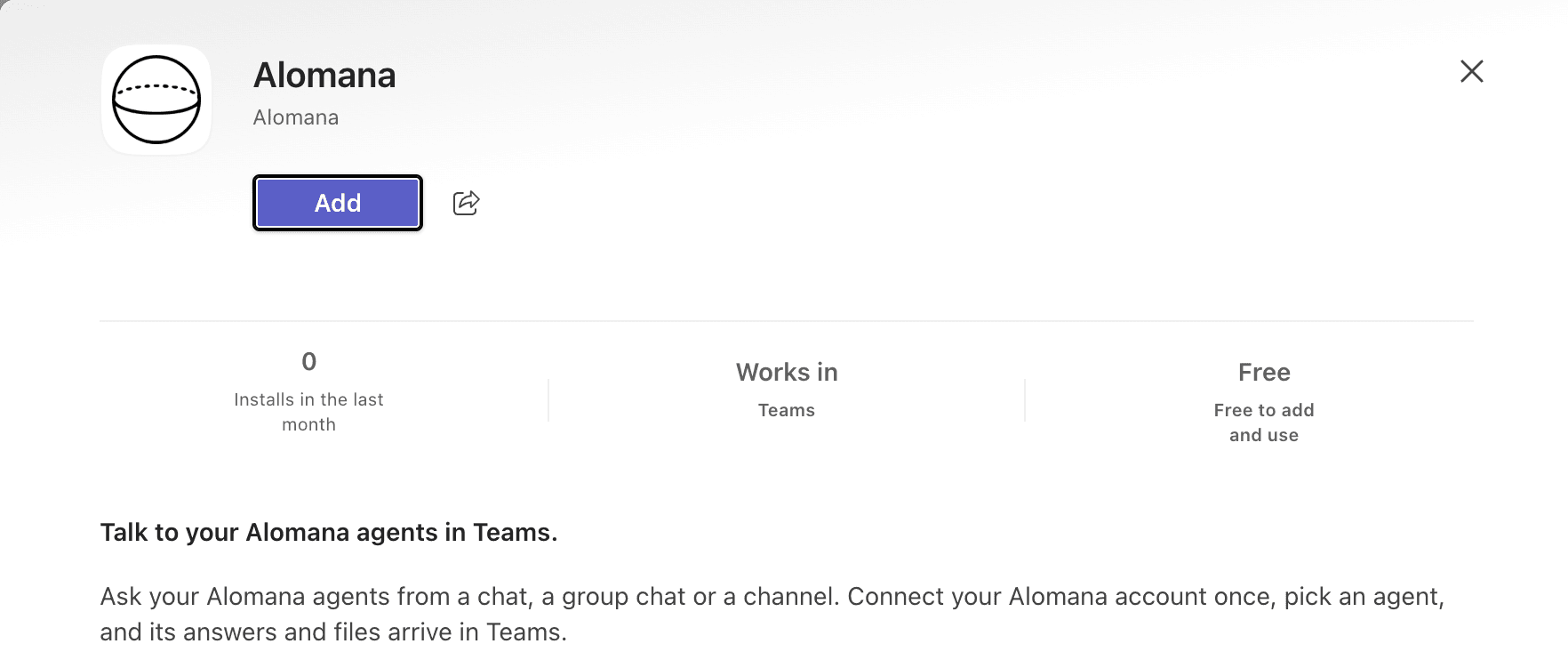
In Teams, select Apps in the left bar, then Built for your org.
-
Select Alomana, then Add.
-
Select Open. A chat with Alomana opens.
- If your admin installed the app for you, Alomana is already in the left bar.
- If you see Request approval instead of Add, the app is not available to you yet. Ask your Teams admin.
- Where your organization lets people upload apps, you can also add it yourself: in Alomana, go to Settings > Integrations and select Microsoft Teams to download
alomana-teams.zip. Then in Teams, go to Apps > Manage your apps > Upload an app > Upload a custom app.
2. Connect your Alomana account
-
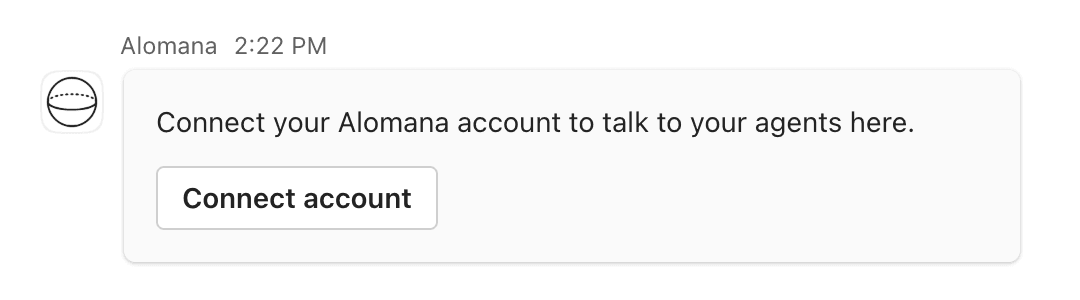
In the chat, Alomana asks you to connect. Select Connect account.
-
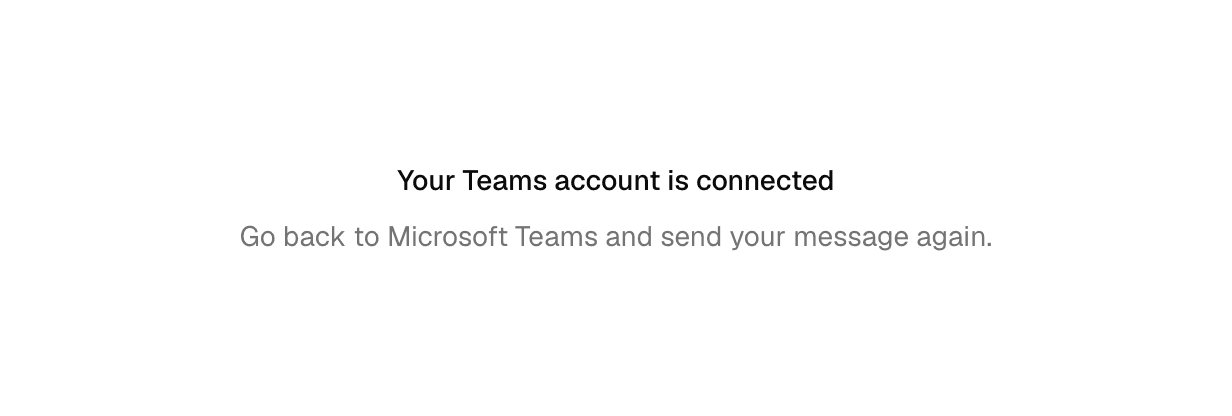
Alomana opens in your browser. Sign in if asked. The page says Your Teams account is connected.
-
Back in Teams, Alomana confirms Connected to Alomana as and your email.
-
The link works for 15 minutes. If the page says This link didn't work, send any message to Alomana in Teams to get a new one.
-
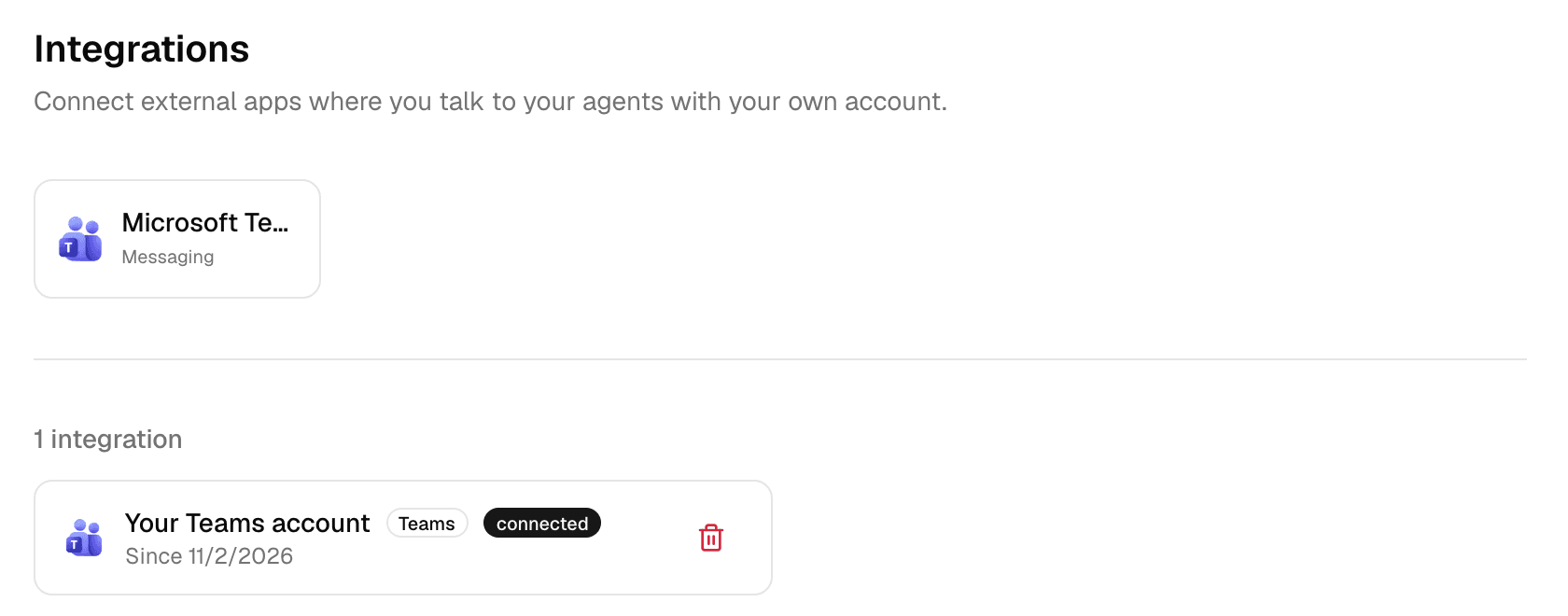
You connect once for each Teams account. To disconnect, go to Settings > Integrations in Alomana and select the bin next to Your Teams account.
3. Ask a question
Type your question and send it. Alomana shows Working on it..., then the answer.
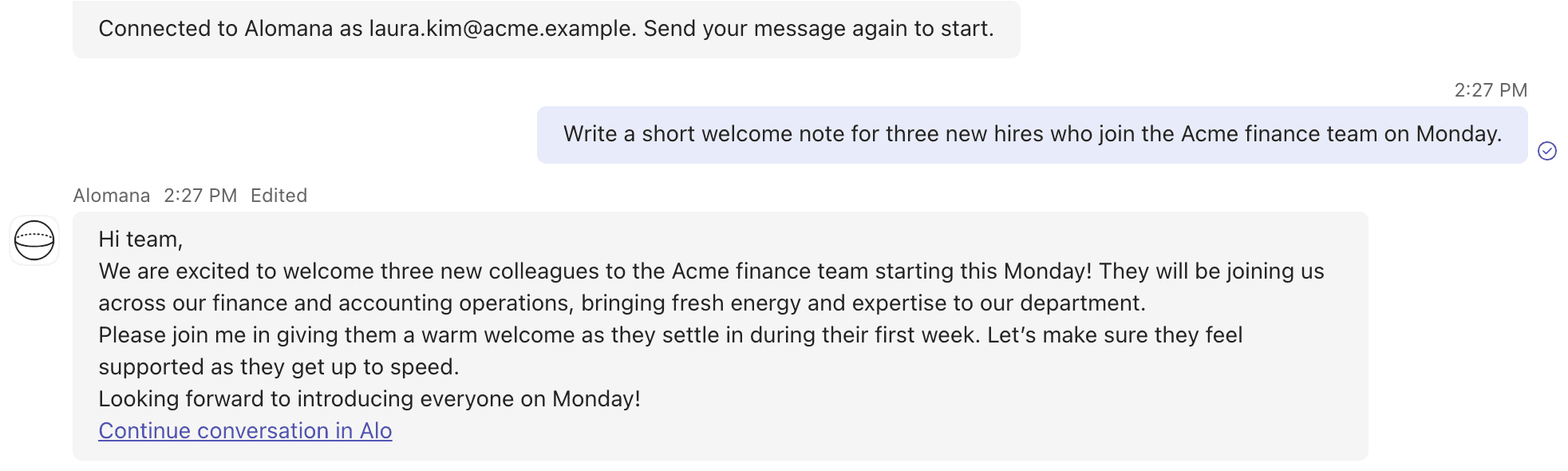
- Your first message goes to the agent you last picked in Teams. Until you pick one, your workspace's default agent answers, or Alo if that agent was never published.
- A conversation stays with the agent and model that answered its first message.
- Continue conversation in Alo opens your own copy of the conversation in the web app. Agents set not to keep Teams conversations have no link.
- When the agent asks you something, pick your answers on the card and select Send, or reply in your own words.
- Actions that need your approval are skipped in Teams, and the answer says what was skipped. Continue in Alomana to approve them.
A card asks first in two cases:
| Card | When | What to do |
|---|---|---|
| Which workspace should I use? | You belong to several workspaces and have not chosen one. | Choose the Workspace, then select Use workspace. |
| Pick an agent and model. | The workspace has no default agent you can use. | Choose the Agent and Model, then select Use agent. |
Cancel on either card drops the message that was waiting.
Pick another agent
-
Send /agent.
-
Choose the Agent. Model stays on Auto (agent default), the agent's own model, unless you choose another.
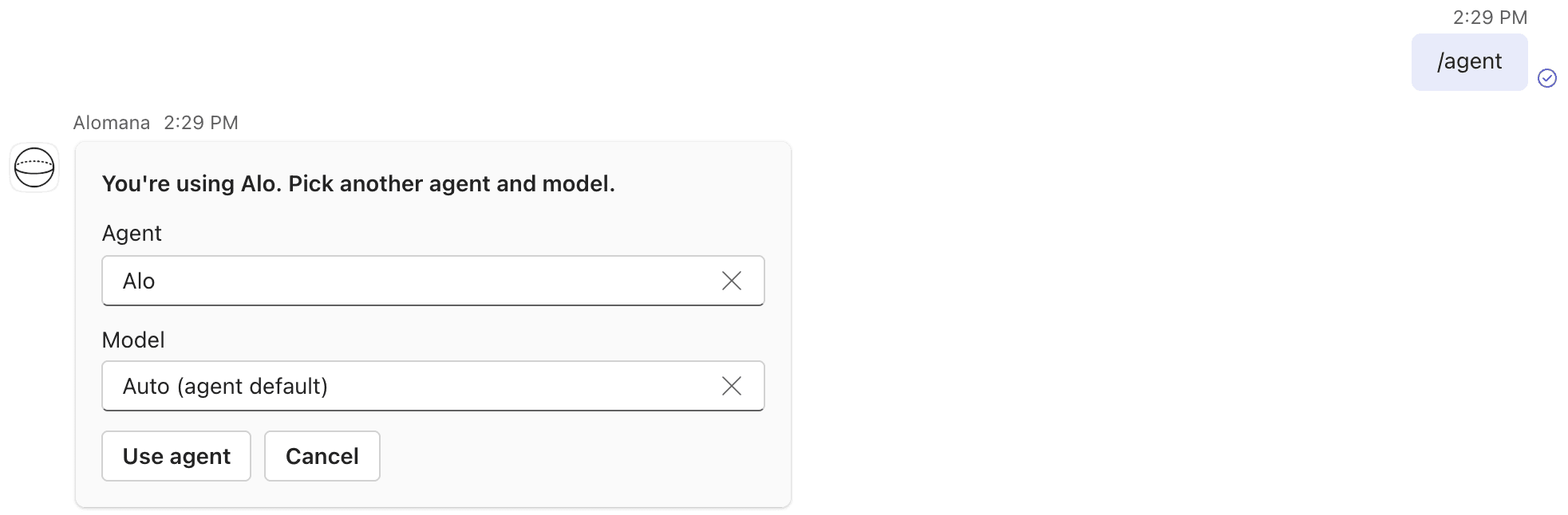
-
Select Use agent. Your next message starts a new conversation with that agent.
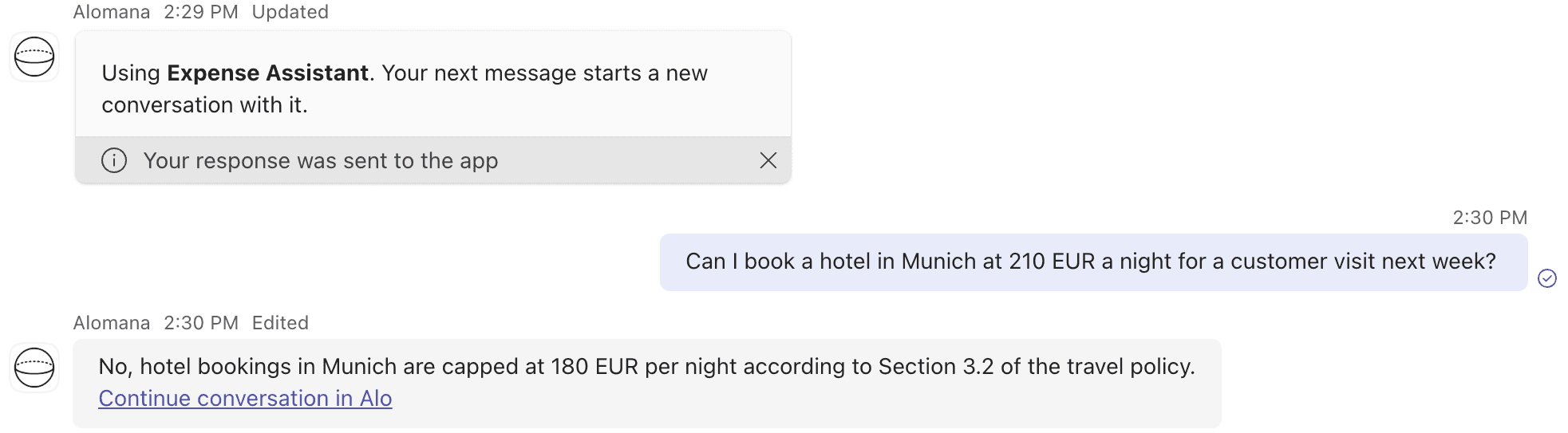
- Teams remembers the agent for your later conversations.
- Only published agents are listed. Up to 25 agents of your workspace are shown; with more, or with several workspaces, type to search.
Commands
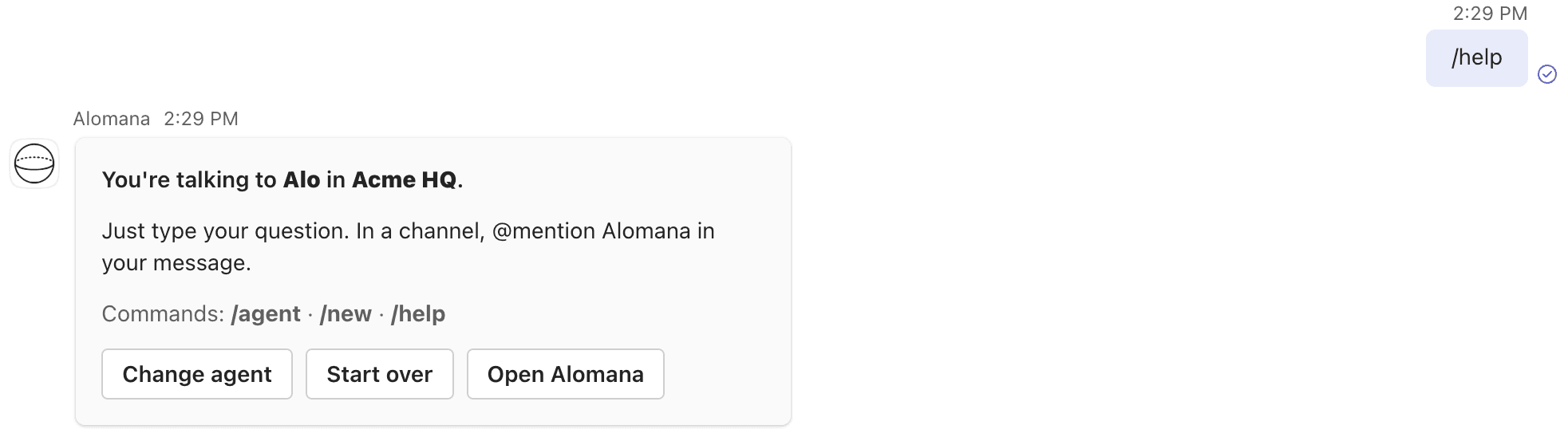
Send a command as the whole message. In a channel, mention @Alomana first.
| Command | What it does |
|---|---|
| /agent | Picks another agent and model. |
| /new | Starts a new conversation with the same agent. Alomana replies Okay. Your next message starts a new conversation. |
| /workspace | Switches workspace; its default agent answers your next message. Offered only when you belong to several workspaces. |
| /help | Says which agent answers, in which workspace, with Change agent, Start over and Open Alomana, plus Change workspace when you belong to several workspaces. |
In a group chat or channel
- Add Alomana where your team works: when you add the app, pick the channel or chat under Or choose a place to use the app.
- Mention @Alomana with your question.
| Where | One conversation is |
|---|---|
| A channel | Each thread. |
| A group chat | The whole chat, until someone sends /new. |
- Others in the chat can ask too, once they have connected their own account. Each of them must belong to the agent's Alomana workspace.
- Cards that pick an agent or workspace are visible only to you. Meanwhile everyone else sees Waiting for an agent to be picked....
Files
| Direction | What happens |
|---|---|
| Pictures the agent creates, under 4 MB | Shown in the answer. |
| Other files the agent creates, in a personal chat | Teams asks to save the file to your OneDrive. Select Allow. |
| Other files the agent creates, in a group chat or channel, or larger than 60 MB | Named under the answer. Open Continue conversation in Alo to download them. |
| Files and pictures you send in a personal chat | Passed to the agent, up to 100 MB each. |
| Files and pictures you send in a group chat or channel | Never reach the agent. If you refer to one, the agent asks you to send it in a personal chat with Alomana. |
Saving files to OneDrive needs a OneDrive licence on your Teams account.
Troubleshooting
| What you see | What to do |
|---|---|
| Request approval instead of Add | The app is not available to you yet. Ask your Teams admin. |
| This link didn't work | The link expired after 15 minutes. Send a new message to Alomana in Teams. |
| No Alomana workspace is connected to your account yet. | You do not belong to any workspace. Ask an admin to invite you. |
| Connect your Alomana account first. | Connect your account as described above. |
| You don't have access to that agent. | Pick another agent. |
| The agent connected to this conversation is no longer available to you. Send /new to pick another one. | Send /new and pick another agent. |
| This account has been disabled. | Your Alomana account is blocked. Contact your administrator. |
| I couldn't read and a file name | The file is not on a source the app can open. Attach it from OneDrive or SharePoint, or upload it in the web app. |
| You need OneDrive to share files | Your Teams account has no OneDrive licence. Open Continue conversation in Alo to download the file. |
Install Alomana in Microsoft Teams
For Teams admins. Upload the Alomana app in the Teams admin center, choose who can use it and review what it can access. About ten minutes.
Edit your profile
Change the name and picture people see, set a new password, pick a light or dark theme, have Alo make a background for the app and review your cookie choices.