

Integrations
Integrations
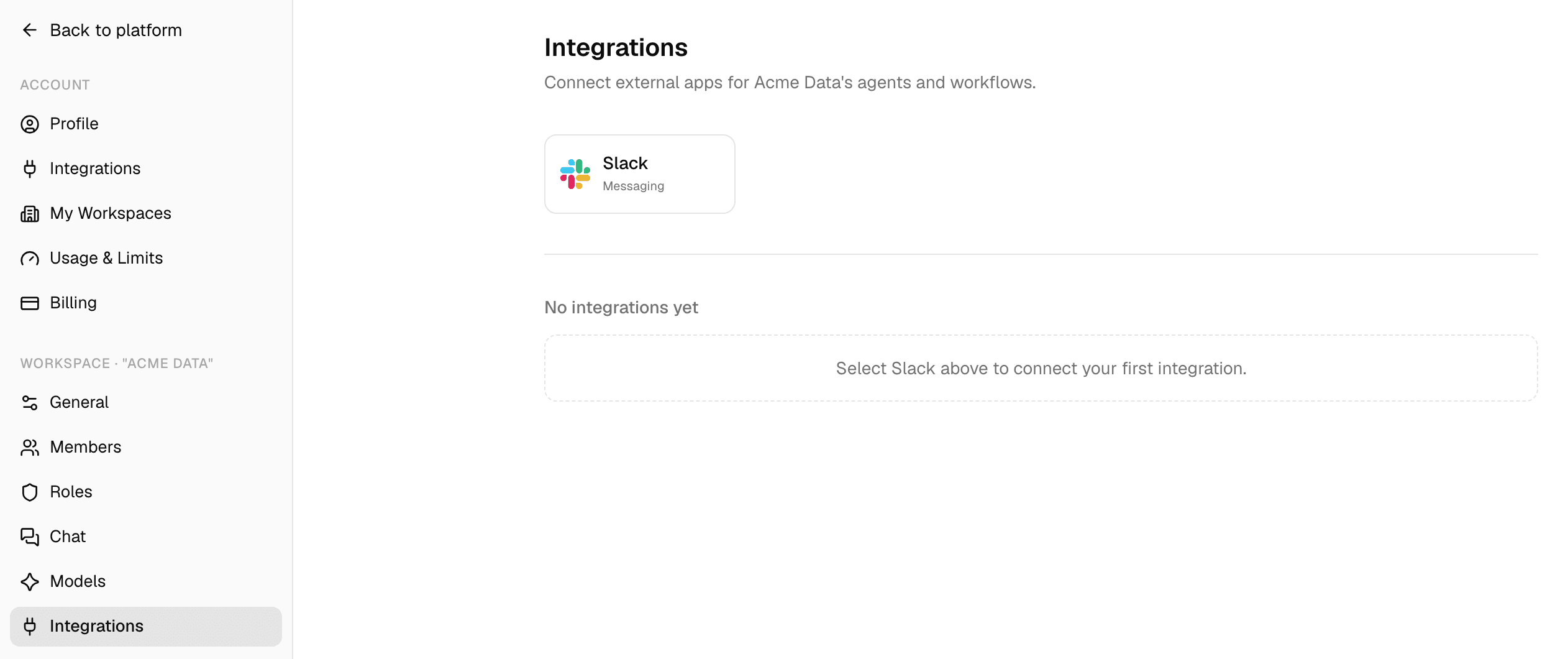
Integrations let people talk to their Alomana agents from Slack and Microsoft Teams. The agent runs in Alomana and answers in the Slack thread or Teams chat.
Integrations bring agents into other apps; connectors do the opposite and bring other apps' data to agents.
| Slack | Microsoft Teams | |
|---|---|---|
| Who sets it up | A workspace member installs Slack for a workspace, once. | A Teams admin installs the app for the organization, once. Then each person adds it and connects their own account. |
| Where in Alomana | Settings > workspace Integrations. | Settings > account Integrations. |
| How Alomana knows who you are | Your Slack profile email must be your Alomana email. | You link your Teams account once with Connect account. |
| Which agents you can use | Every published agent you can use in the workspaces connected to that Slack workspace. | Every published agent you can use in your workspaces. |
| How you start | Mention @Alomana in a channel, or send it a direct message, then pick an agent and a model. | Send the Alomana app a message; your last-picked or the workspace's default agent answers. /agent picks another. |
The same in both
- A conversation stays with the agent that answered its first message.
- An agent that was never published is not offered. See Test and publish an agent.
- The answer ends with Continue conversation in Alo, which opens your own copy of the conversation in the web app; agents set not to keep these conversations have no link. Slack and Teams conversations do not appear in your chat list otherwise.
- When the agent asks you a question, you answer with buttons, or by replying in your own words.
- Actions that need your approval in Alomana, such as changing data through a connection, are skipped and the answer says what was skipped. Continue in Alomana to approve them.
- Agents use your own connections and sign-ins, exactly as in the web app.
Pages in this section
- Use agents in Slack: install the Slack app for a workspace and ask agents in Slack.
- Install Alomana in Microsoft Teams: for Teams admins, upload the app and choose who can use it.
- Use Alomana in Microsoft Teams: add the app, connect your account and ask agents in Teams.
Connector directory
Every connector on the Connectors page, Alomana's own and the ready-made MCP servers, with how each one signs in and which have a semantic layer.
Use agents in Slack
Install the Alomana Slack app for a workspace, then mention it in a thread, pick an agent and model, answer its questions and get its files in Slack.