

Install Alomana in Microsoft Teams
A Teams admin installs the Alomana app once for the organization. Then each person adds it in Teams and connects their own Alomana account, as described in Use Alomana in Microsoft Teams.
| You need | Why |
|---|---|
| The Teams Administrator or Global Administrator role in Microsoft 365 | To upload the app and choose who can use it. |
| An Alomana account on your deployment | To download the app package. Any account works; it does not have to be an admin's. |
1. Download the app package
- In Alomana, select your name at the bottom of the sidebar, then Settings.
- Under your account, select Integrations.
- Select Microsoft Teams. Alomana downloads
alomana-teams.zip.
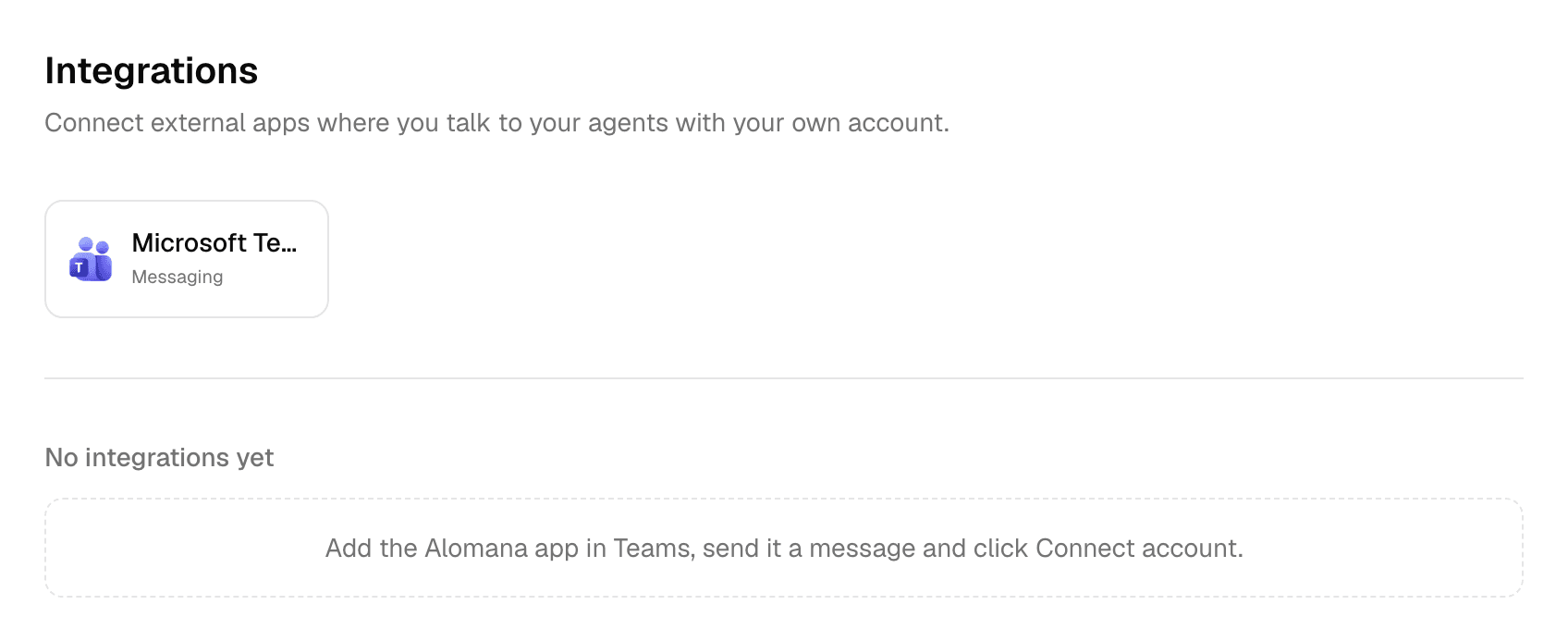
The package is made for your Alomana deployment. Upload it as it is; do not unzip or edit it.
If the page says No integrations are available on this deployment yet., Teams is not switched on for your deployment. Contact Alomana.
2. Upload it in the Teams admin center
-
Open the Teams admin center and go to Teams apps > Manage apps.
-
Select Actions > Upload new app.

-
Select Upload and choose
alomana-teams.zip.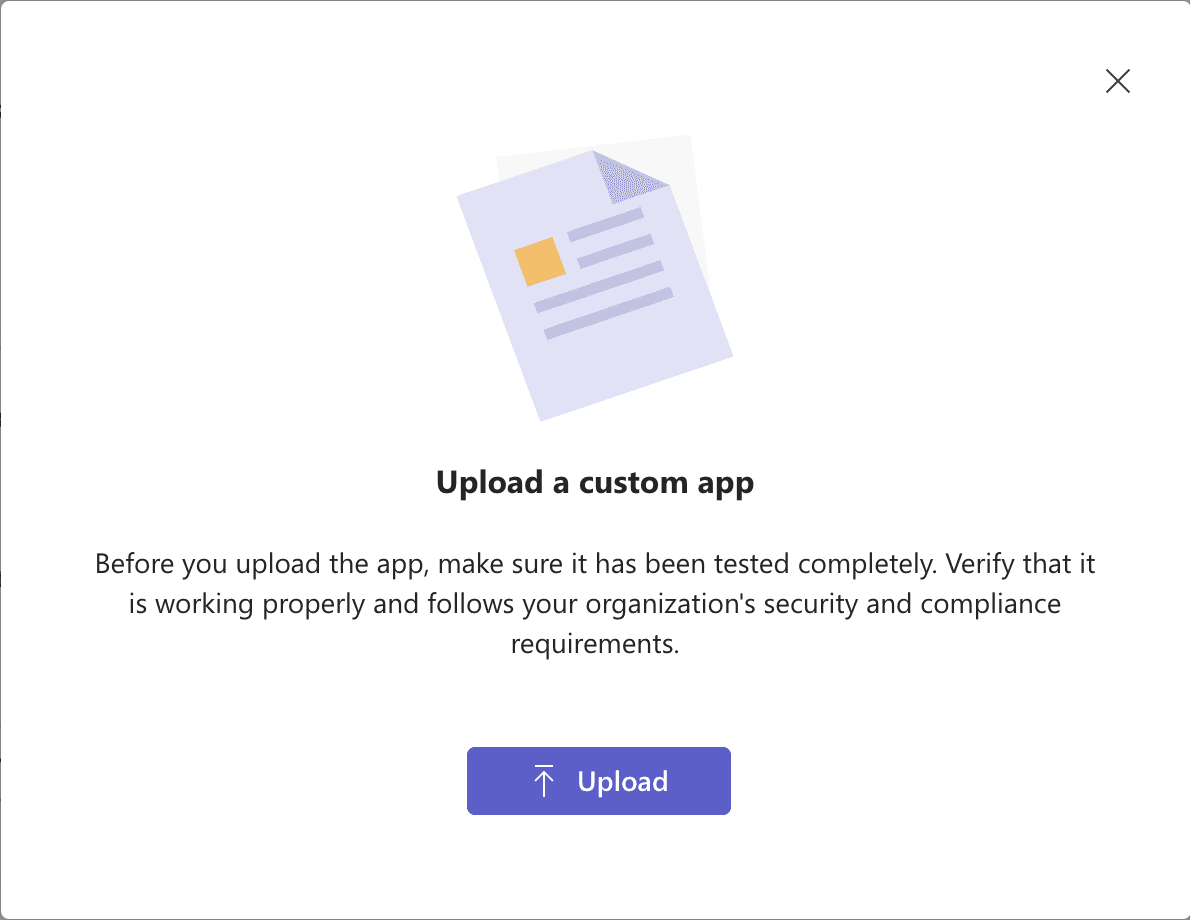
Teams opens the app's page: Alomana, version 1.0.0, scope Personal, Team, Group chat.
3. Choose who can use it
- On the app's page, open Users and groups and choose Availability.
- Select Edit availability.
- Under Available to, choose Everyone, or Specific users or groups and add them.
- Select Apply.
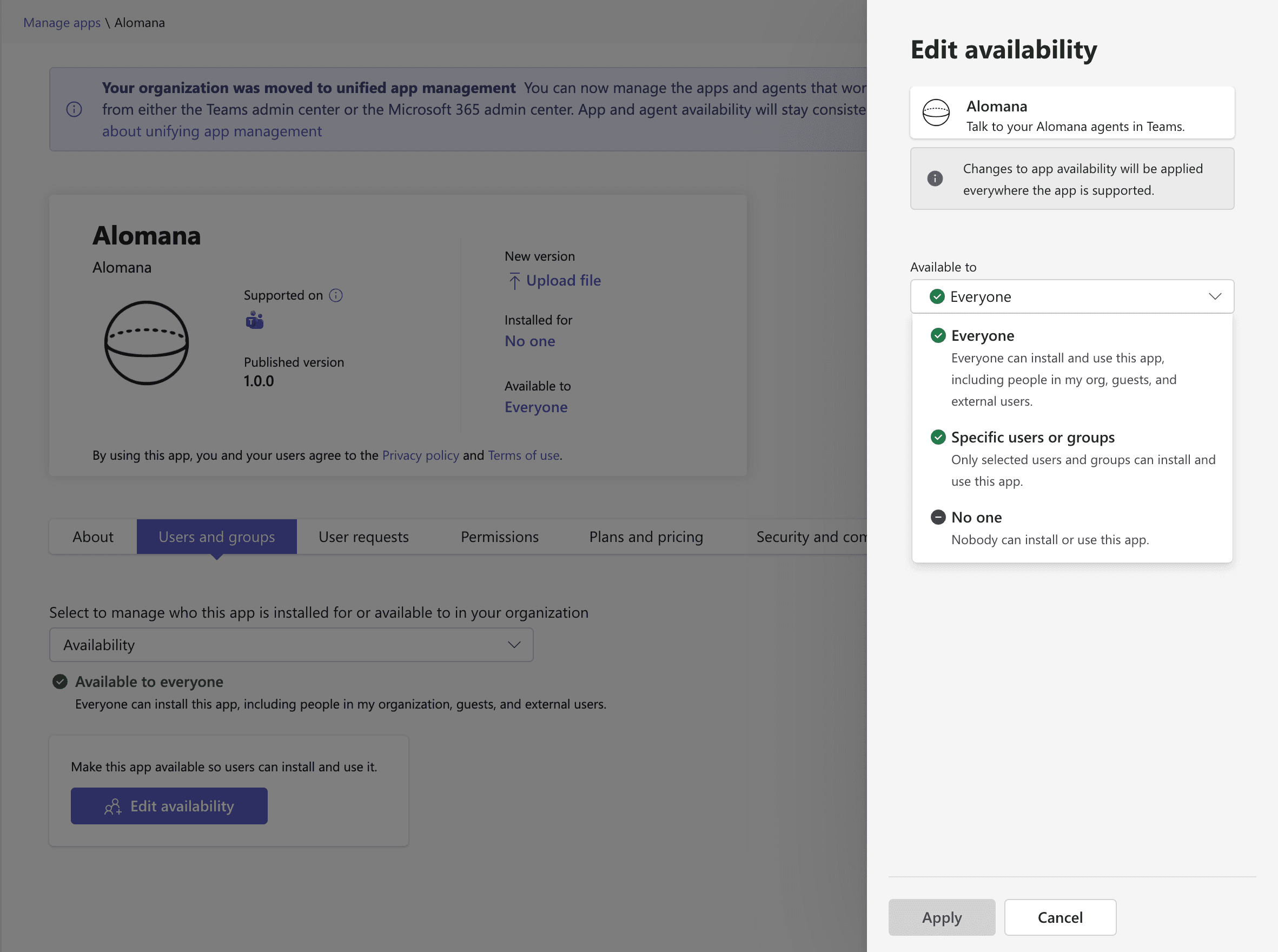
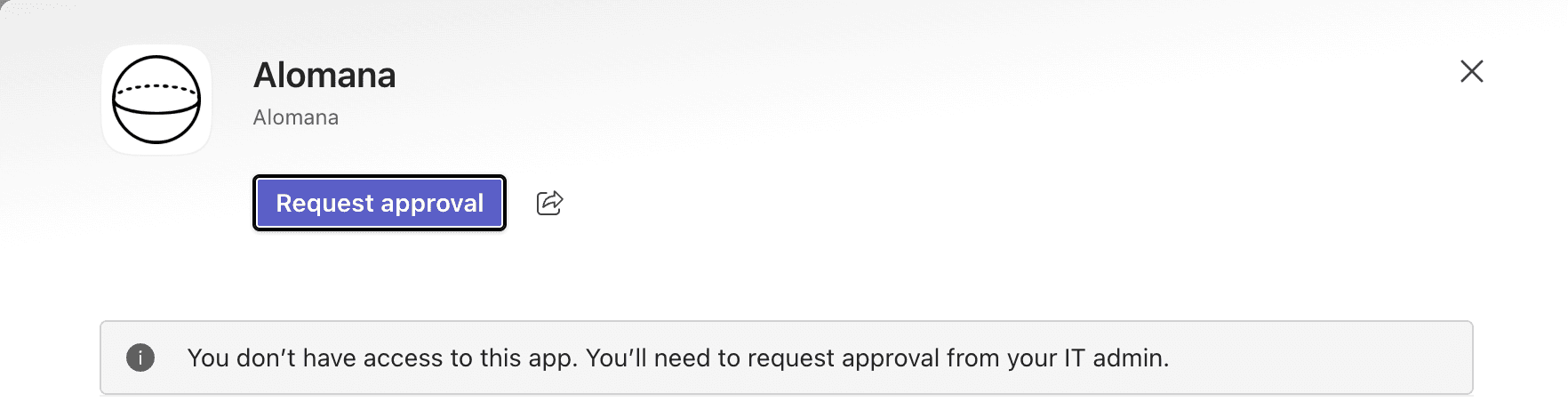
According to Microsoft, a change can take up to 24 hours to reach everyone. Until then, people see Request approval instead of Add.
4. Add it for people (optional)
People can add the app themselves from Apps > Built for your org. To do it for them:
| To | Do this |
|---|---|
| Install it for people | On the app's page, select Users and groups > Installs > Install app and choose the users or groups. |
| Pin it to the Teams app bar | Go to Teams apps > Setup policies > Global (Org-wide default) > Pinned apps > Add apps, add Alomana, then select Save. Microsoft says pinning can take a few hours. |
5. Tell people
Send them the link to Use Alomana in Microsoft Teams, or this message:
Alomana is now in Teams. Go to Apps > Built for your org > Alomana and select Add. In the chat that opens, select Connect account, sign in to Alomana, then ask your question.
What the app can access
| Area | What the app gets |
|---|---|
| Teams permissions | Teams lists them on the app: information related to you, information in your chats, channels and meetings, and sending and receiving messages and notifications. |
| Microsoft Graph | None. The package asks for no Graph or resource-specific permissions. |
| Messages it receives | Every message in a personal chat with Alomana. In a channel or group chat, only messages that mention @Alomana. |
| Who it answers | Only people who connected their own Alomana account. Alomana matches them by their Teams account, never by email. |
| What agents can reach | The person's own Alomana workspaces, agents and connections, exactly as in the web app. |
| Files | Files people send in a personal chat reach the agent. Files the agent makes are saved to the person's OneDrive only after they select Allow. |
Update or remove the app
- New version: download the package again (step 1). On the app's page, under New version, select Upload file.
- Stop everyone using it: on the app's page, select Edit availability, choose No one, then select Apply.
Troubleshooting
| What you see | What to do |
|---|---|
| Upload new app is missing | You need the Teams Administrator or Global Administrator role. |
| Try refreshing this page under Users and groups, right after the upload | Reload the page after a minute. |
| People see Request approval and You don't have access to this app. | Check that they are under Available to. A change can take up to 24 hours. Also check Actions > Org-wide app settings > Custom apps: Let users install and use available apps by default must be On. |
| This app cannot be found. when someone opens Alomana in Teams | The upload has not reached Teams yet. Reload Teams, or try again later. |
Use agents in Slack
Install the Alomana Slack app for a workspace, then mention it in a thread, pick an agent and model, answer its questions and get its files in Slack.
Use Alomana in Microsoft Teams
Add the Alomana app in Teams, connect your account once, then ask your agents in a chat or channel, switch agents with /agent and get files.