

Use agents in Slack
Install the Alomana app in Slack once for a workspace; everyone in that workspace can then ask their agents from any Slack channel or direct message.
Install Slack for a workspace
With the default workspace roles, every member can install it. You also need permission to add apps to your Slack workspace.
-
Select your name at the bottom of the sidebar, then Settings.
-
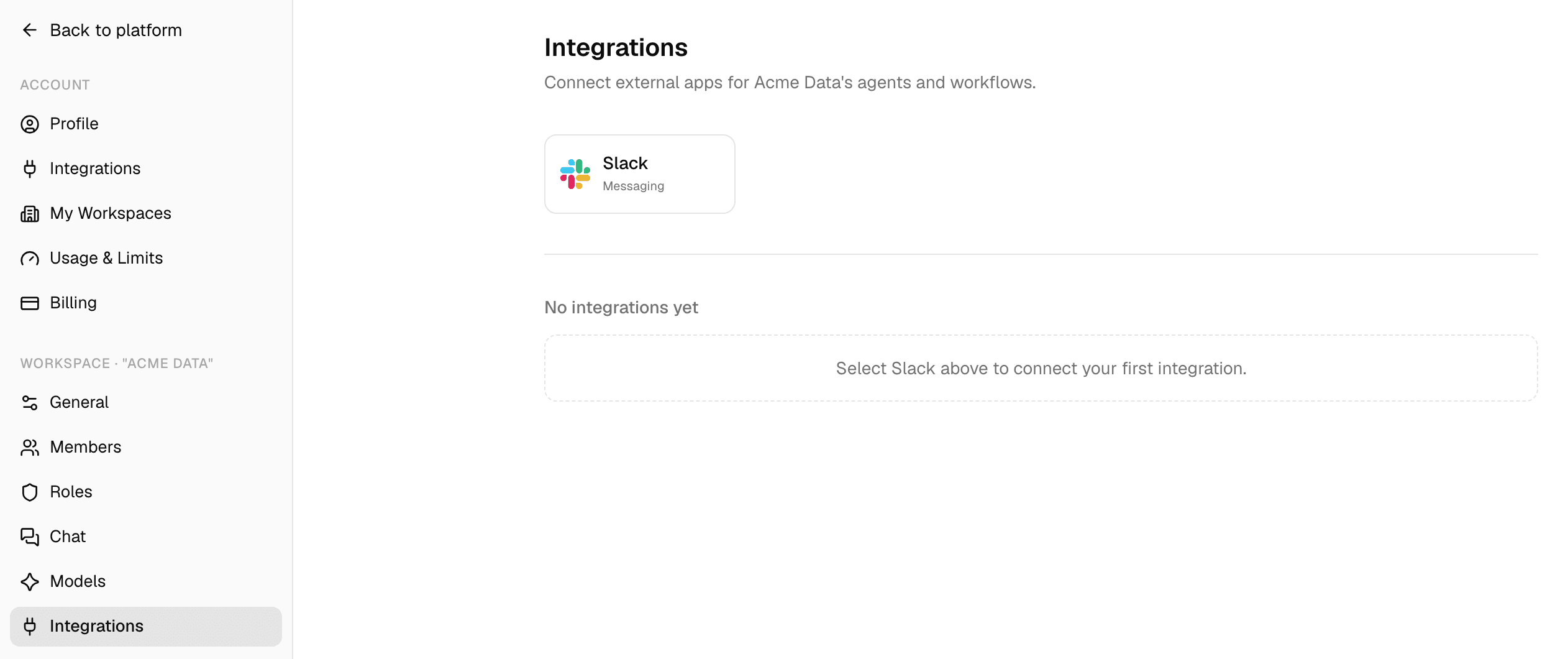
Under the workspace's name, select Integrations.
-
Select Slack. A Slack window opens.
-
Choose your Slack workspace and allow access. The window closes and the page shows Slack connected.
The installation then appears under the Slack tile with its Slack workspace name, a Slack badge, its status and Team with the Slack workspace ID. No agent needs to be set up: every member can reach the published agents they can use in this workspace.
- Several Alomana workspaces can connect the same Slack workspace. People who belong to several of them choose from the agents of all of them.
- Platform admins can make a Slack installation available to every workspace on the deployment, from the admin Integrations page.
- To remove the installation from this workspace, select the bin next to it.
- An agent's Integrations settings show whether a Slack workspace is connected for the workspace the agent is in. They say so even for an agent that was never published, which the picker does not offer yet.
Before you start in Slack
- Your Slack profile email must be the email of your Alomana account. If it is not, the bot does not answer you.
- You must be a member of an Alomana workspace that the Slack workspace is connected to.
Ask an agent
- In a channel, mention @Alomana with your question, or send Alomana a direct message.
- The bot replies Waiting for selection... in the thread, and shows you a picker that only you can see: Pick an agent and model for this thread, then send.
- Choose the agent in Choose an agent.... It starts on the default agent, Alo. Type to search your agents. Only published agents are listed: an agent that was never published does not appear until someone publishes it. See Test and publish an agent.
- Choose the model. Auto (agent default) uses the agent's own model.
- Select Send. The reply changes to Working on it... and then to the answer.
The whole thread now stays with that agent and model, like a chat in the web app.
- To continue, mention @Alomana again in the same thread; in a direct message, just reply. Teammates can join the thread and mention it too.
- The agent sees the messages your teammates posted in the thread since its last answer.
- A new mention outside the thread starts a new thread and shows the picker again.
- @Alomana help, or the Alomana slash command with help, explains this and lists the agents you can use.
What you get in the thread
| In the thread | What it is |
|---|---|
| The answer | Edited into the Working on it... reply. |
| Continue conversation in Alo | Under the answer. Opens your own private copy of the thread in the web app. Opening it again later adds the newer Slack messages. Writing in the web app does not post to Slack. Some agents are set not to keep Slack conversations; their answers have no link. |
| Files the agent created | One reply per file, after the answer. If a file cannot be attached, a short reply says so. |
| A question from the agent | One set of choices per question and a Send button. Pick your answers and select Send, or reply in the thread in your own words. |
| A skipped action | Actions that need your approval, such as changing data through a connection, are not done in Slack; the answer says what was skipped. Open Continue conversation in Alo to approve them there. |
Files you post in the thread are passed to the agent, like attachments in a chat.
Troubleshooting
| Message in Slack | What to do |
|---|---|
| No reply at all | Check that your Slack profile email matches your Alomana email, and that the workspace is still connected. |
| No Alo workspace is connected for your account in this Slack workspace. | You are not a member of a connected workspace. Ask a workspace admin to add you, or to install Slack for your workspace. |
| No Alo agents are enabled for your account in this Slack workspace. | None of your workspaces connected to this Slack workspace has a published agent you can use. |
| Choose an agent from the dropdown first. | Pick an agent before you select Send. |
| You don't have access to that agent. | You can no longer use the agent you picked. Start a new thread and pick another one. |
| The agent connected to this thread is no longer available. Start a new thread to pick another one. | The agent was deleted or switched off. Start a new thread. |
| This thread is already connected to an agent — just send your message in the thread. | The picker was used already. Mention the bot in the thread instead. |
| I hit an error while running that agent. Please try again. | Send your message again. If it keeps failing, continue in the web app. |
To install Slack with an API key or a script, see Add agents to Slack in the API documentation.
Integrations
Integrations bring Alomana agents into Slack and Microsoft Teams, so people can ask them questions where they already work.
Install Alomana in Microsoft Teams
For Teams admins. Upload the Alomana app in the Teams admin center, choose who can use it and review what it can access. About ten minutes.