

Share an app
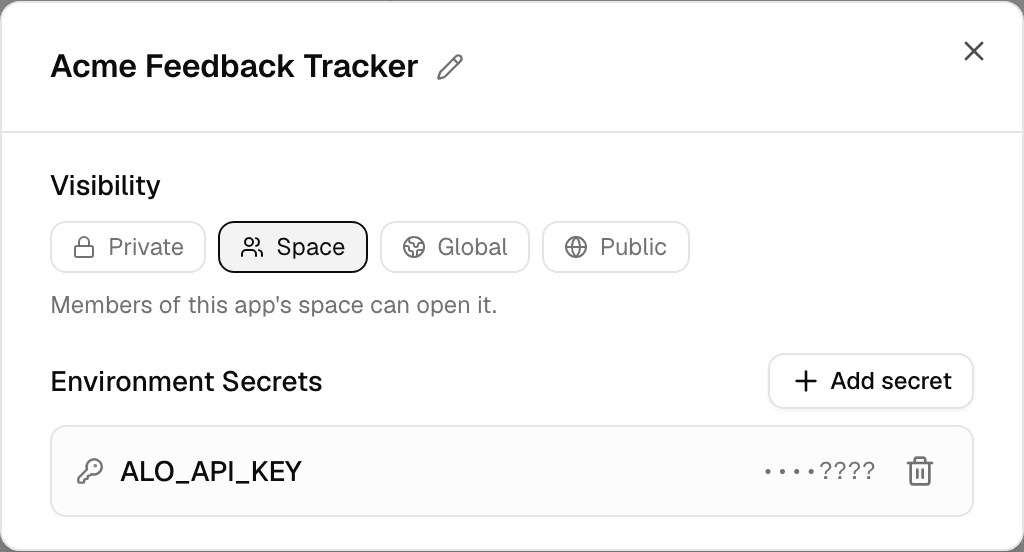
A new app is Private: only you can open it. Change its visibility to let others open it.
Who can open an app
| Visibility | Who can open the app | Sign-in needed |
|---|---|---|
| Private | Only you, plus people you invited with Collaborate while they are members of the workspace. | Yes |
| Space | Every member of the workspace the app was built in. | Yes |
| Global | Everyone with an account on your Alomana deployment. | Yes |
| Public | Anyone with the link, without an account. | No |
- Space is offered only in a workspace with other members. To offer it in a workspace of your own, invite someone first; see Members and invites.
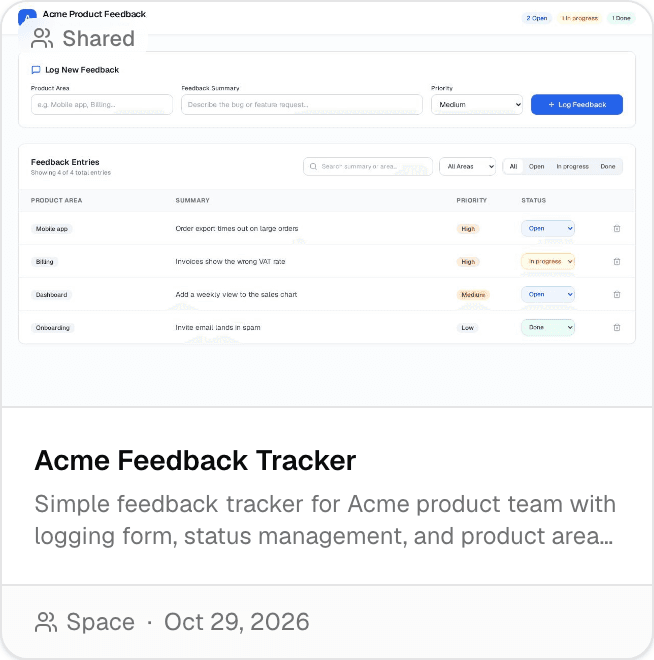
- A Space app appears on Apps for every member of its workspace, marked Shared.
- A Global or Public app appears on Apps in every workspace of everyone who can open it.
Change who can open an app
Only the app's owner can change its visibility.
-
Select Apps in the sidebar and point at the app's card.
-
Select App config & secrets. The same button is in the app panel next to its chat.
-
Under Visibility, select Private, Space, Global or Public. The change is saved at once.
Members of the workspace now find the app on their Apps page.
Share the app's link
- Select Copy app link in the app panel, or copy the link from App Builder's reply.
- Send it to the people who should open it.
- The link stays the same when the app changes.
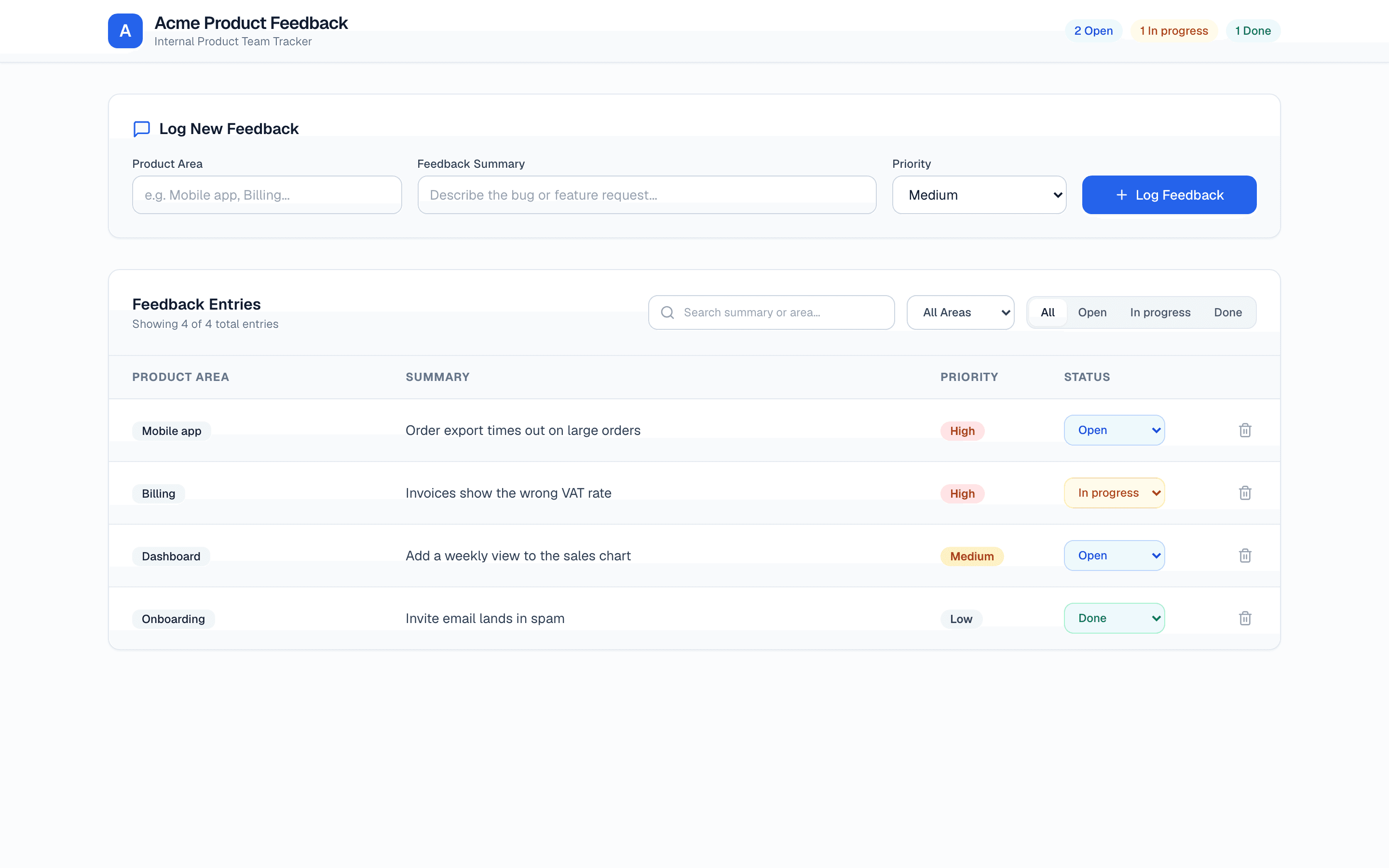
- Someone who is not signed in signs in first, unless the app is Public. The app then opens full screen.
- Someone who is not allowed to open the app sees "You do not have access to this app."
Build an app with others
Select Collaborate on the app's card to invite people to the app's chat. People you invite can open the app, even a Private one, as long as they are members of the workspace, and change it by chatting in that chat. See Collaborate live for how chat invitations work.
Apps that show connector data
An app can show data from your workspace's connectors, such as a database or a CRM. It always reads that data as the person looking at it:
- Each person sees only the data their own account can reach, never the data of the person who built the app.
- If a connection signs in each person separately, every viewer connects their own account once.
- The app reaches only the connections it was built with.
When the app cannot load the data for you, it shows one of these messages:
| Message | What to do |
|---|---|
| Sign in to view this data | Open the app from Alomana while signed in. A Public app shows this to visitors without an account. |
| Connect your account | Connect your account in the box shown, then select Refresh. |
| Reconnect your account | Your connection expired. Reconnect it in the box shown. |
| Your role can't reach this data | Reconnect with a different role, or ask the person who built the app. |
| You don't have access to this data | Your account cannot reach this data source. Ask the person who built the app. |
| This app's data source isn't available | The data source rejected the shared connection's credentials. Ask the person who built the app. |
| Your plan can't load this data right now | Your subscription is inactive or your credits are used up. See Usage and limits. |
For how connections sign people in, see Connectors.
Troubleshooting
| Message | What to do |
|---|---|
| You do not have access to this app. | Ask the owner to change its visibility or to invite you with Collaborate. |
| This app couldn't be found. | The link is wrong, or the app was deleted. |
| This app couldn't be opened — you may not have access. | Sign in again and reopen the link. If it stays, ask the owner. |
| This app isn't running | Ask the owner to open it from Alomana, which restarts it. |
| The platform is taking too long to respond | Reload the page. |
For who can open an app through the API, see Hosted agent apps in the API documentation.
Build an app
Describe an app to App Builder in a chat, try it in the panel beside the chat, and change it later by asking for changes in the same chat.
Copy an app to another workspace
Copy an app into another workspace you belong to, see what the copy takes along, and update the copy when the original changes.