

AdminDeployment
View the deployment's users
The Users page lists the accounts on your deployment that you oversee, with their status and creation date.
You need to be a client admin: your Alomana administrator adds you to the client-admin group of your deployment. A client admin's view is read-only.
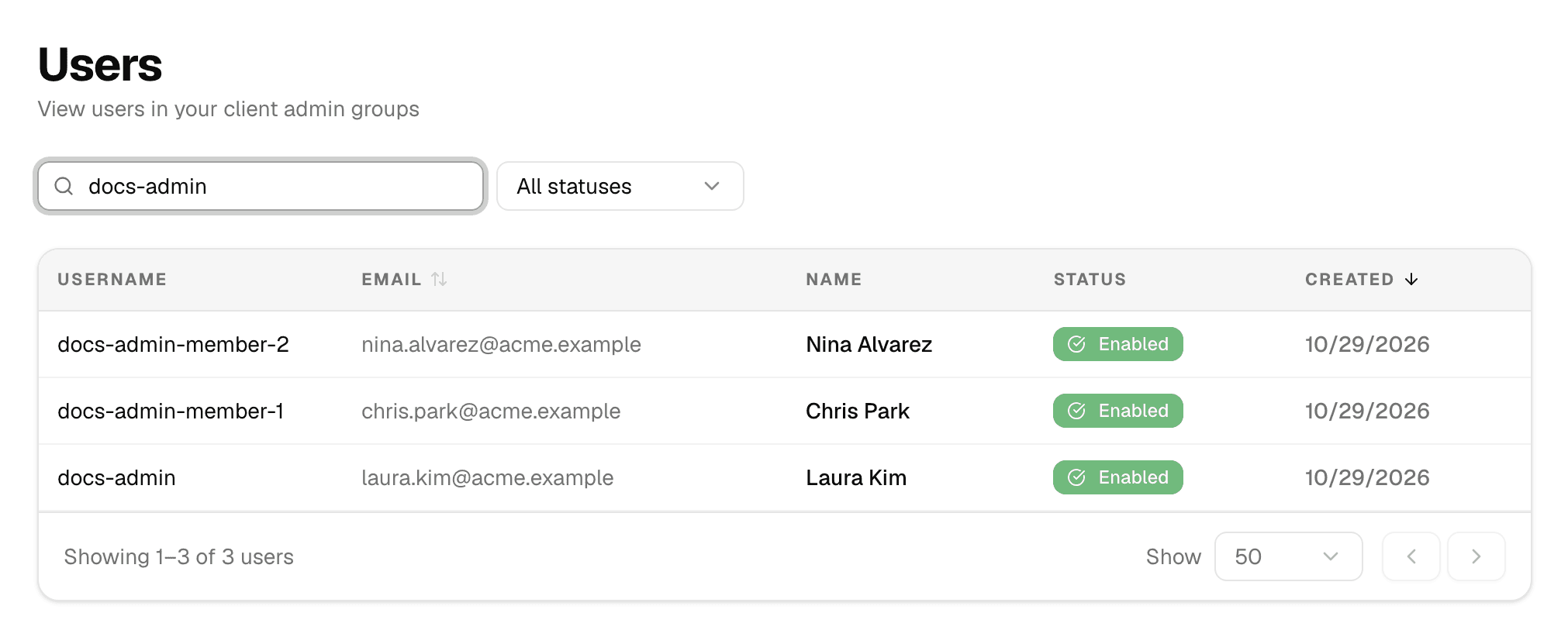
Open the Users page
-
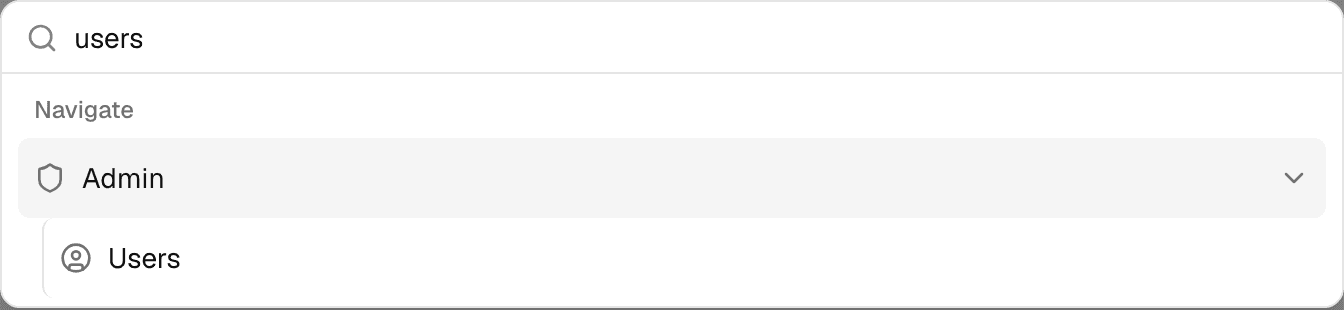
Select the search icon at the top of the sidebar, or press Ctrl+K (⌘K on a Mac).
-
Type Users and select Users under Admin.
The page's sidebar, Platform Admin, also links Usage. See Read the deployment's usage.
Who is listed
- Accounts that share at least one of your groups on the deployment, except your own. Your Alomana administrator manages the groups.
- Only accounts that have signed in at least once. Invitations nobody has accepted are on each workspace's Members page.
Find an account
| Control | What it does |
|---|---|
| Search box | Finds accounts whose email, username, first name or last name contains what you type, in any case. Typing a mail domain lists everyone on it. |
| All statuses, Enabled, Disabled | Shows all accounts, or only enabled or blocked ones. |
| Email, Created column headers | Sort the list. Newest accounts come first by default. |
| Show | 50, 100, 250, 500 or All accounts per page. Showing x–y of z users tells you how many match. |
Blocked accounts
Disabled in Status means the account is blocked. Only a platform admin can block or unblock an account; ask your Alomana administrator.
- A blocked person is signed out on their next action and cannot sign in again.
- Their API keys stop working.
- Their data is kept, and unblocking restores access.