

Build an environment
An environment is a test you keep: the checks every answer must pass and the cases the agent plays. Every new version of an agent is measured on the same test.
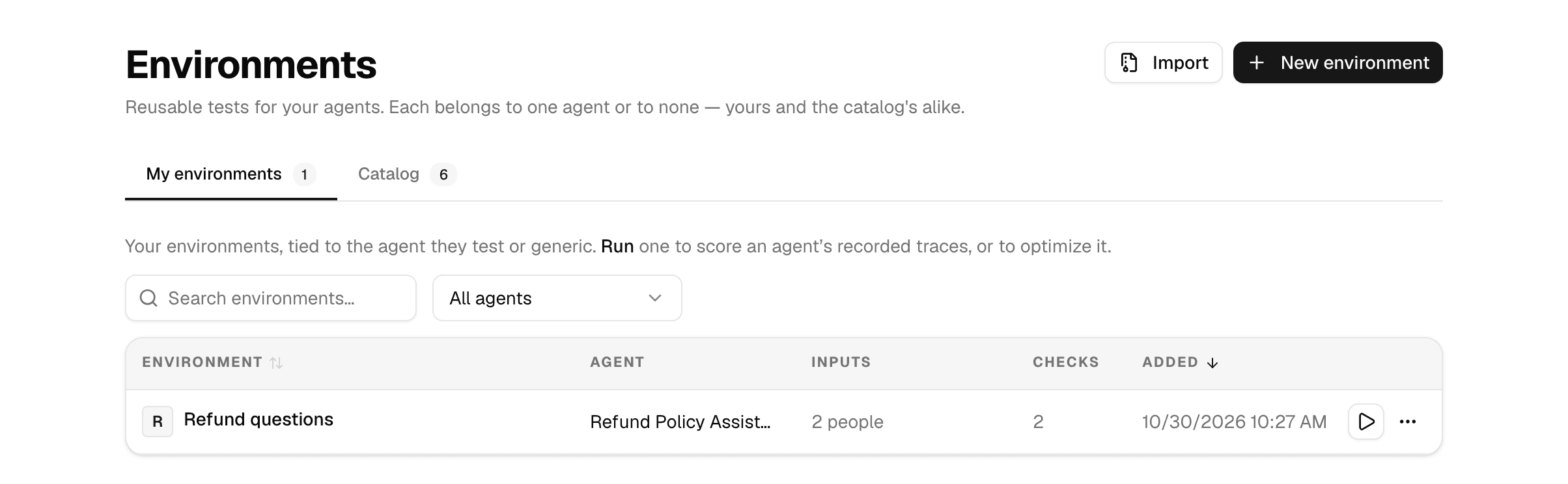
Create an environment
-
Open Lab > Environments and select New environment.
-
Under What is it for, pick My environment, or A catalog entry to publish it for others, and Who is it for: One of your agents, or Any agent. This cannot be changed later.
-
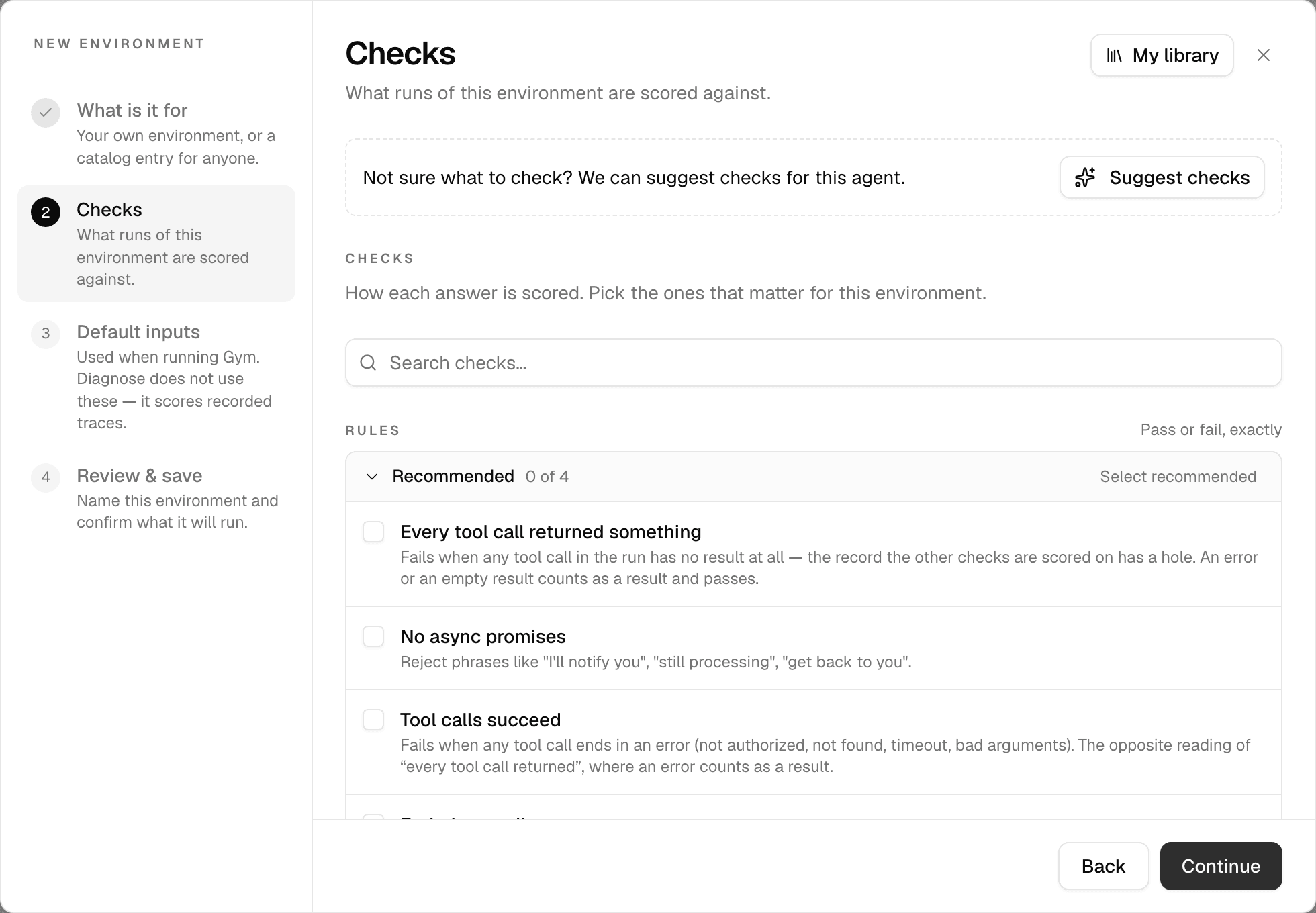
Under Checks, pick what every answer must satisfy, or select Suggest checks. Rules pass or fail exactly; Judged by AI covers what rules cannot catch.
-
Under Default inputs, choose Simulated people or Fixed inputs, then add the cases. Select Attach file on a simulated person, or the attach icon on a fixed input, to give a case the documents it brings.
-
Under Review & save, enter a Name and select Create environment.
| Default inputs | What happens in a run |
|---|---|
| Simulated people | Realistic people chat with the agent the way your users would, each with a goal of their own. Needs an agent picked in step 2. |
| Fixed inputs | The same messages go to the agent every round, and each answer is checked. |
Changing an environment's checks or cases makes later runs not strictly comparable with earlier ones.
Run an environment
Select Run (▷) on the environment's row. Evaluate an agent opens with the environment picked; see Test an agent.
Run is unavailable when the environment's agent was deleted. Duplicate the environment for another agent instead.
Manage environments
Open ⋮ on a row:
| Action | What it does |
|---|---|
| Edit | Opens the environment in the same dialog. Selecting the row does the same. |
| Duplicate | Creates a separate copy, for the agent you pick. A copy for a different agent keeps the checks and fixed inputs, not the simulated people. |
| Publish to catalog | Adds a copy to the Catalog tab, so others can start from it. Yours stays as it is. |
| Export | Downloads it as a file, with or without its cases. Documents are never exported. Import on the Environments page loads one, from this or another Alomana deployment. |
| Delete | Removes it from your pickers. Past runs keep their results. This cannot be undone. |
Use the catalog
The Catalog tab holds ready-made environments: some published by your workspace, some provided by Alomana.
- Select an environment's card to see its checks and inputs.
- Select Add, pick the agent, and give it a name. Your own editable copy goes to My environments; for an agent other than the one it was made for, it keeps the checks and fixed inputs, not the simulated people.
| Catalog | Who can publish | Who can use it |
|---|---|---|
| Workspace | Anyone who can create environments, in a workspace with more than one member. | Everyone in the workspace. |
| Platform | Platform admins only. | Everyone on the deployment, in every workspace. |
Only the person who published an entry can edit or Unpublish it. Copies people already made stay theirs.